How to register a TTN account and connect gateway & sensors?
- 1. Register a TTN account
- 2. Access and Configure gateway(Use Dragino LPS8N as a reference device)
- 3. Register sensor on TTN ( Use Dragino LT-22222-L IO Controller as a reference device)
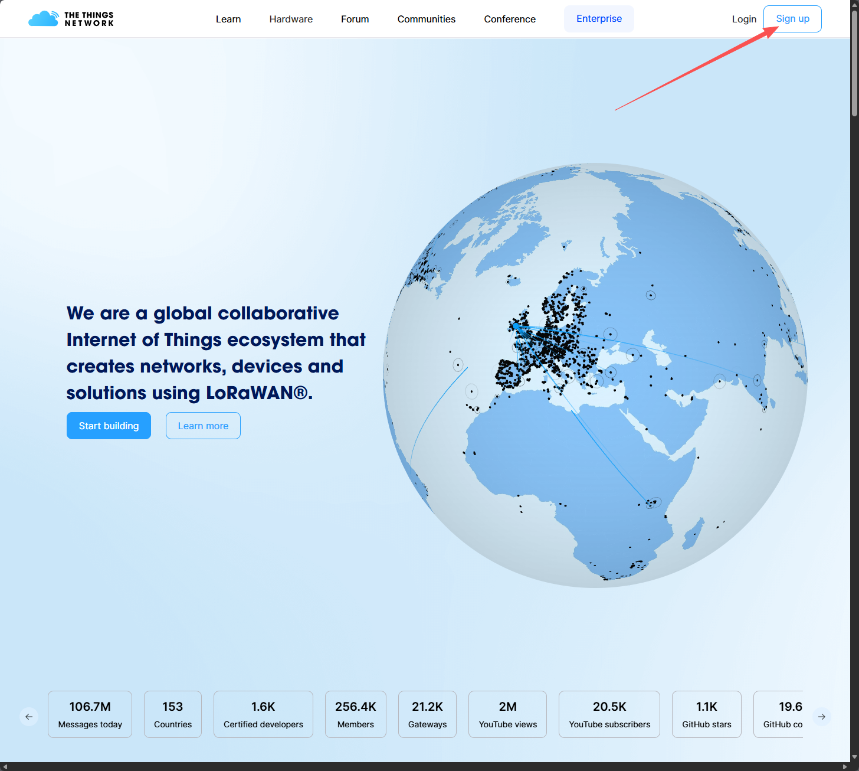
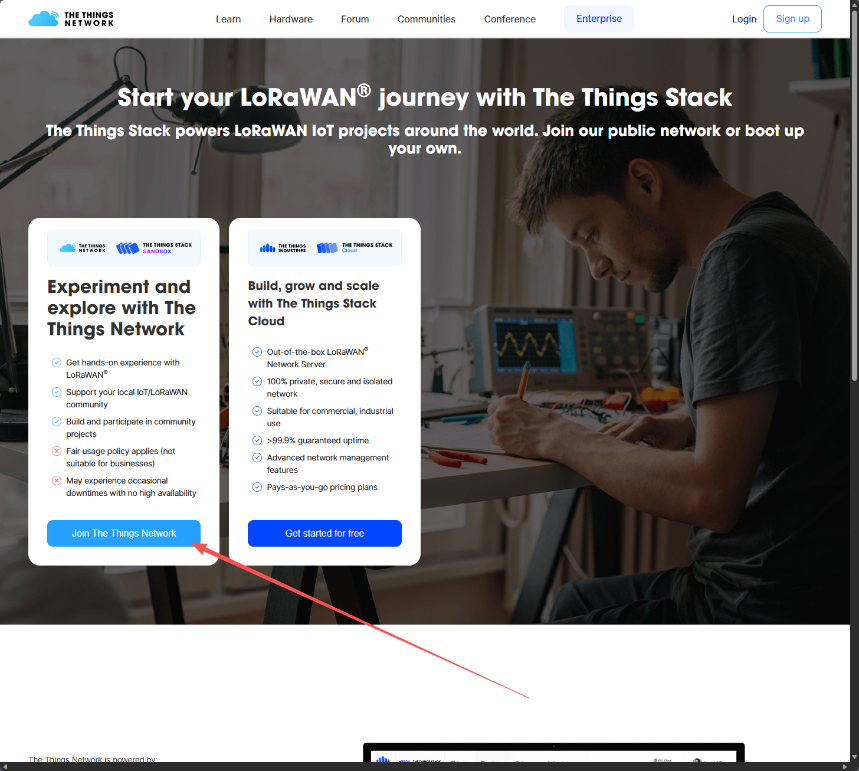
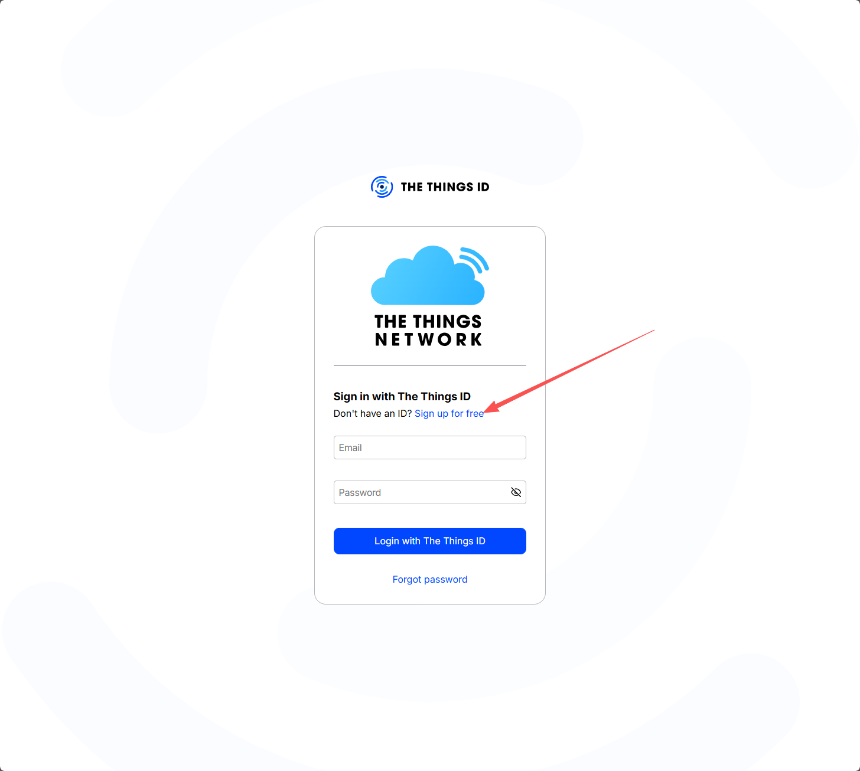
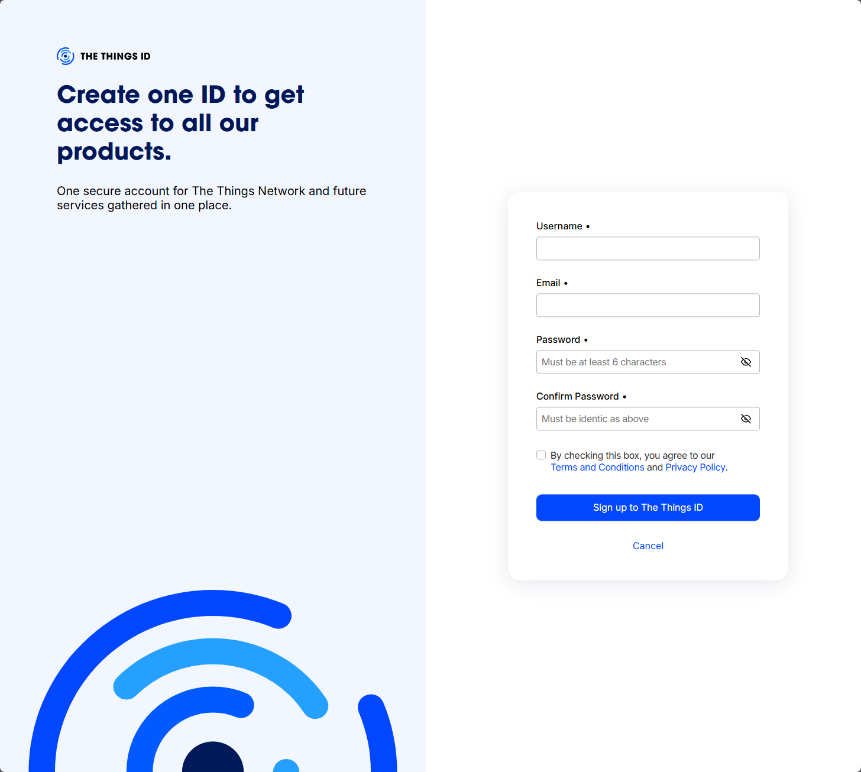
1. Register a TTN account
https://id.thethingsnetwork.org/oidc/interaction/NYqiq-Uu3V_sg3Lz54Onk/register
2. Access and Configure gateway(Use Dragino LPS8N as a reference device)
Next, you need to configure the gateway and register it with TTN. The following are the gateway configuration methods provided by Dragino:
2.1 Create a gateway in TTN V3 Server
Step 1: Get a Unique gateway ID.
Every LPS8N has a unique gateway id. The ID can be found at LoRaWAN page:
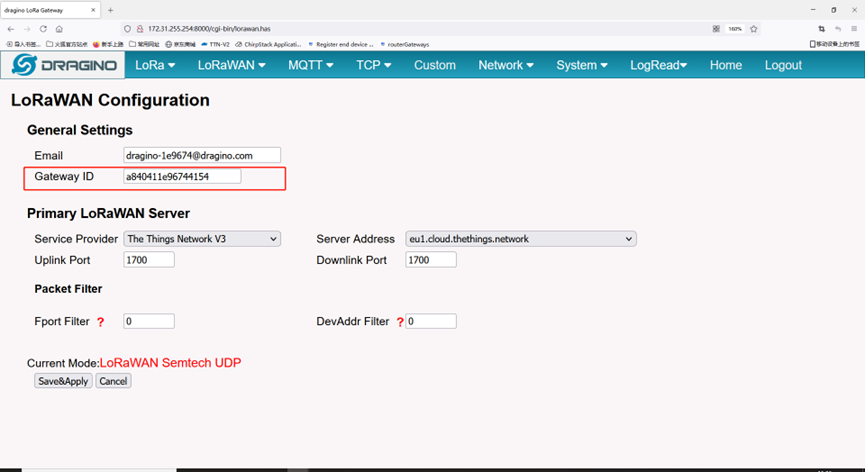
The example gateway id is: a840411e96744154
Step 2: Choose the TTNv3 Cluster Picker
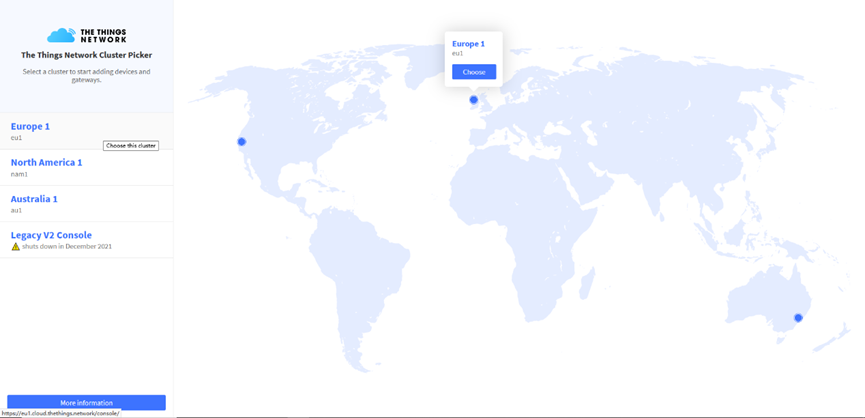
Note: Choose the cluster corresponds to a specific Gateway server address
- Europe 1 corresponding Gateway server address: eu1.cloud.thethings.network
- North America 1 corresponding Gateway server address: nam1.cloud.thethings.network
- Australia 1 corresponding Gateway server address: au1.cloud.thethings.network
- Legacy V2 Console : TTN v2 shuts down in December 2021
Step 3: Create a Gateway
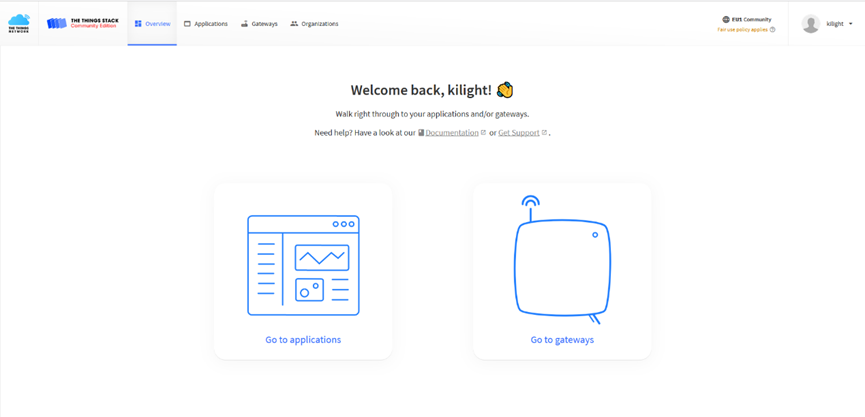
Click the Gateway icon and then click Add gateway.
Open the following page:
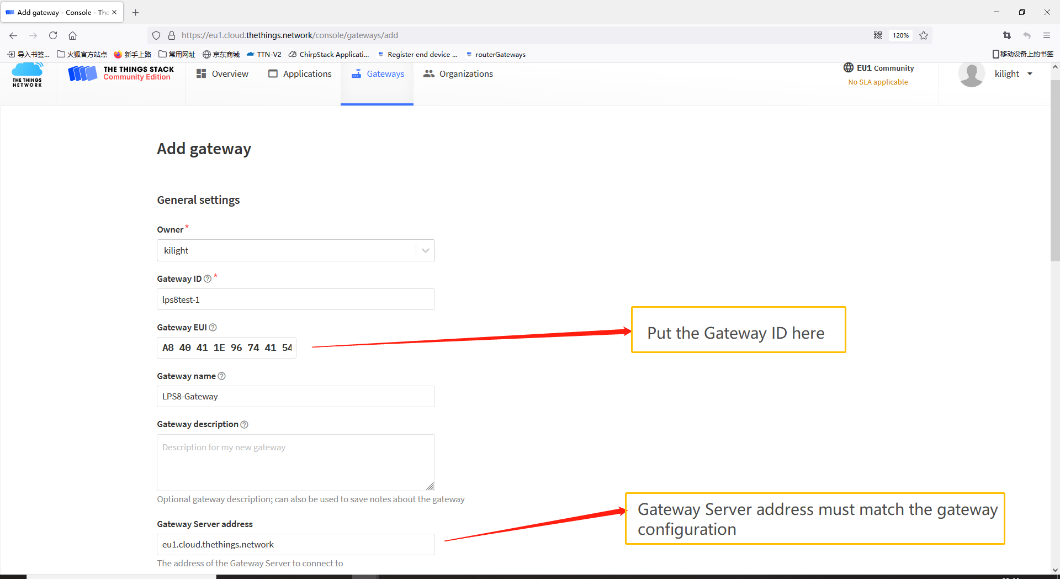
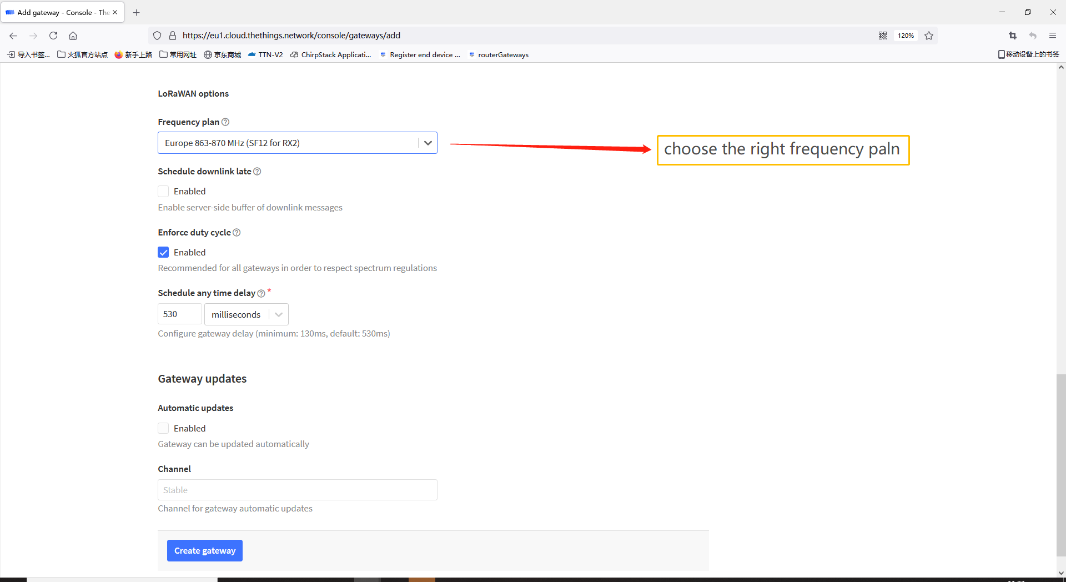
Notice: Gateway Server address must match the gateway configuration, otherwise you will have problem for End Node to join the network.
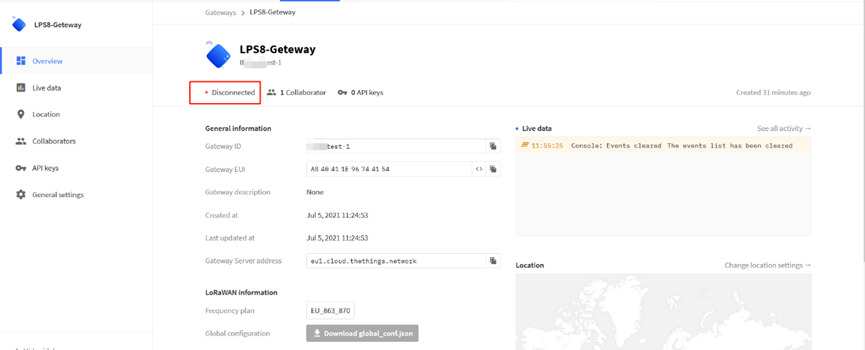
After creating the gateway, you can see the gateway info, as below.
2.2 Configure LPS8N to connect to TTN v3
You can now configure the LPS8N to let it connect to TTN network V3.
Make sure your LPS8N has a working Internet Connection first.
Choose the right server provider and click Save&Apply.
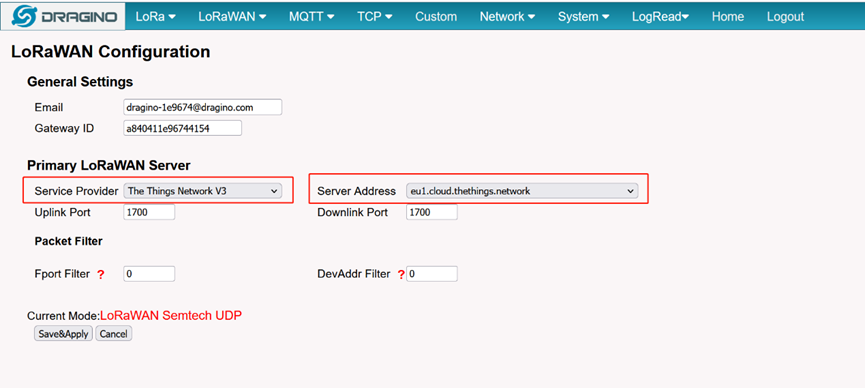
Note: The server address must match the Gateway server address you choose in TTN V3.
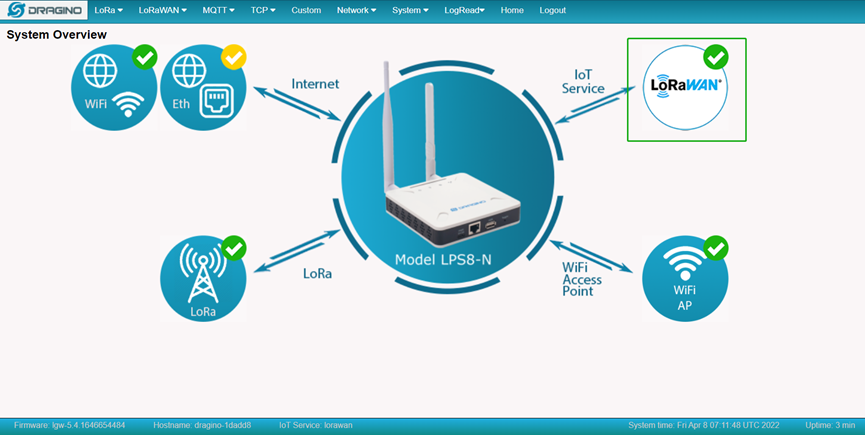
In the home page, we can see the LoRaWAN connection is ready now.
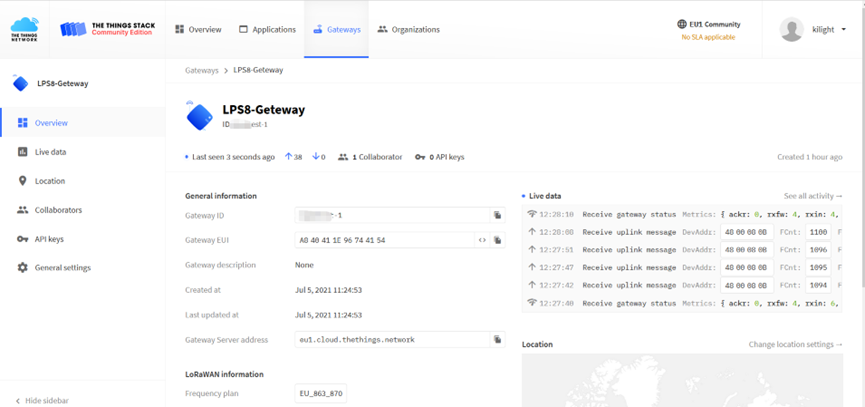
In TTN v3 portal, we can also see the gateway is connected.
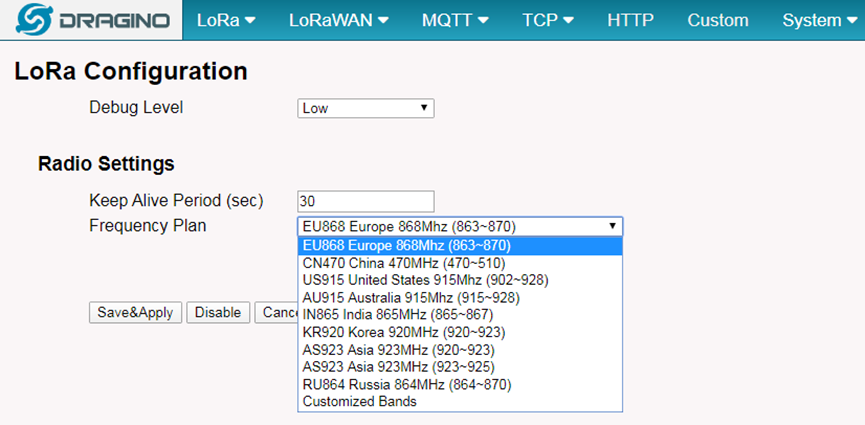
2.3 Configure frequency
We also need to set the frequency plan in LPS8N to match the end node we use, so to receive the LoRaWAN packets from the LoRaWAN sensor.
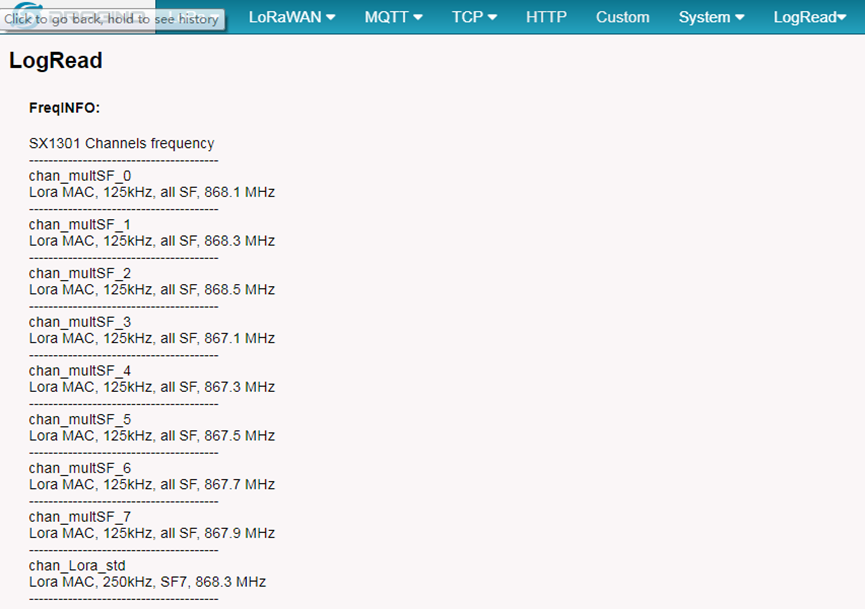
In logread page, user can check the frequency actually used.
3. Register sensor on TTN ( Use Dragino LT-22222-L IO Controller as a reference device)
This section shows how to add a LoRaWAN End device to a LoRaWAN network and see the data from TTN web site.
We use LT-22222-L IO Controller as a reference device - the setup for other LoRaWAN devices will be similar.
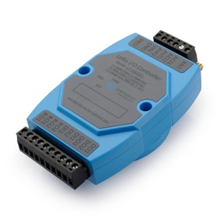
Step 1: Create a Device definition in TTN v3 with the OTAA keys from the example LT-22222-L IO Controller device.
Three codes are required to define the device in TTN v3:
- DEV EUI - Unique ID code for a particular device.
- APP EUI - ID code for an Application defined in TTN v3.
- APP Key - Unique key to secure communications with a particular device.
A set of these codes are stored in each device by the manufacturer as the default codes for that particular device. Each device is shipped with a sticker with the default Device EUI as shown below.
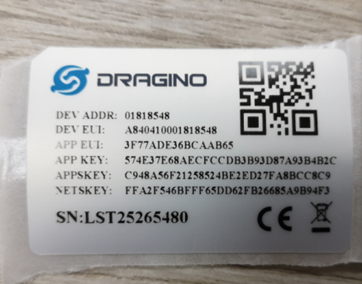
Note: You may be able to change these codes in a device by using a configuration facility on the device e.g. the LT-22222 uses a serial port access and a series of AT commands. Changing the codes may be necessary in the case where you have to use codes assigned by a LoRa WAN server.
For the TTN v3 server, you can use the codes set in the device as in the following example.
Select Add Application to open the screen below.
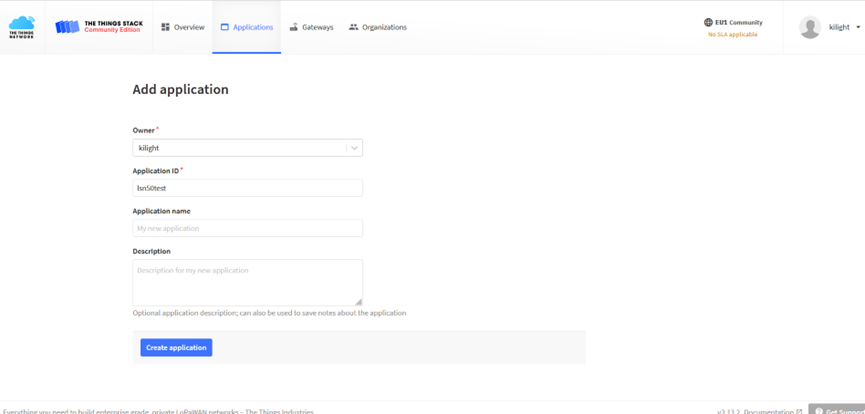
Open the Application select Add end device
Start Register the end device
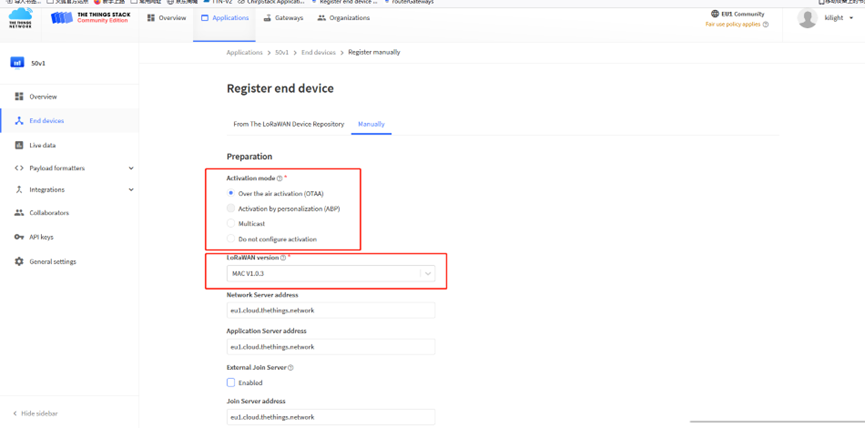
Select OTAA activation mode
The LoRaWAN version for your device should be provided by the manufacturer in a datasheet as LoRaWAN version or LoRaWAN specification. The most commonly used LoRaWAN versions are v1.0.2 and v1.0.3.
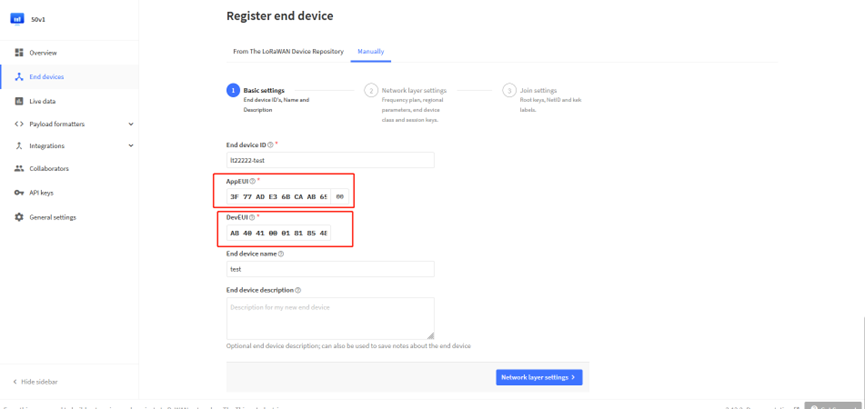
First, input the End device ID, AppEUI and DevEUI.
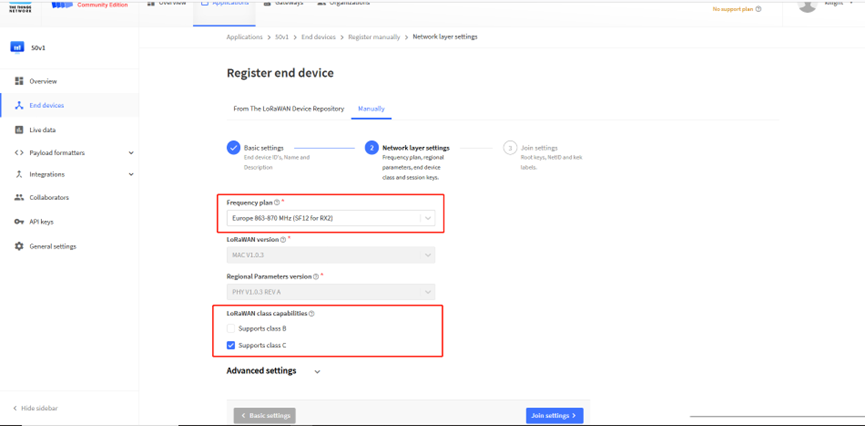
Secondly, choose the corresponding frequency and LoRaWAN class capabilities.
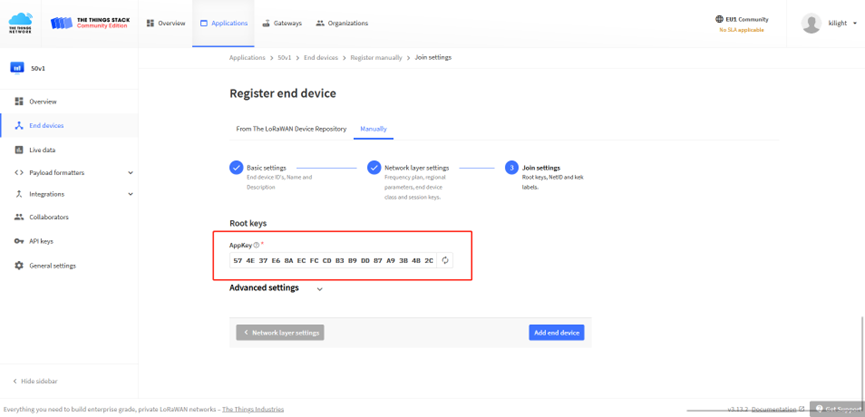
Finally, Application layer settings input the corresponding AppKey. Before saving the configuration, check that the data matches the device.
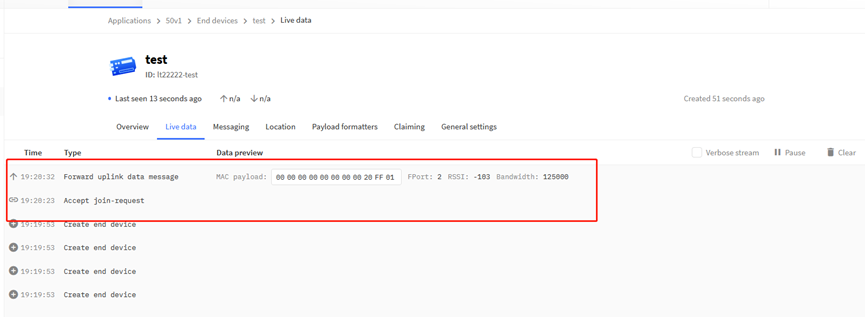
Step 2: Power on LT-22222-L device and it will automatically join the TTN network. After joining successfully, it will start to upload messages to the TTN v3. Select the Live data tab and you will see the data appearing in the panel.
Note that it may take some time for the device data to appear in the TTN v3 display.