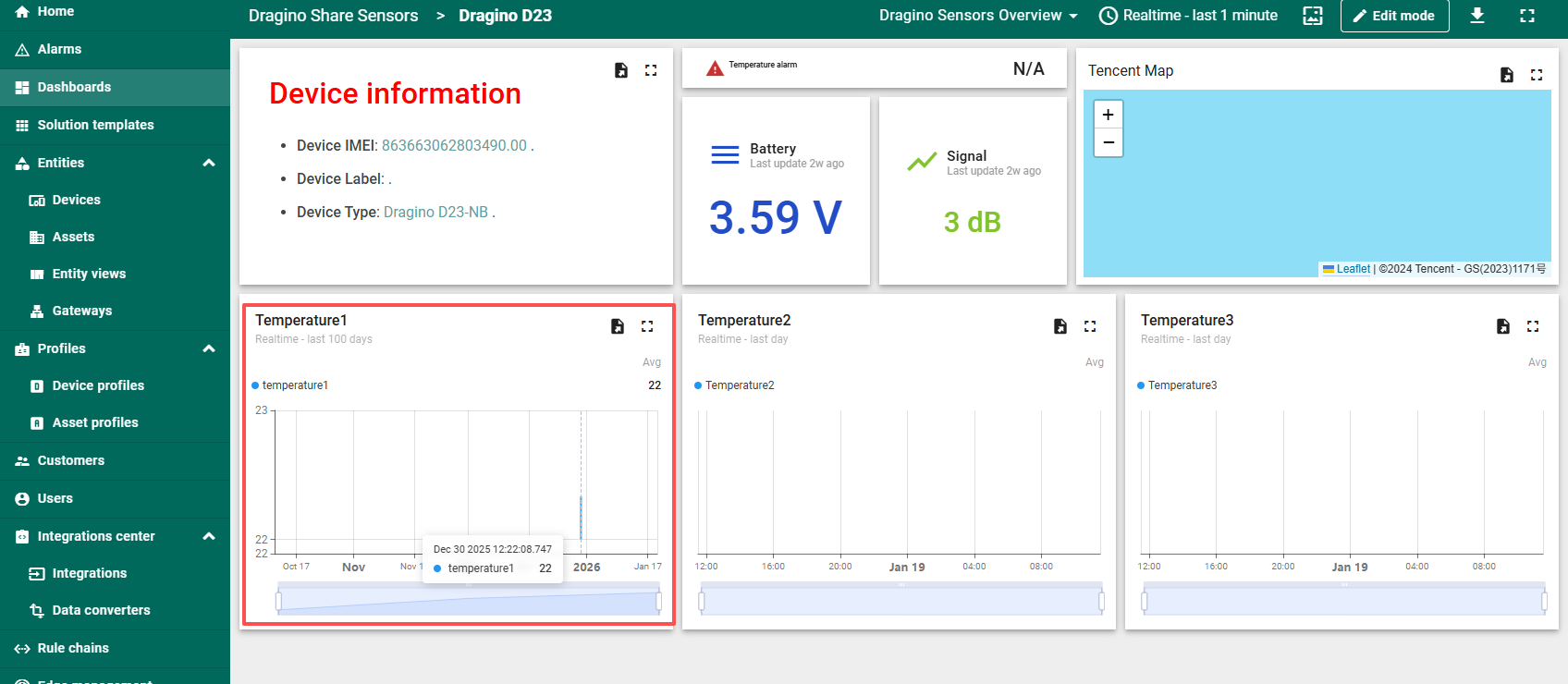
What should I do if I imported dashboard but can't see any data?
1. Replace data source
Sometimes, because the device adds a new data source or the key is different from the key used by the dashboard in its default search, data may not be displayed.
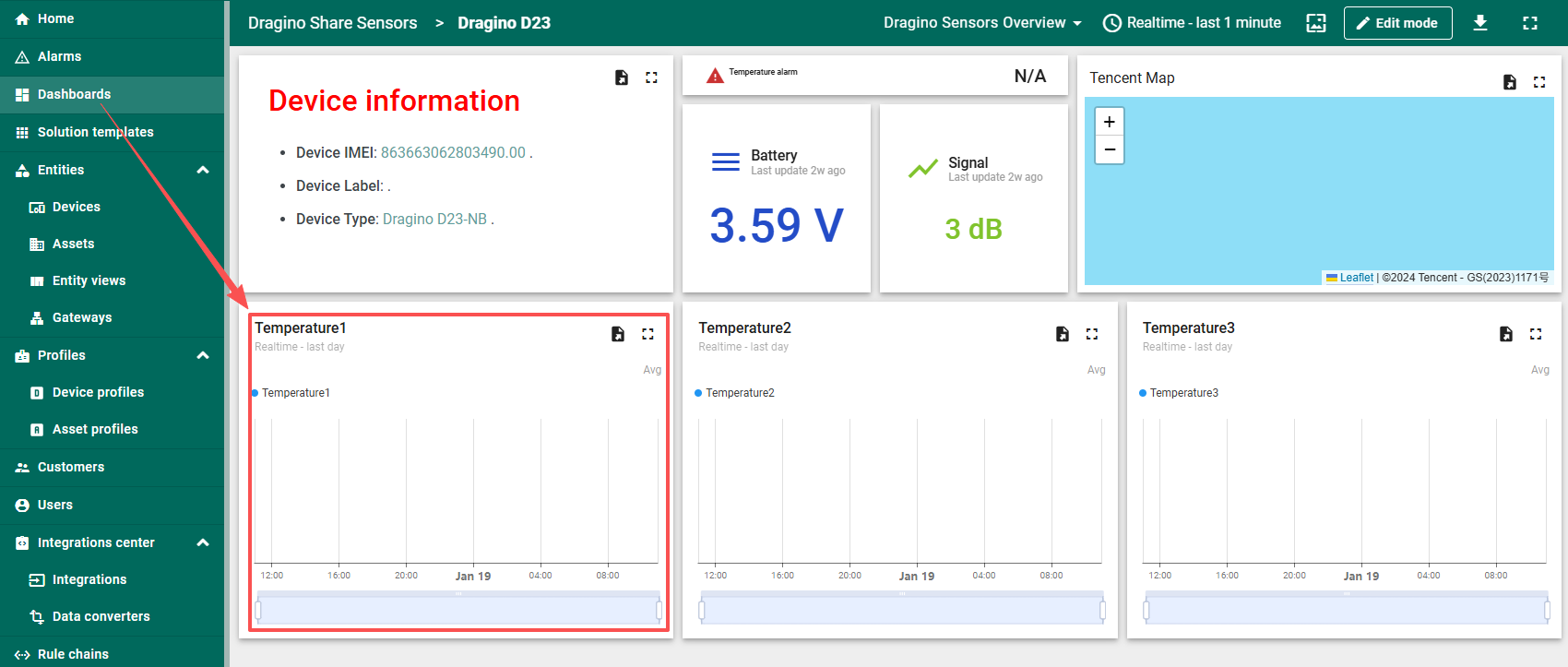
In this situation, it is necessary to confirm the actual key of the data in the telemetry and redirect the data source.
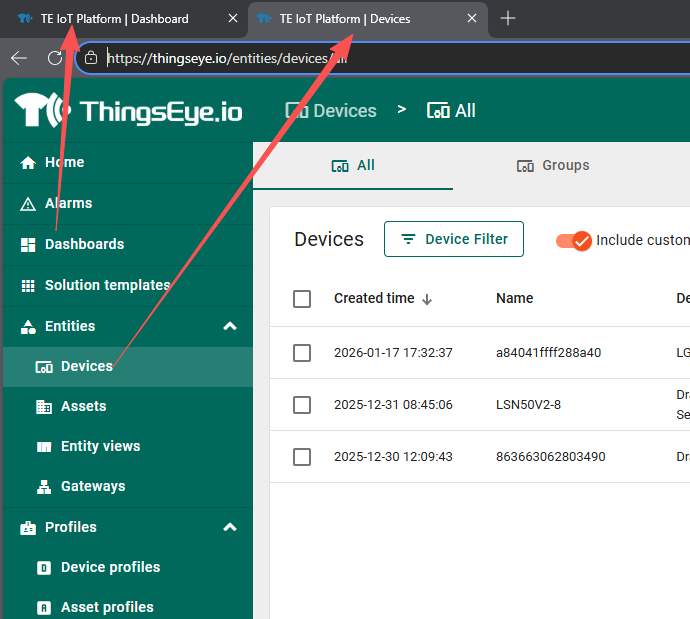
Open both the dashboard and device windows simultaneously.
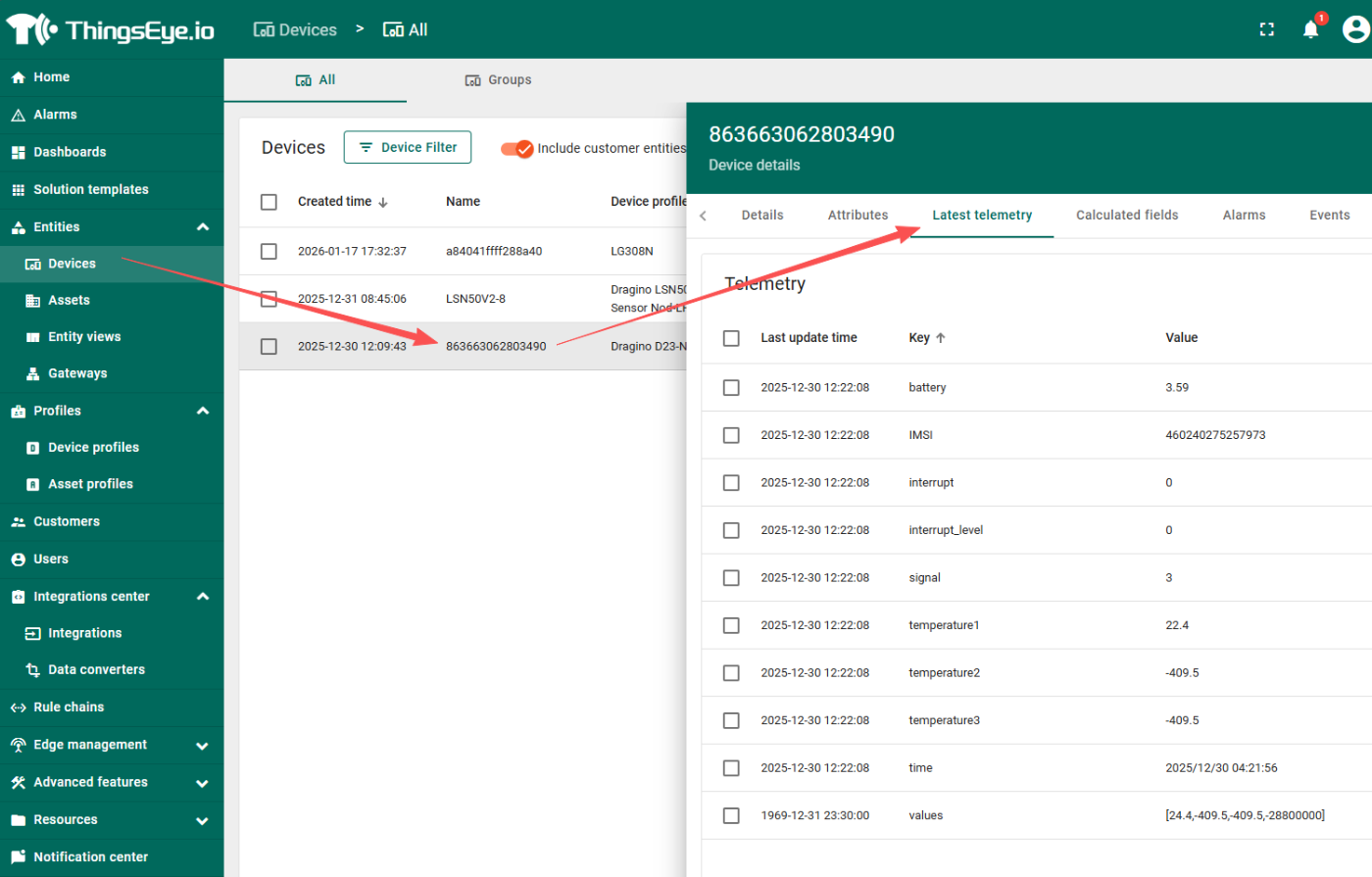
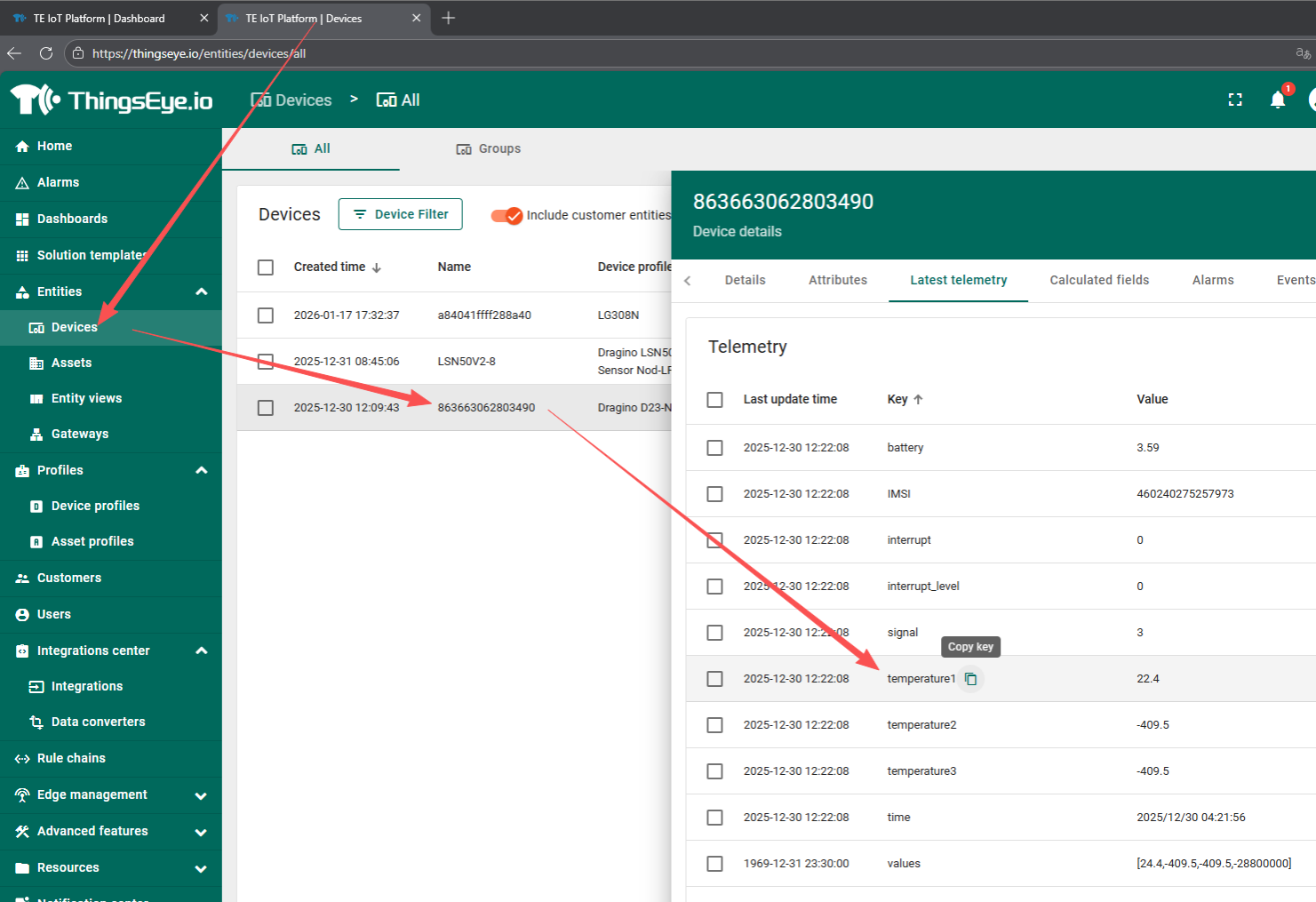
Open the device telemetry data section
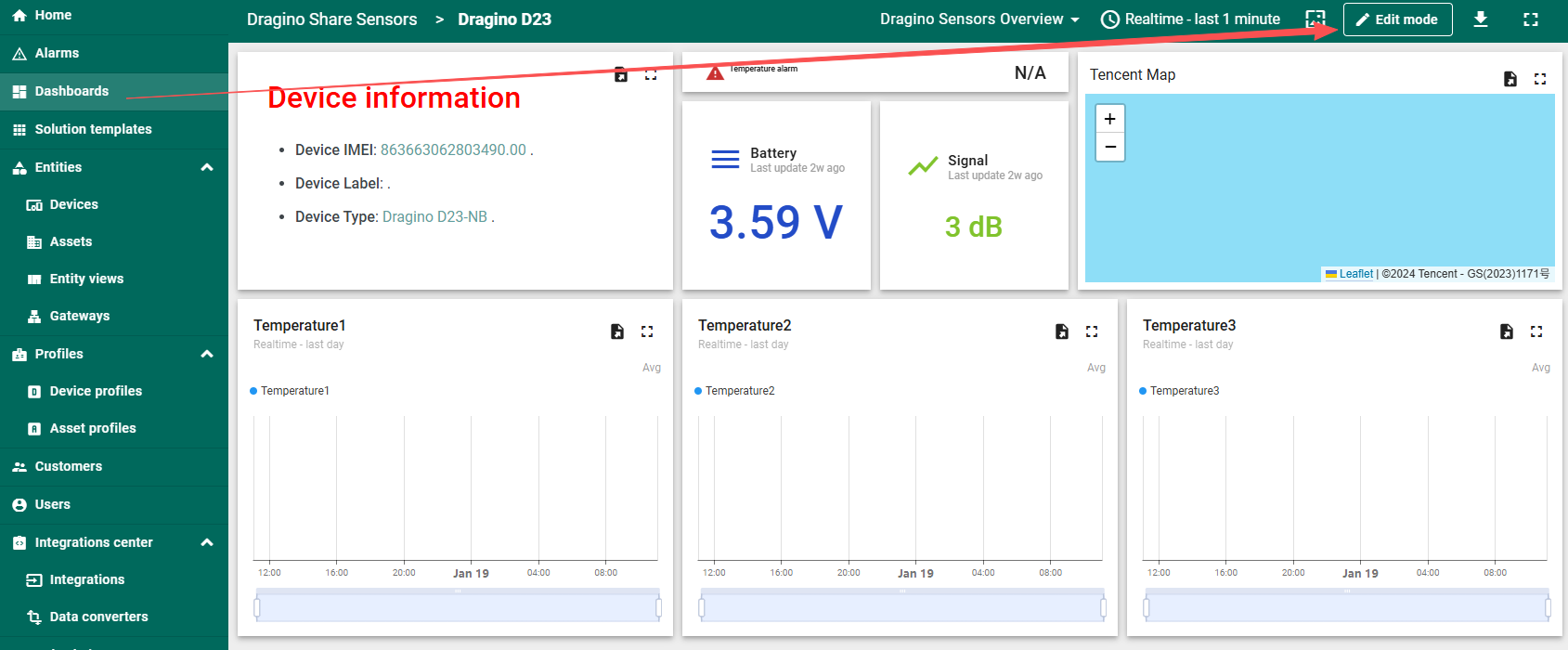
Enter the dashboard editing mode
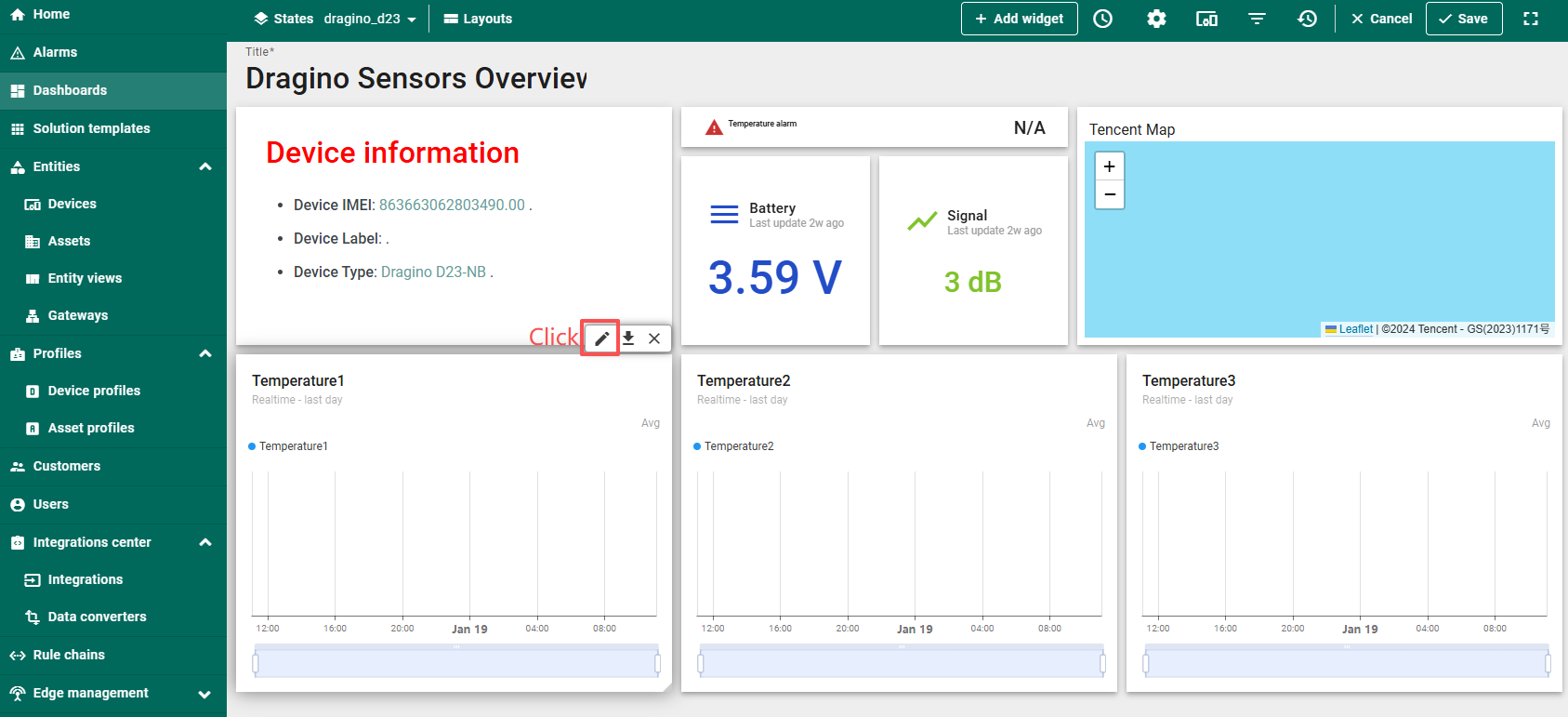
Move the cursor above the dashboard you want to edit, and click the edit button in the floating window.
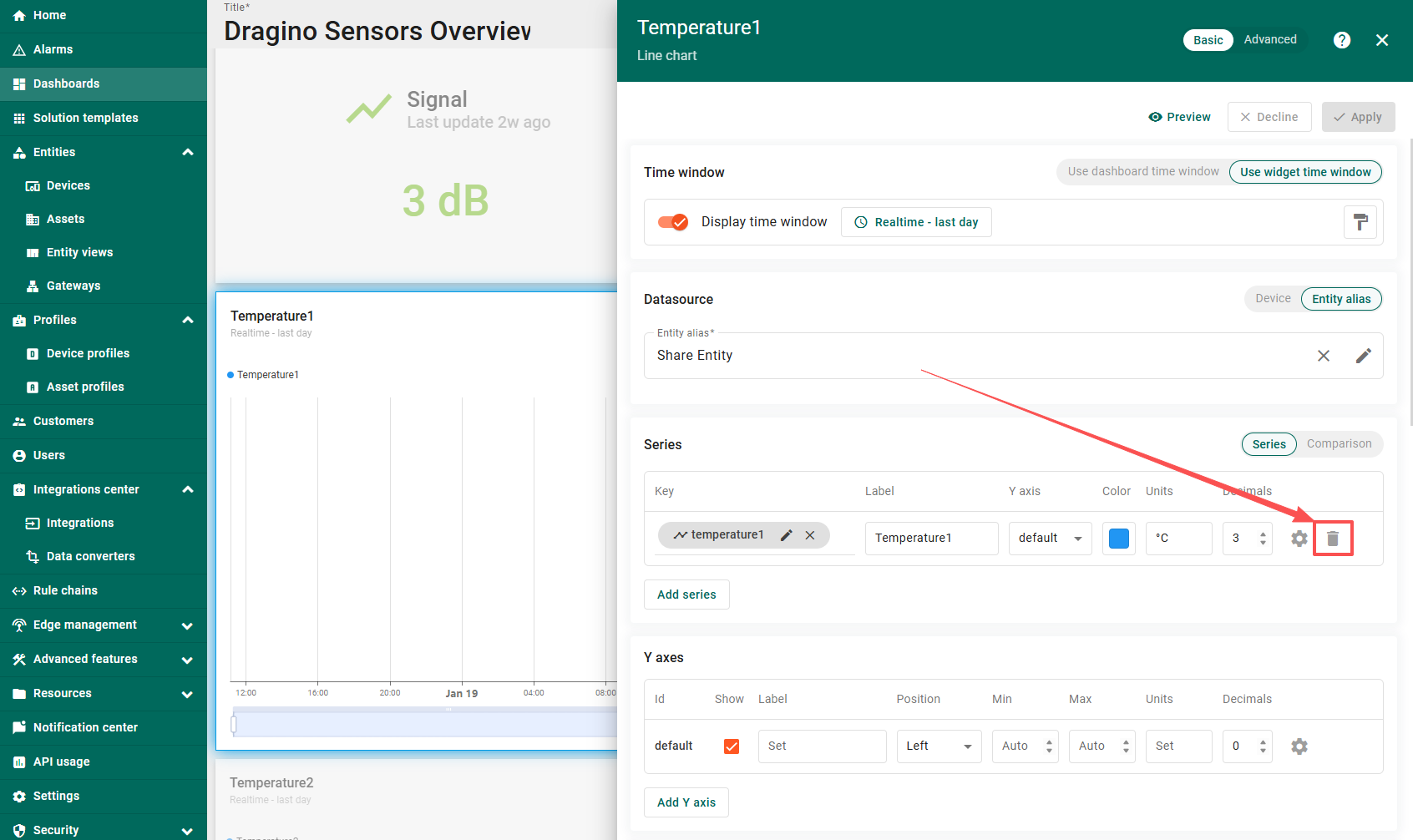
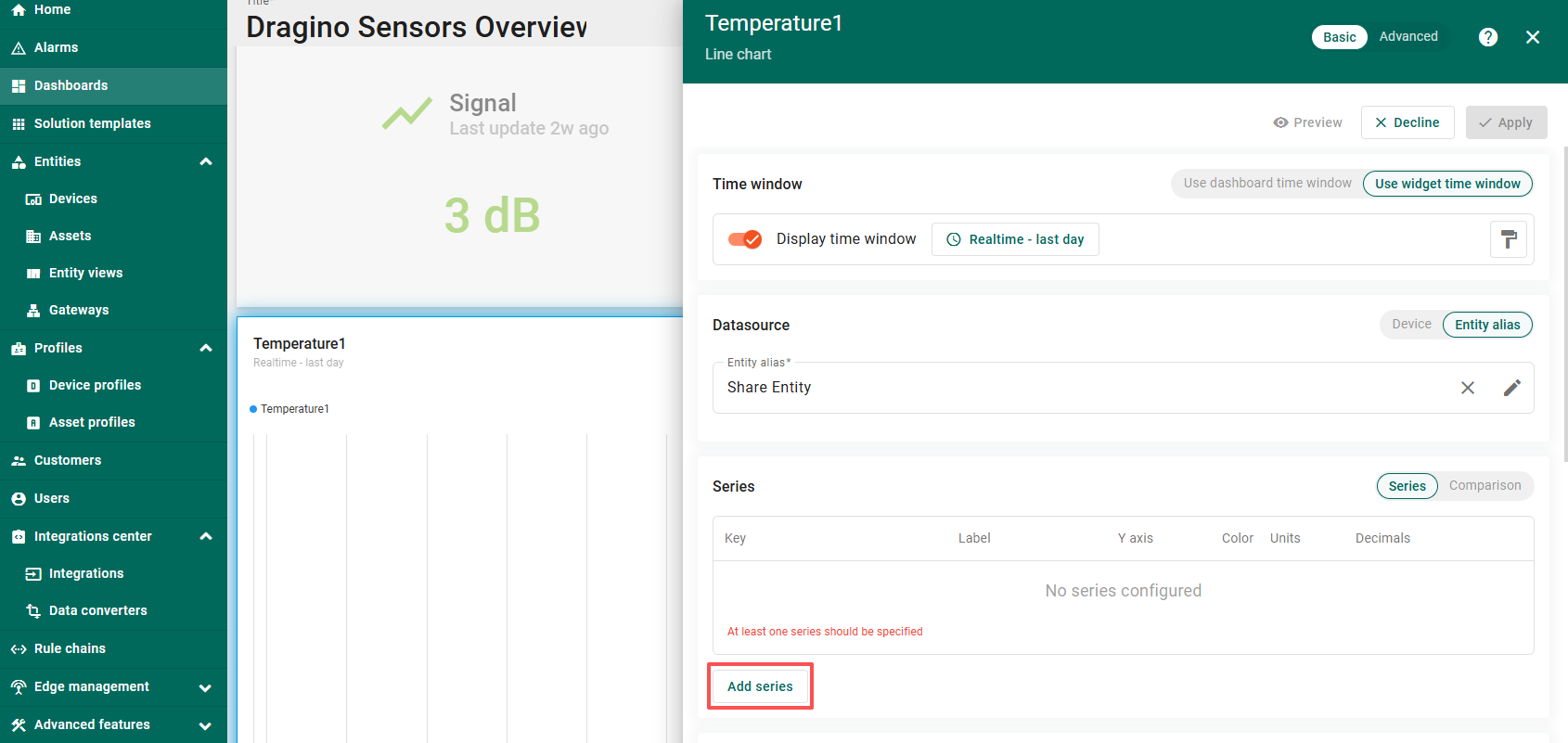
Delete old data source
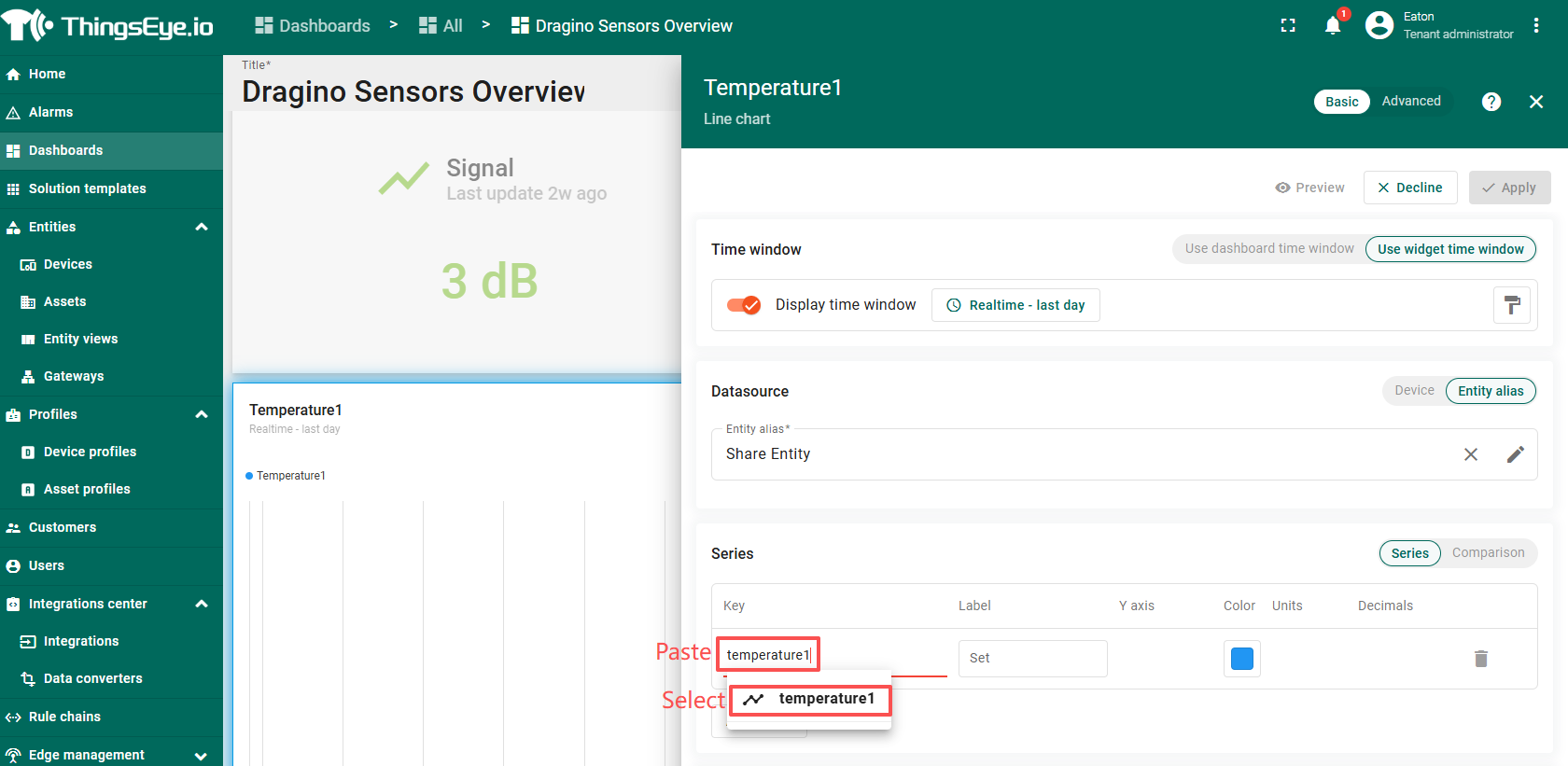
Open the Devices page and copy right telemetry key
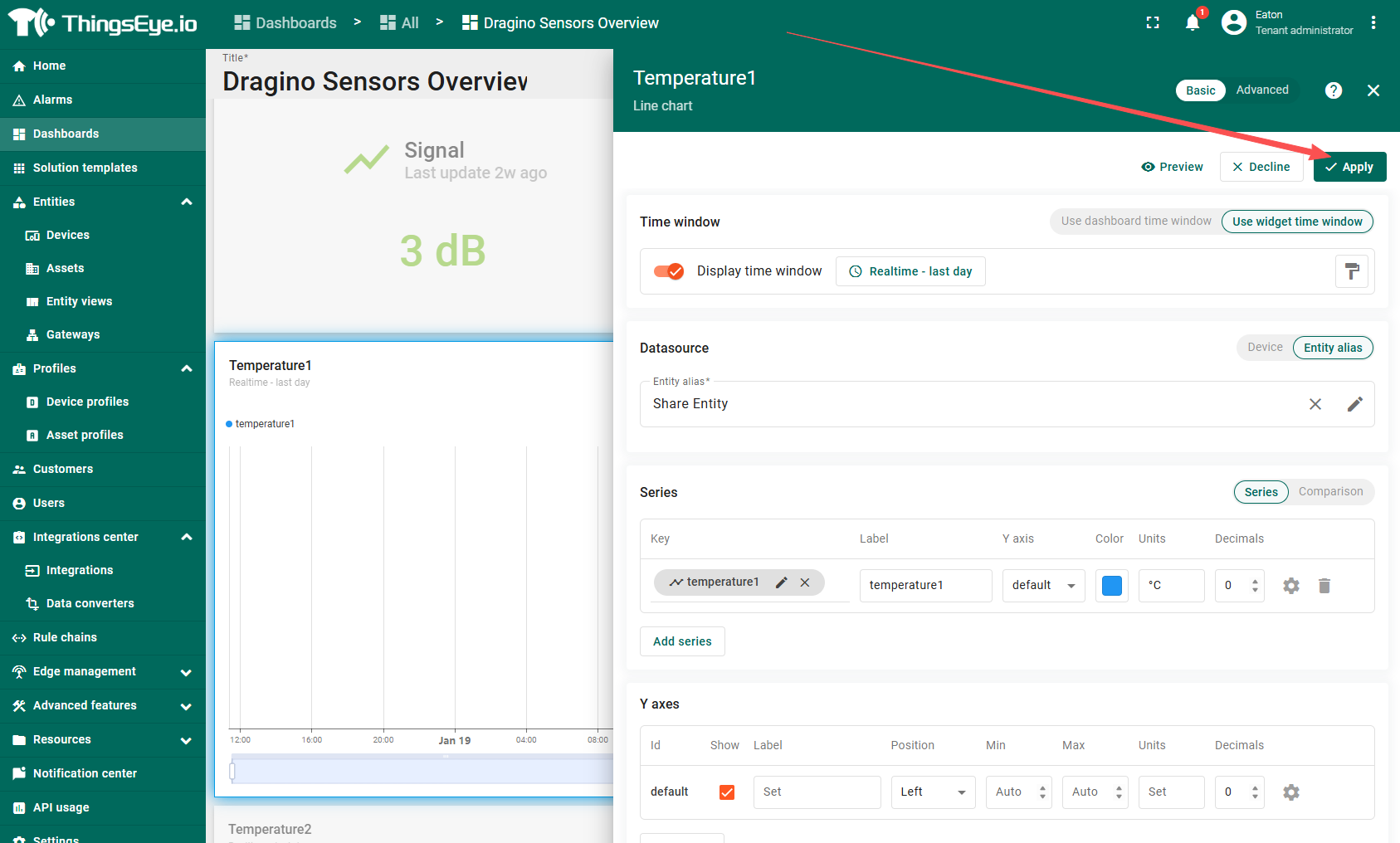
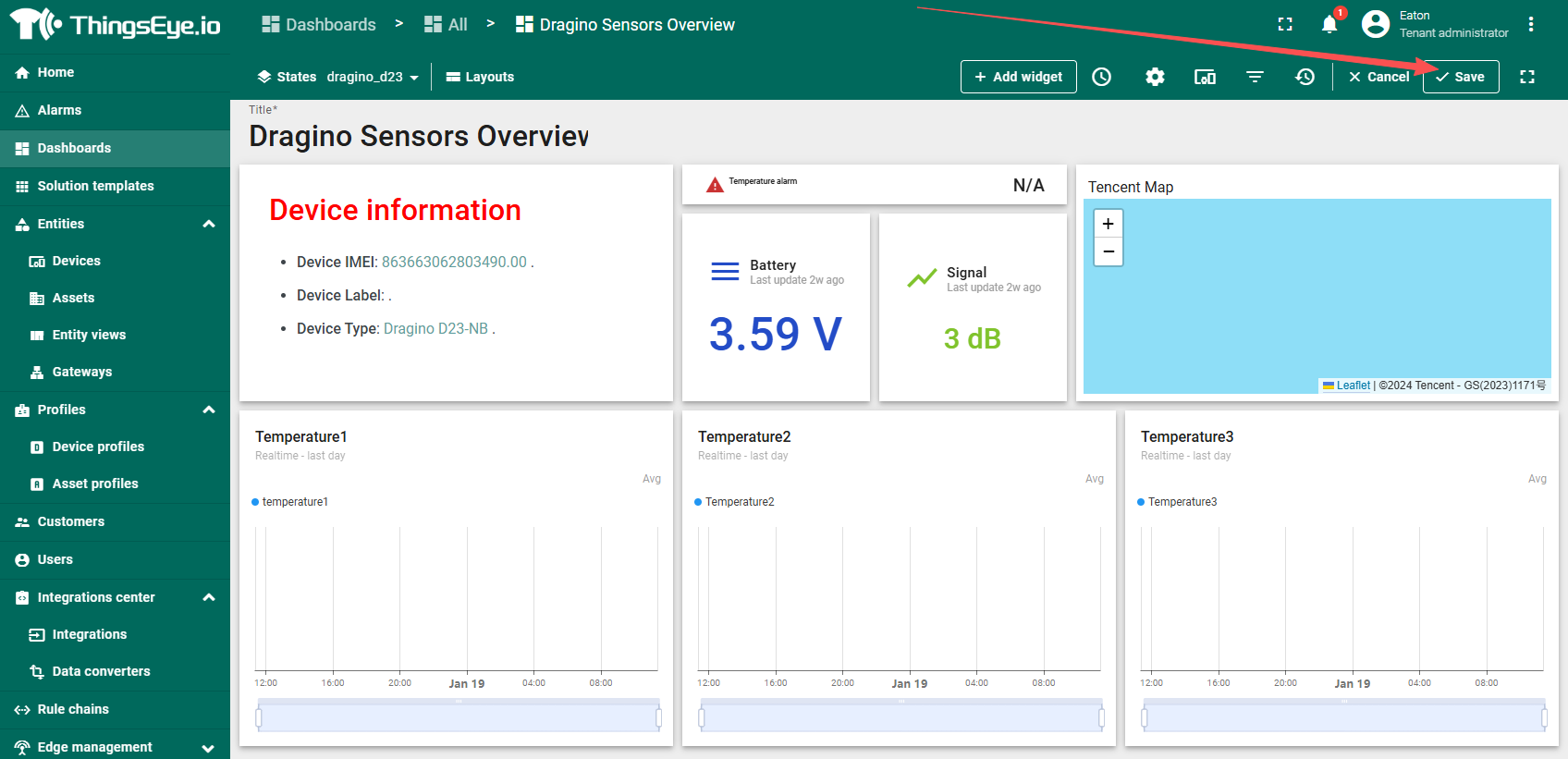
Paste and Save
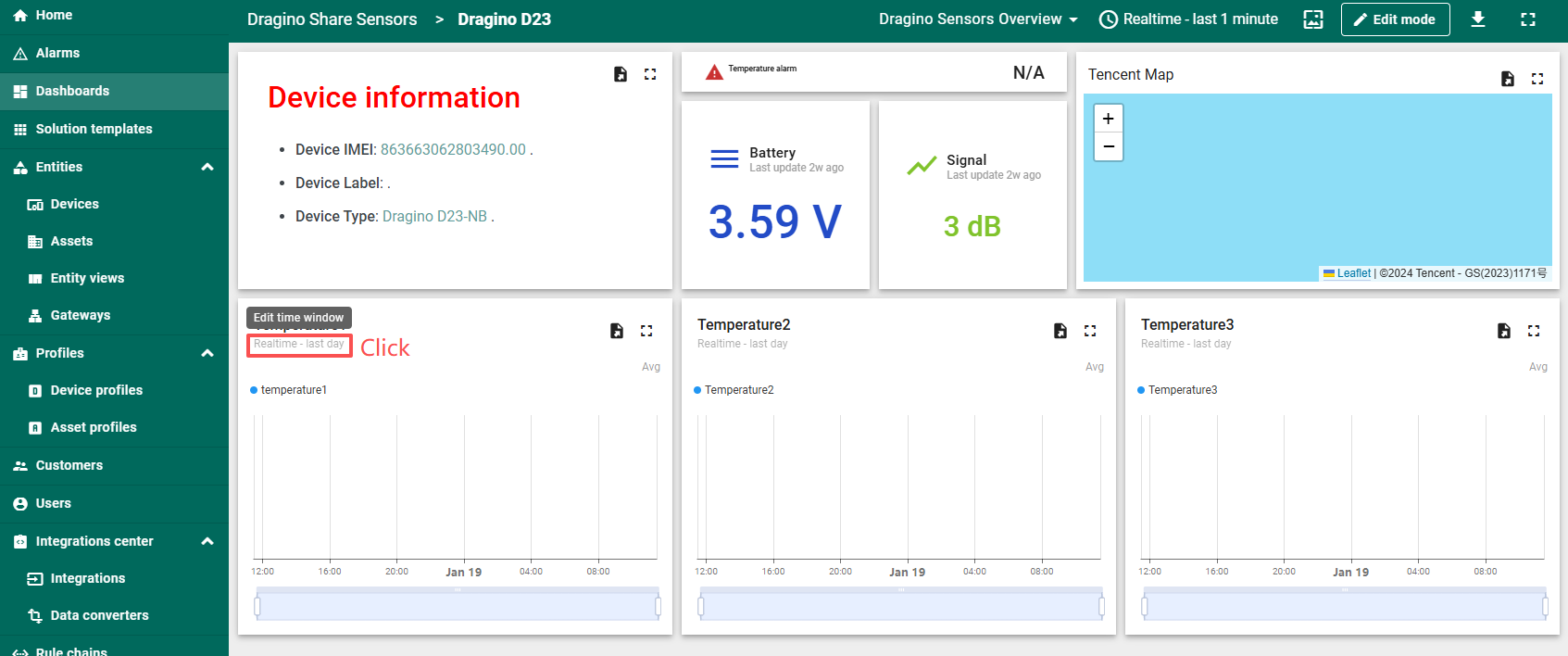
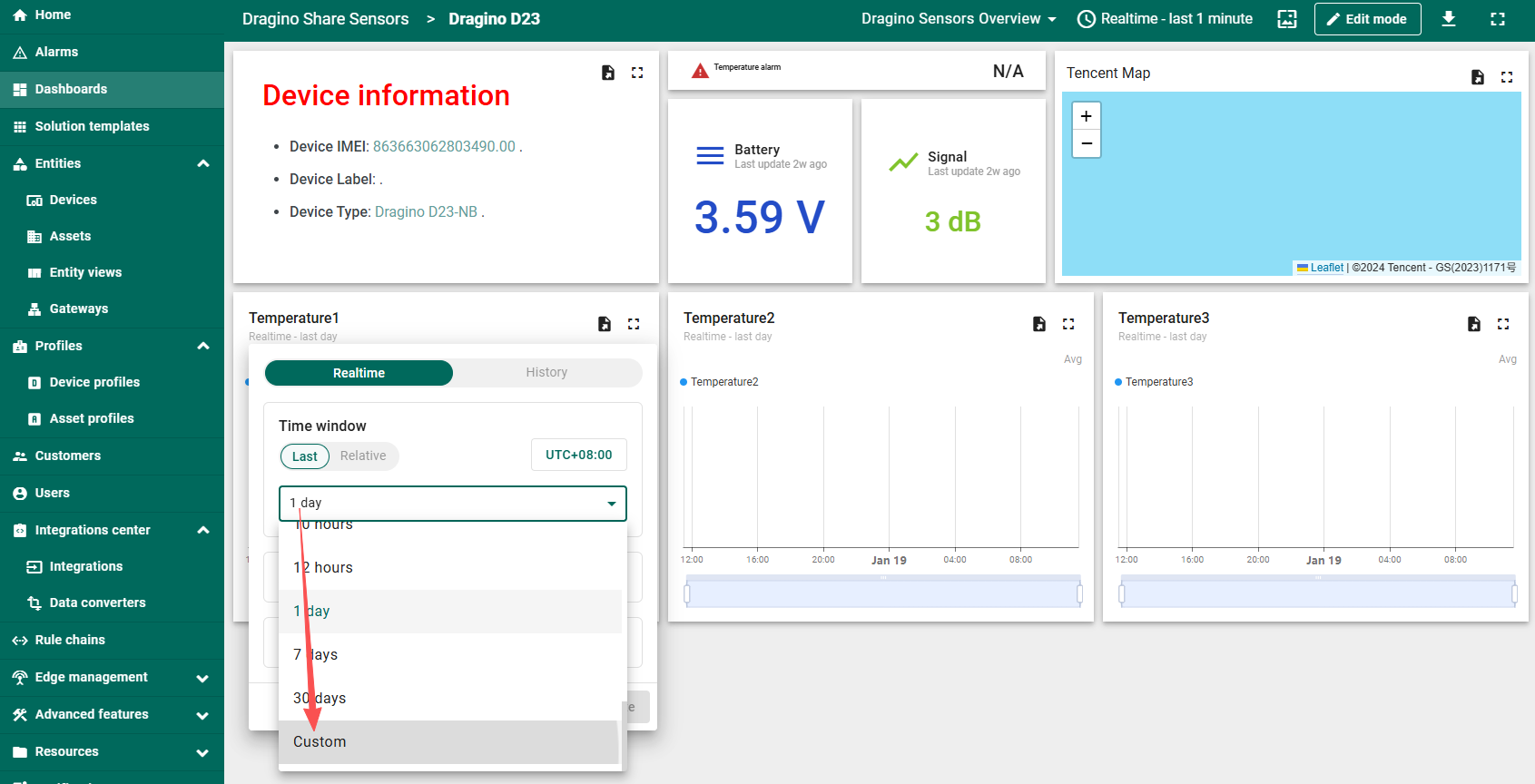
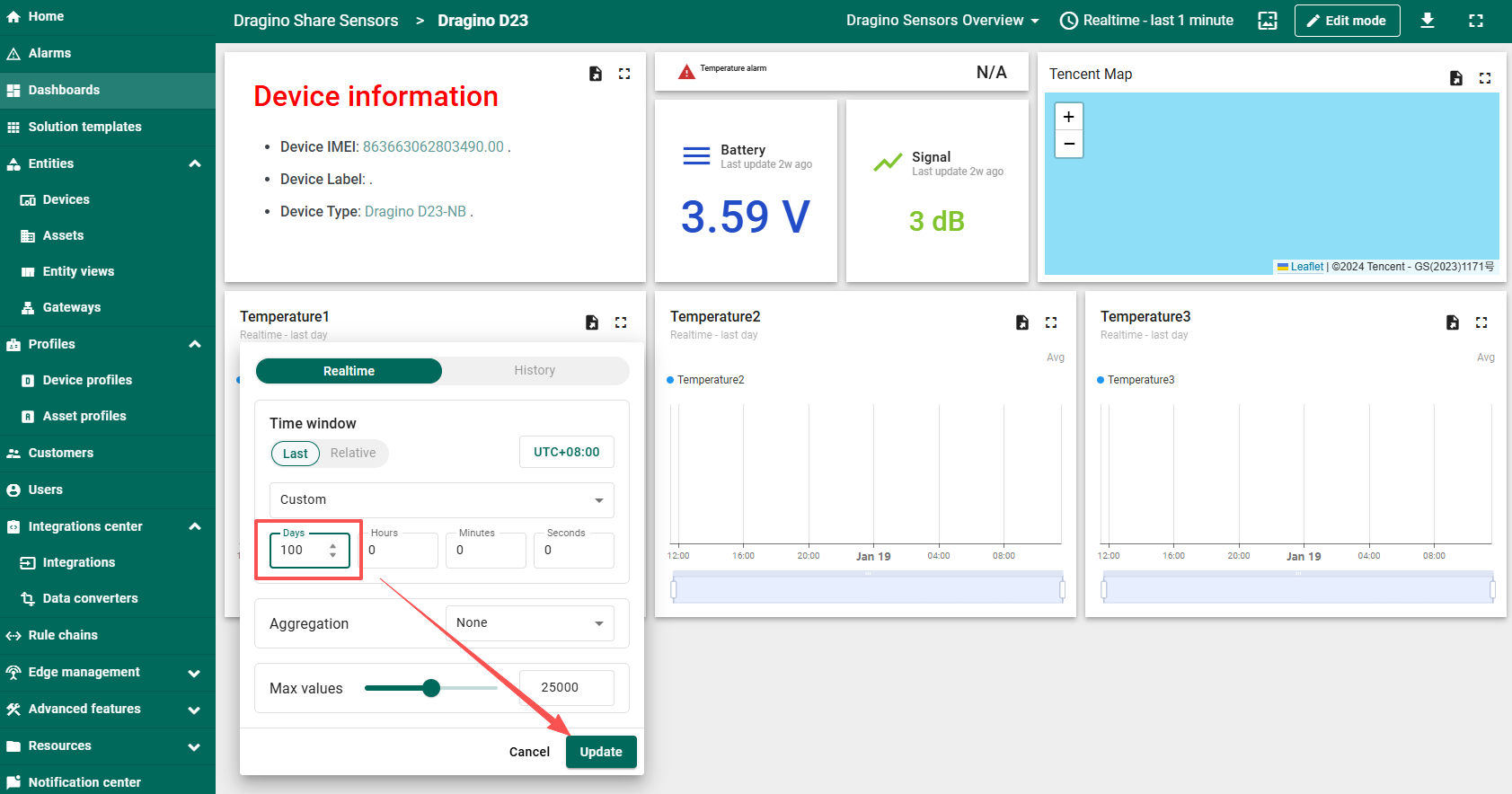
2. Change the display time span
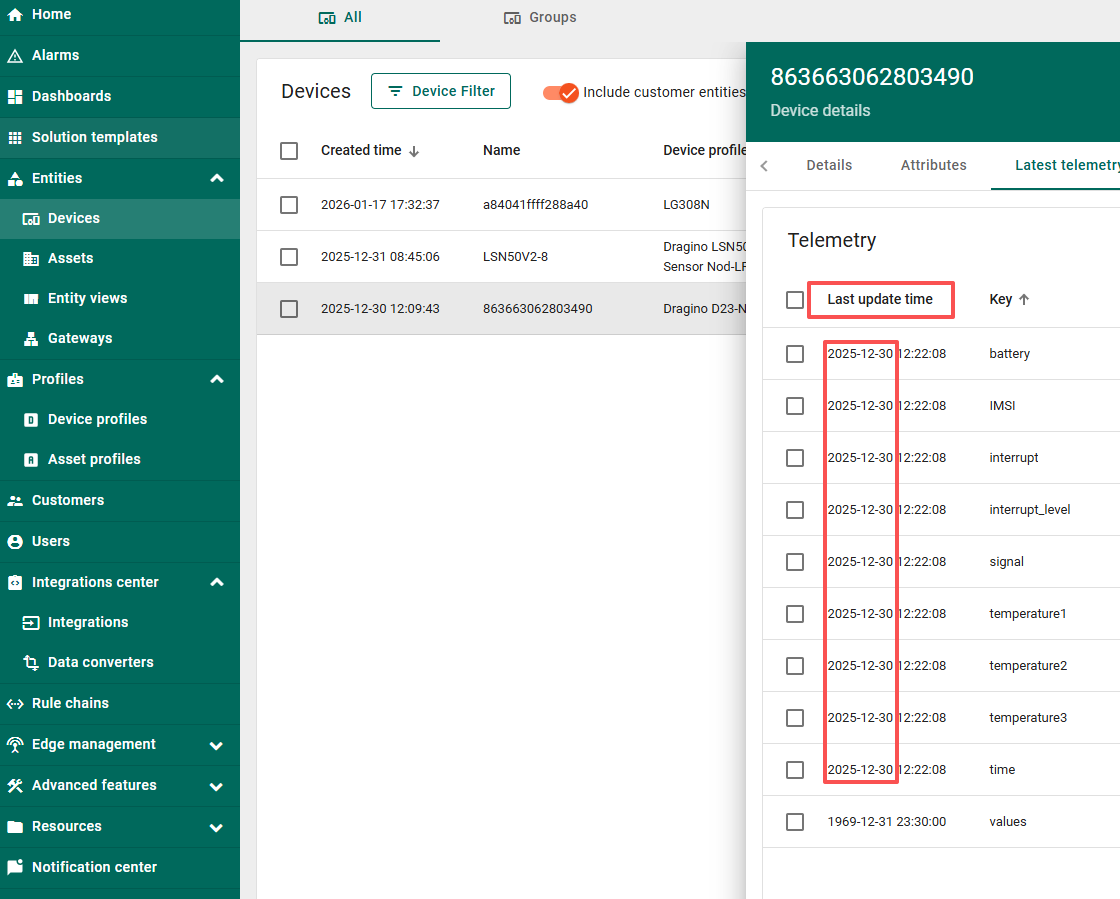
Sometimes, even after changing the key, data may not be displayed. In this case, you need to check the last upload time of the data and appropriately extend the data display time.