Table of Contents:
- 1. Overview
- 2. UDP Procotol——直接连接
- 3. Connect to The Things Stack
- 4.Connect chirpstack to Thingseye by way of MQTT
- 5. Check Data Uplink Log
1. Overview
This instructions will show you how to connect a device that has been registered to the server to the Thingseye platform.
2. UDP Procotol——直接连接
2.1 UDP接口
- 服务器地址:server1.thingseye.io
- 端口:11560
发送到上方UDP接口的数据不会直接进入客户端数据库。
如需详细了解如何将数据转发给客户,请联系ThingsEye团队。
注意:目前 UDP 连接需要端口转发,连接前请联系 ThingsEye 团队告知他们您设备的 IMEI。
2.2 使用Dragino NB装置的测试
2.2.1 配置NB-IoT End Node
这里的设备是S31-NB:并且已经在下面配置了
- 设置为使用 ThingsEye UDP 服务器:AT+SERVADDR=server1.thingseye.io,11560
- 使用 UDP 上行链路和 JSON 协议:AT+PRO=2,5
- 配备NB-IoT卡以接入NB-IoT网络。
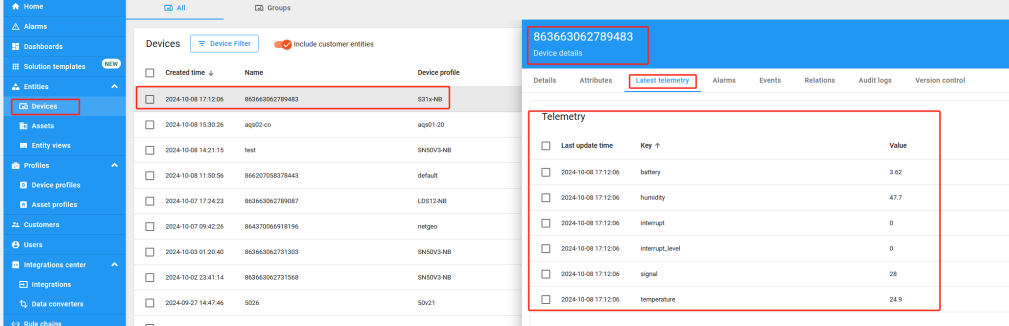
S31-NB的蜂窝模块为IMEI:863663062789483
2.2.2 检查上行数据
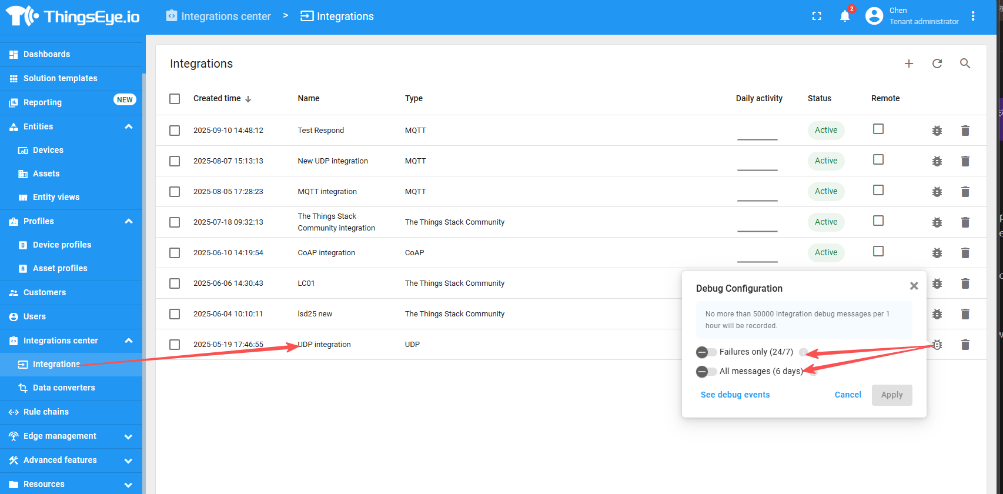
开启调试模组
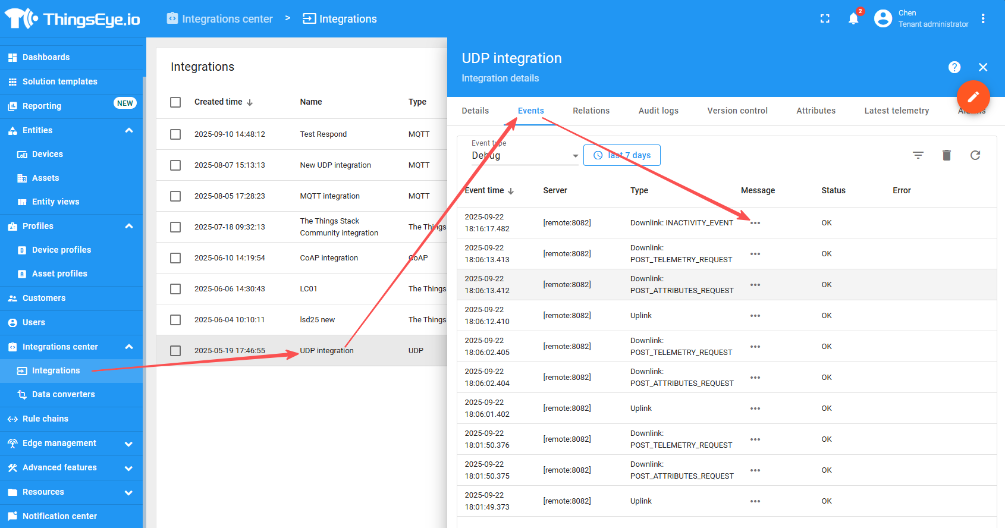
重新激活S31-NB,我们可以在调试窗口中看到它:

2.2.4 自动创建设备
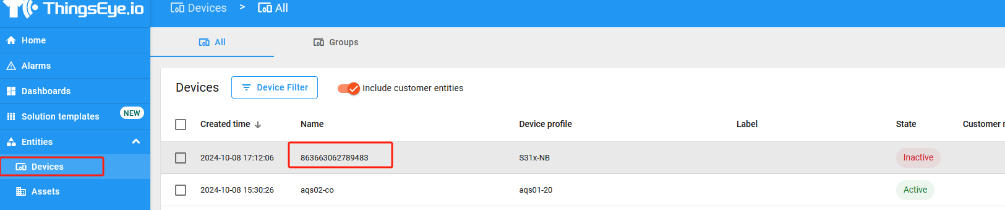
默认的租户UDP服务器已经配置好解码Dragino -NB / -CB NB-IoT节点。所以每个端节点都会向服务器发送数据。租户会自动在服务器上创建设备。
3. Connect to The Things Stack
3.1 Network Structure
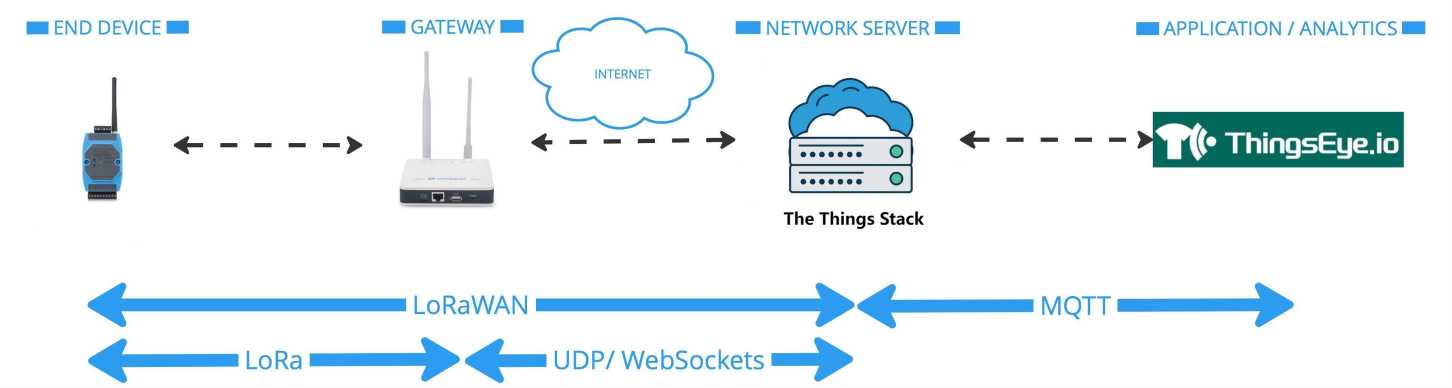
The network diagram below illustrates the connection between the devices and The Things Stack, as well as how the data can be integrated with the ThingsEye IoT platform.
3.2 Creat Integration for The Things Stack.
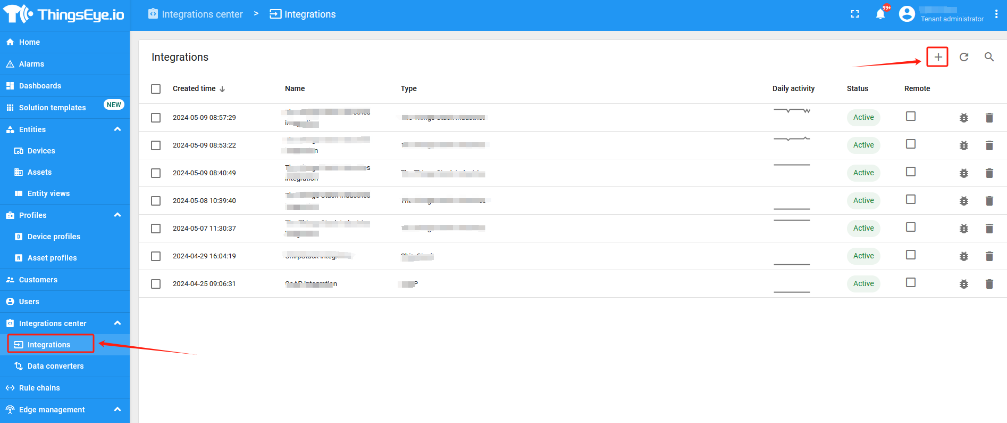
Add Integration
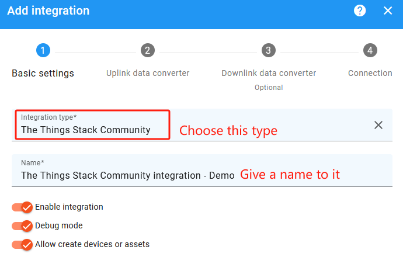
Choose Connection Type
Input Uplink Data Converter Code
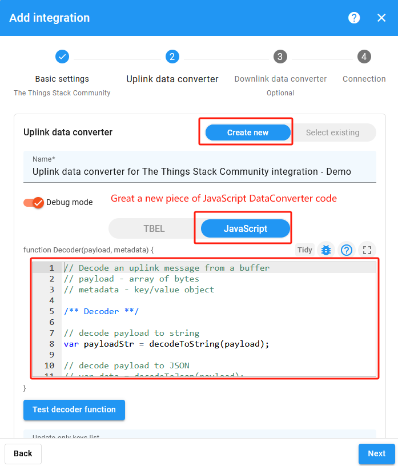
Demo JavaScript Code: https://raw.githubusercontent.com/ThingsEye-io/te-platform/refs/heads/main/Data%20Converters/The_Things_Network_MQTT_Uplink_Converter.js
Input Downlink Converter
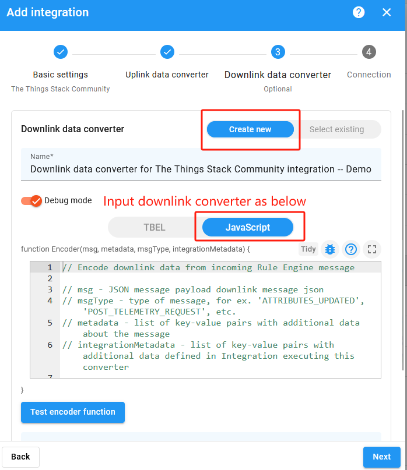
Example Javascript Code as below: https://raw.githubusercontent.com/ThingsEye-io/te-platform/refs/heads/main/Data%20Converters/The_Things_Network_MQTT_Downlink_Converter.js
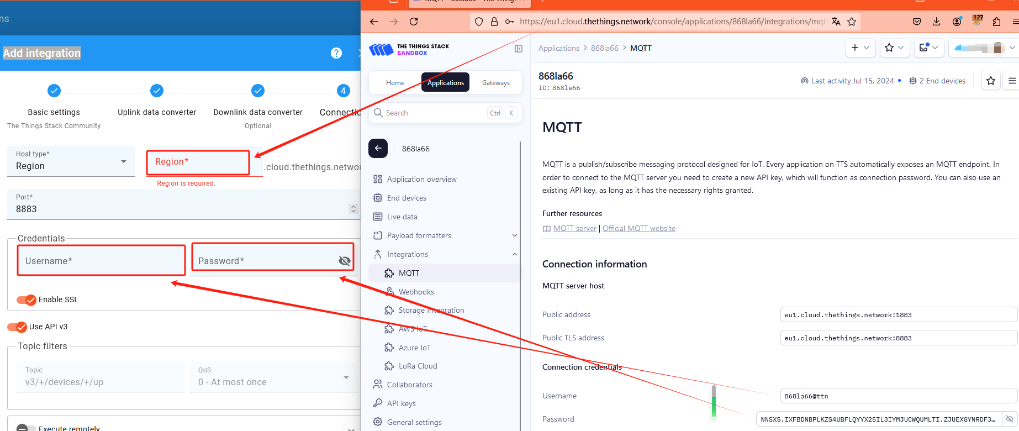
Set up Connection to The Things Network application
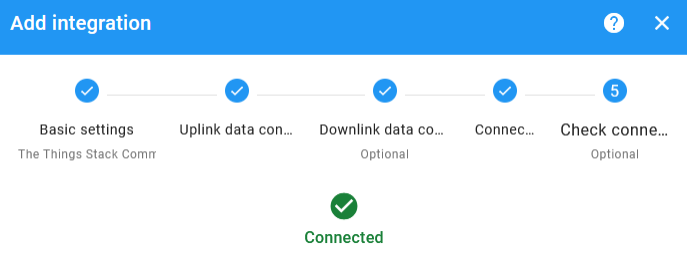
Test Connection & Add iIntegration
After add , we can see the integration here:

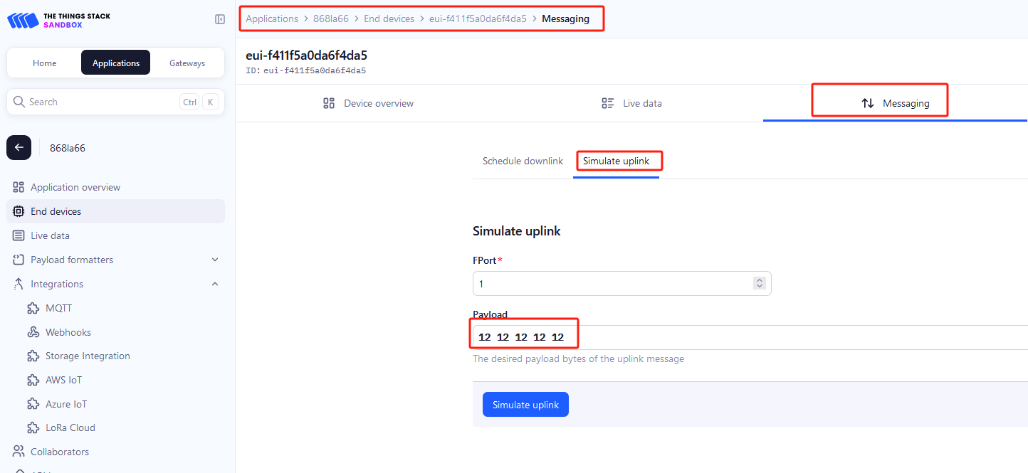
3.3 Test Uplink
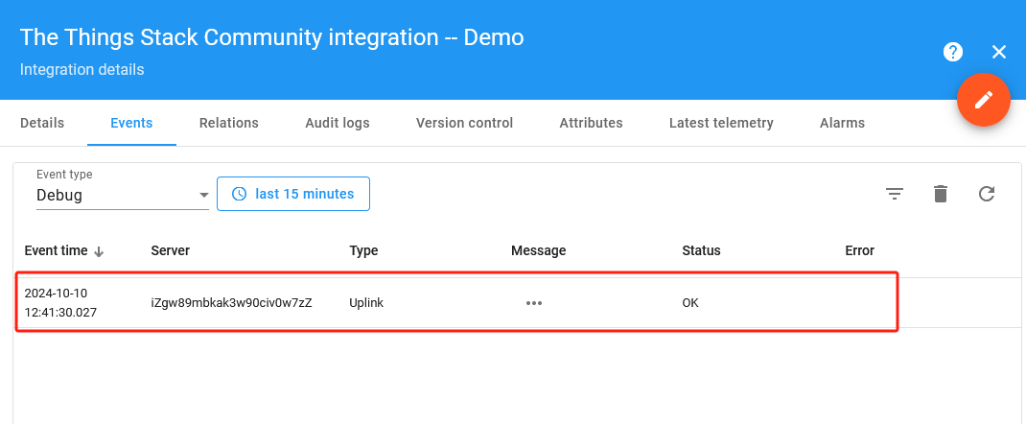
We can use Simulate Uplink to simulate an uplink in the things stack. Then we should be able to see the message in ThingsEye
4.Connect chirpstack to Thingseye by way of MQTT
- How to connect chirpstack to Thingseye by way of MQTT? The following tutorial will show you
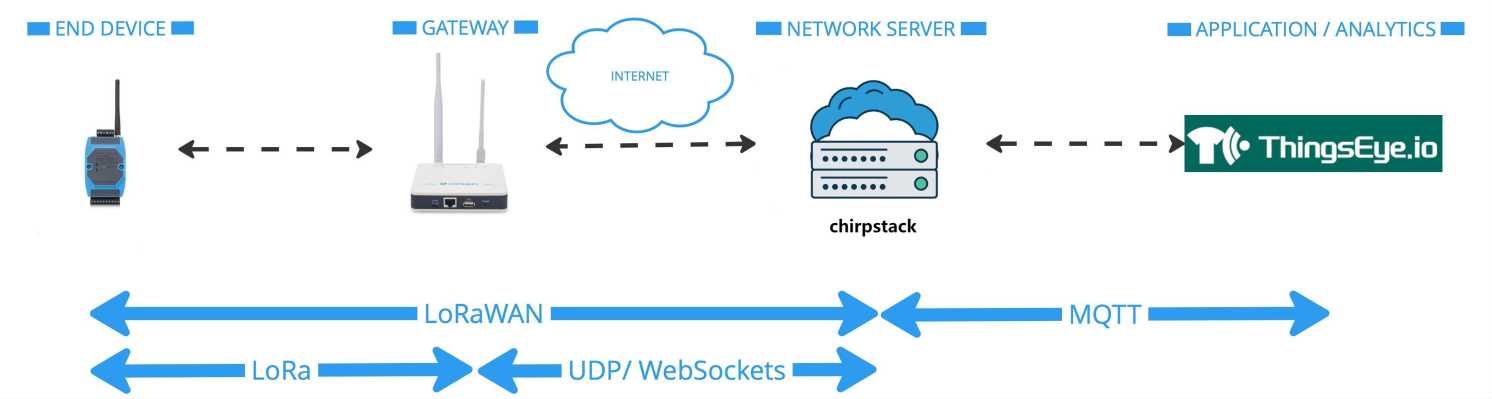
4.1 Network Structure
The network diagram below illustrates the connection between the devices andchirpstack, as well as how the data can be integrated with the ThingsEye IoT platform.
4.2 Thingseye adds MQTT integration
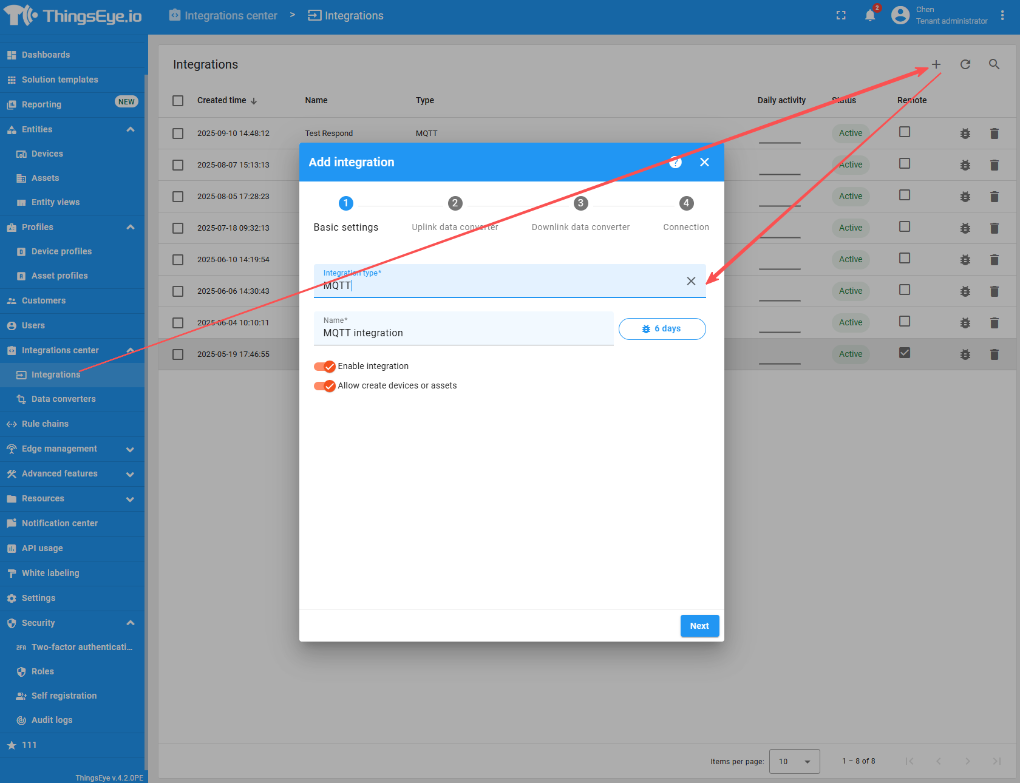
Go to the Integrations page in the Integrations center section. Click the plus button to start adding a new integration. Select the type "MQTT" integration and click "Next";
4.3 Add an uplink and downlink data converter
In the function decoder field, specify the uplink script to parse and transform the data.
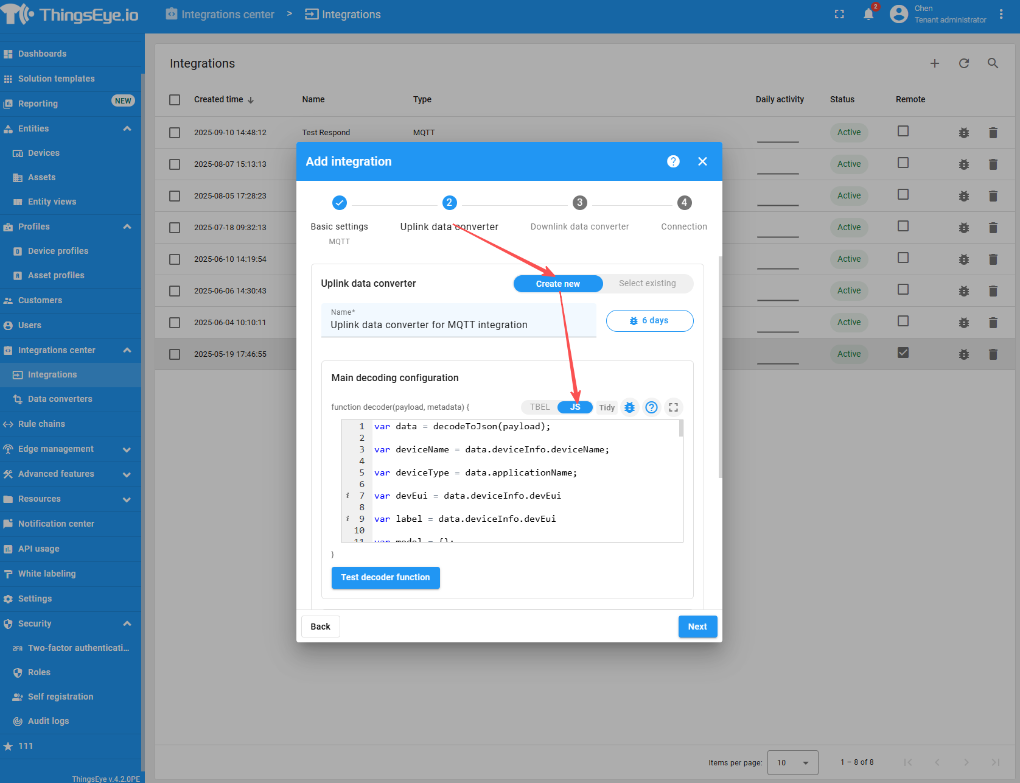
- Uplink——JavaScript:
var data = decodeToJson(payload);
var deviceName = data.deviceInfo.deviceName;
var deviceType = data.applicationName;
var devEui = data.deviceInfo.devEui
var label = data.deviceInfo.devEui
var model = {};
var data2 = data.object;
var flg = data.fPort
for (var key in data2) {
// 将属性名存入新对象中
model[key] = data2[key];
}
//var obj = {"devid":deviceName}
var result = {
deviceName: deviceName,
deviceType: deviceType,
telemetry: model,
groupName: "Case Study",
//label:label,
attributes:{"devEui":devEui,
//"timevalue":"test",
"inactivityTimeout":1260000
// "High_humidity_alarm":"not set",
// "High_temperature_alarm":"not set",
// "Low_humidity_alarm":"not set",
// "Low_temperature_alarm":"not set",
// "Low_voltage_alarm":"not set"
//"customerName": "Civionic Engineering & Consulting (2014) Inc."
}
};
function decodeToString(payload) {
return String.fromCharCode.apply(String, payload);
}
function decodeToJson(payload) {
var str = decodeToString(payload);
var data = JSON.parse(str);
return data;
}
return result;
In the function decoder field, specify the downlink script to parse and transform the data.
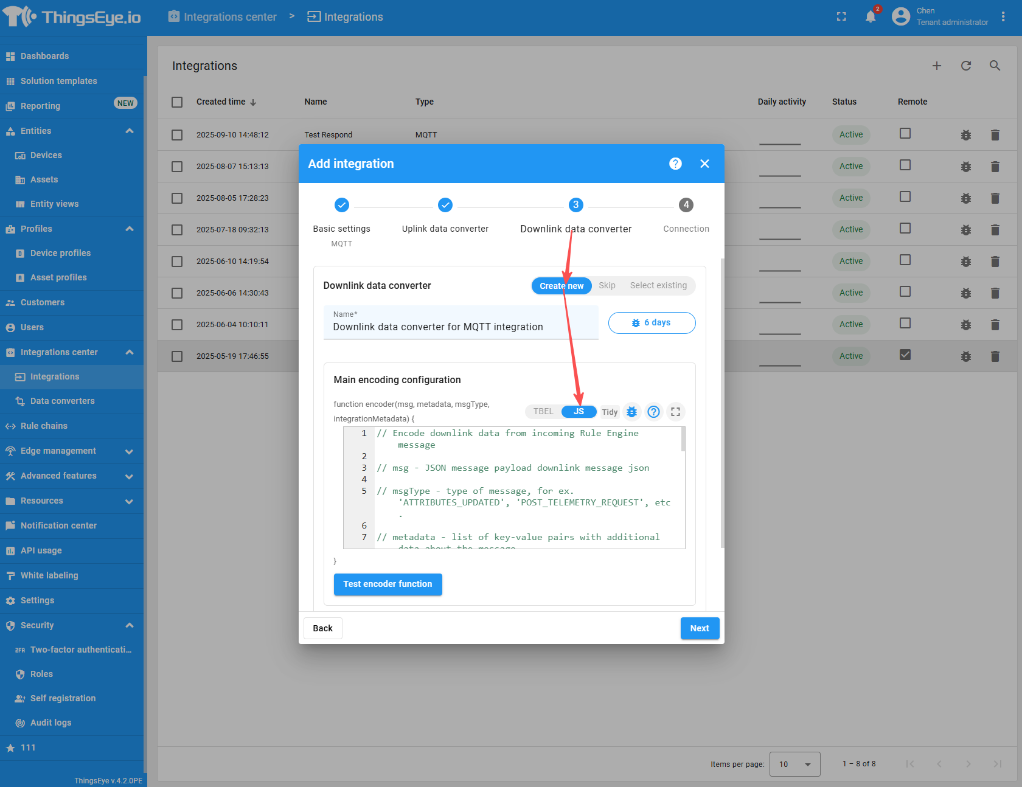
- Dowblink——JavaScript:
// Encode downlink data from incoming Rule Engine message
// msg - JSON message payload downlink message json
// msgType - type of message, for ex. 'ATTRIBUTES_UPDATED', 'POST_TELEMETRY_REQUEST', etc.
// metadata - list of key-value pairs with additional data about the message
// integrationMetadata - list of key-value pairs with additional data defined in Integration executing this converter
// /** Encoder **/
//var data = {"value":99};
// // Process data from incoming message and metadata
// data.tempFreq = msg.temperatureUploadFrequency;
// data.humFreq = msg.humidityUploadFrequency;
// data.devSerialNumber = metadata['ss_serialNumber'];
// // Result object with encoded downlink payload
var result = {
// downlink data content type: JSON, TEXT or BINARY (base64 format)
contentType: "TEXT",
// downlink data
data: msg.shared_value ,//JSON.stringify(data),
// Optional metadata object presented in key/value format
metadata: {
topic: '/test/down/'+metadata.deviceName
}
};
return result;
4.4 Configure the connection
Generate MQTT certificate integrated on chirpstack
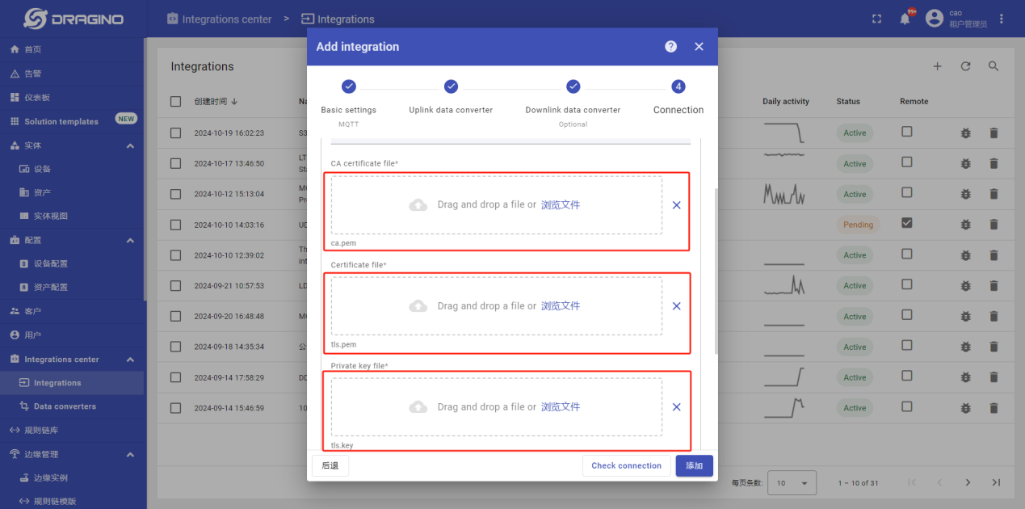
Chirpstack generates CA certificate, TLS certificate, and TLS key respectively
They correspond to the CA certificate file, Certificate file, and Private key file on thingseye
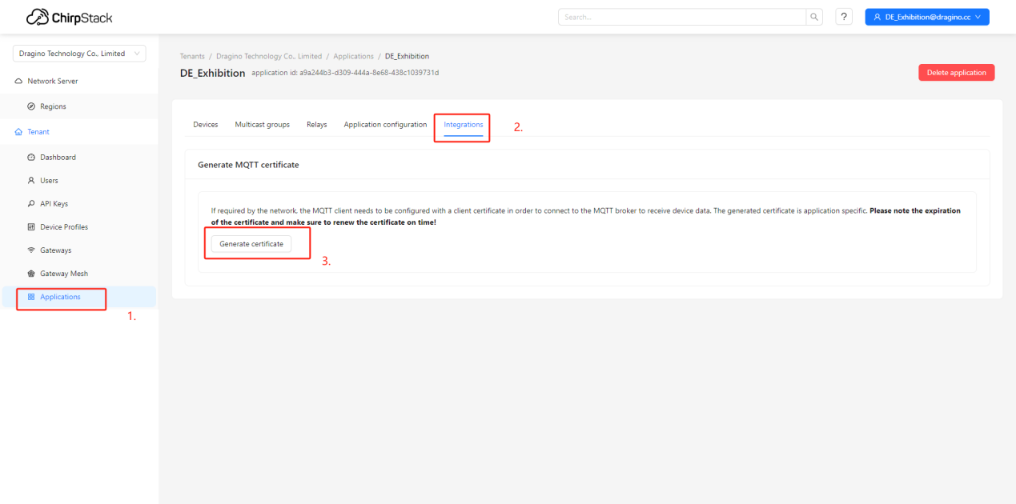
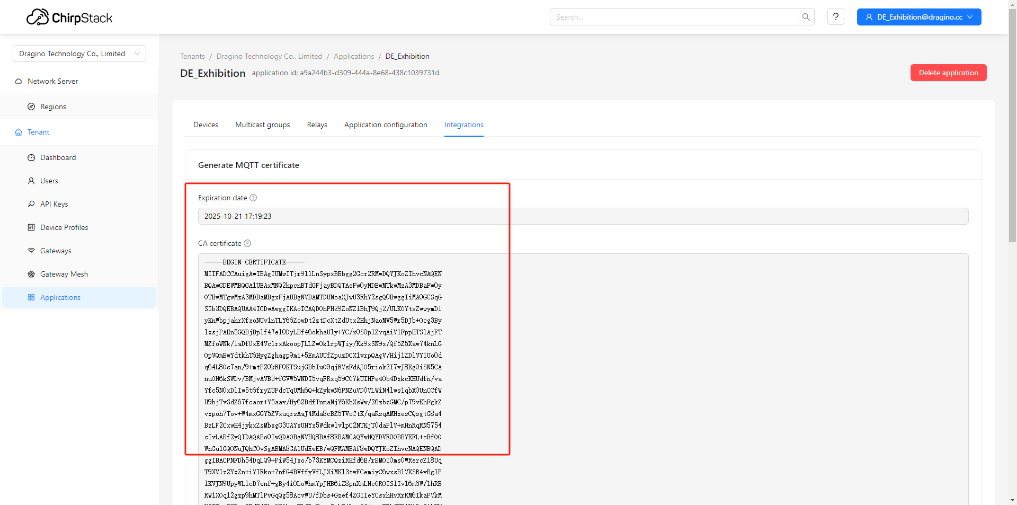
- Copy the contents of the certificates and paste them into the linked file below, a total of three certificates are required
Integrated Certificate File demo Download Address:
https://github.com/ThingsEye-io/te-platform/tree/main/chirpstack
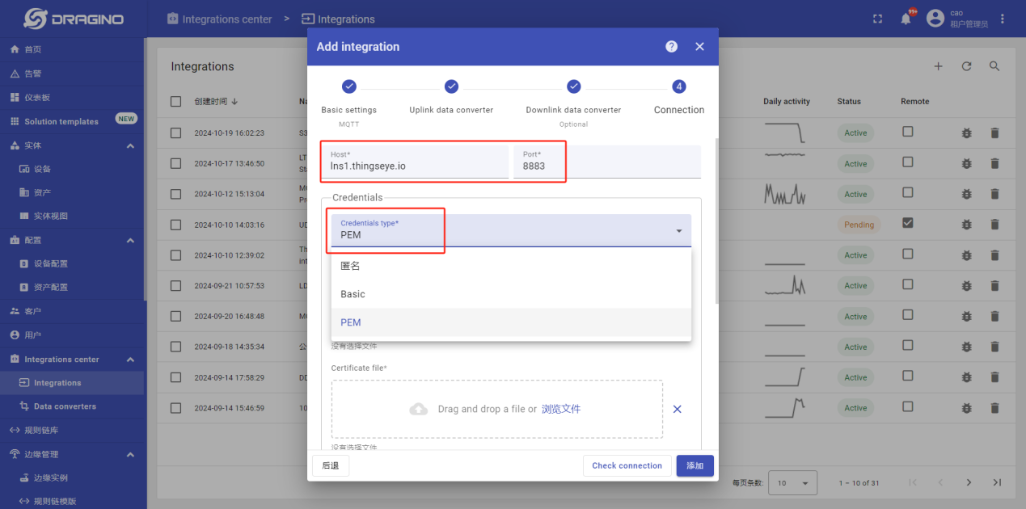
Enter the server address Host: lns1.thingseye.io on the Connection configuration
Port: 8883
Credentials type: PEM
Upload the certificate and key file
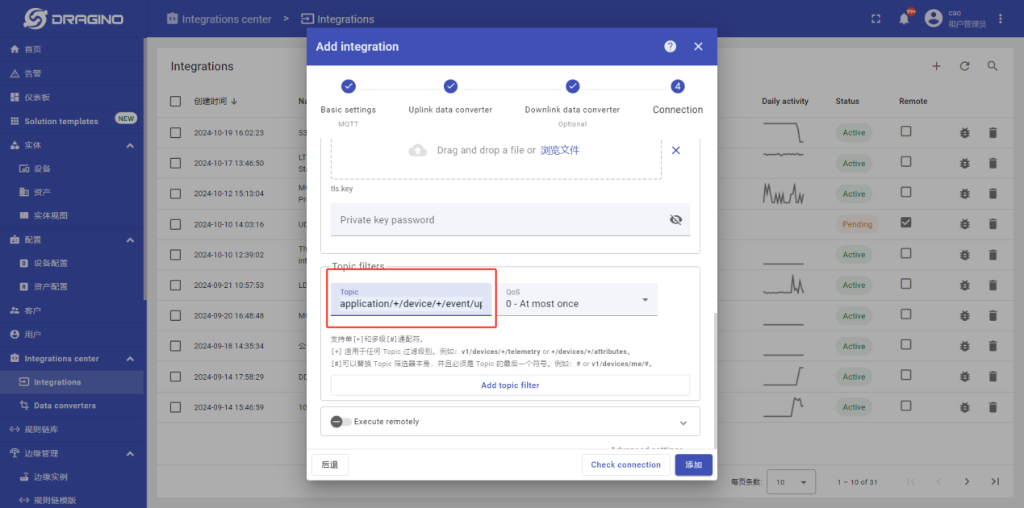
The default for Topic is:
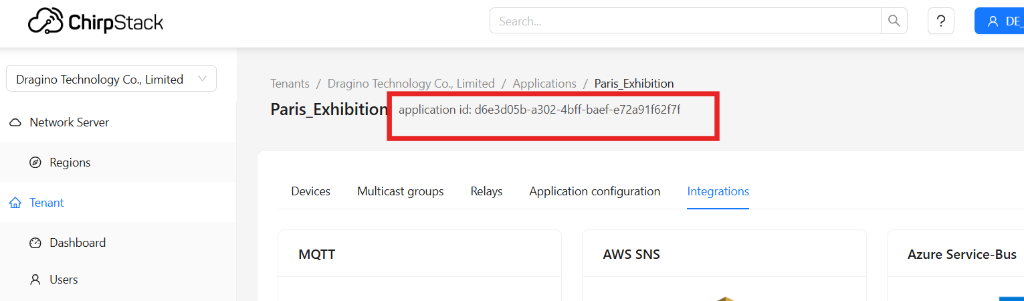
application/chirpstack application id/device/+/event/up
4.5 Check the connection
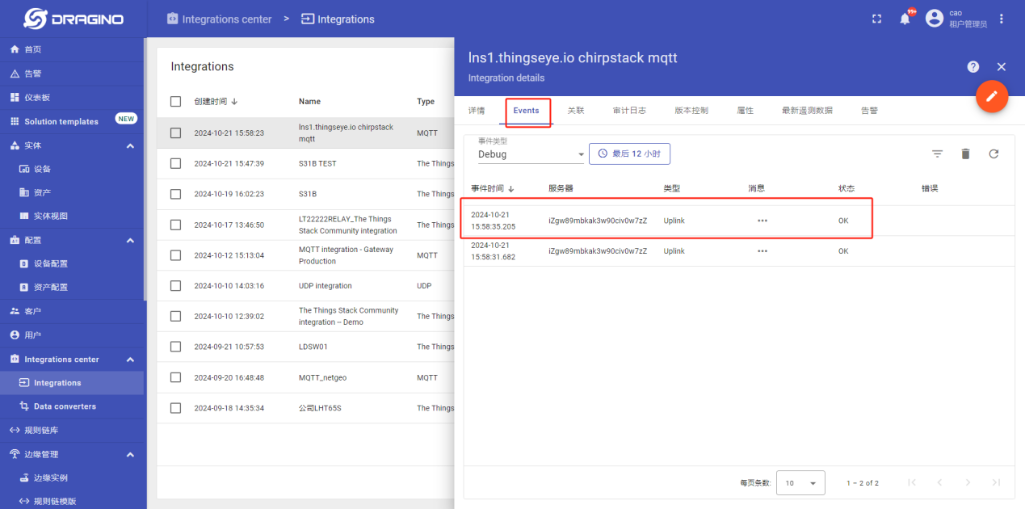
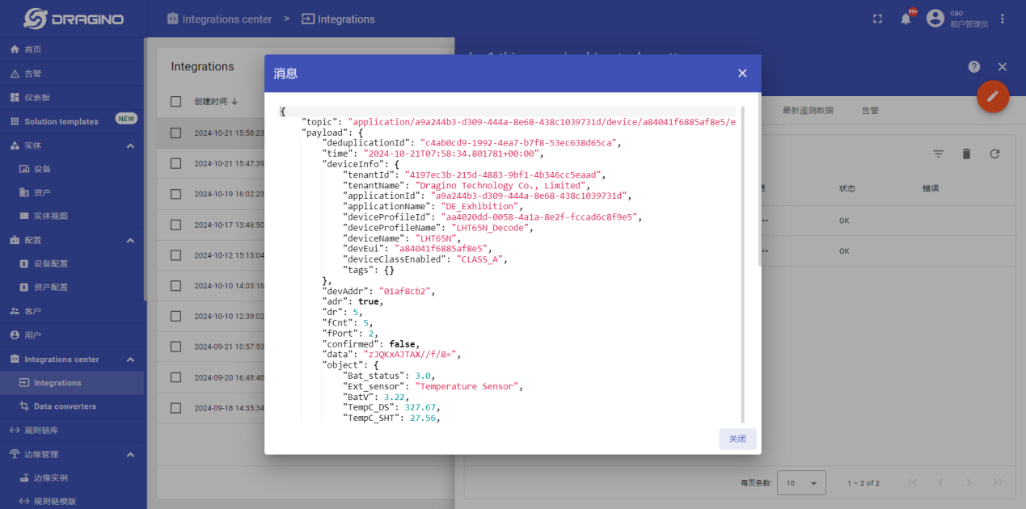
5. Check Data Uplink Log
User can check the devices log in Intergration.