2.2 Edit a Tenant
Section Objectives
Learn how to modify tenant information, including tenant name, tenant configuration template, contact details, etc.
Applicable Roles
System Administrator
Prerequisites
Logged in to the platform with a system administrator account
The target tenant already exists
If you need to change the tenant configuration template, the target template must already exist (see Chapter 3)
Steps
Step 1: Navigate to the Tenant Management Page
In the left navigation bar, select the Tenants menu item to go to the tenant list page.
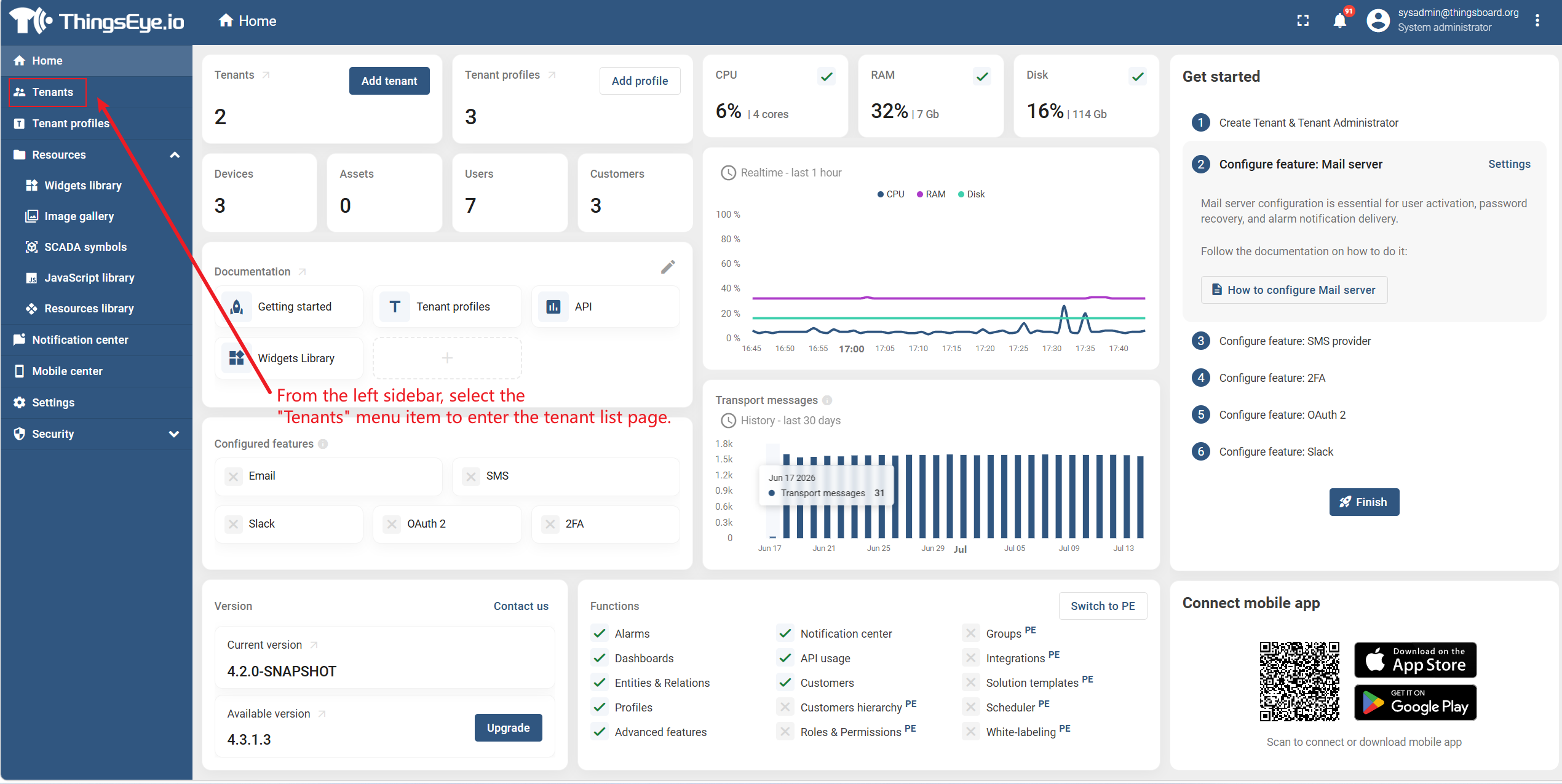
Step 2: Locate the Target Tenant
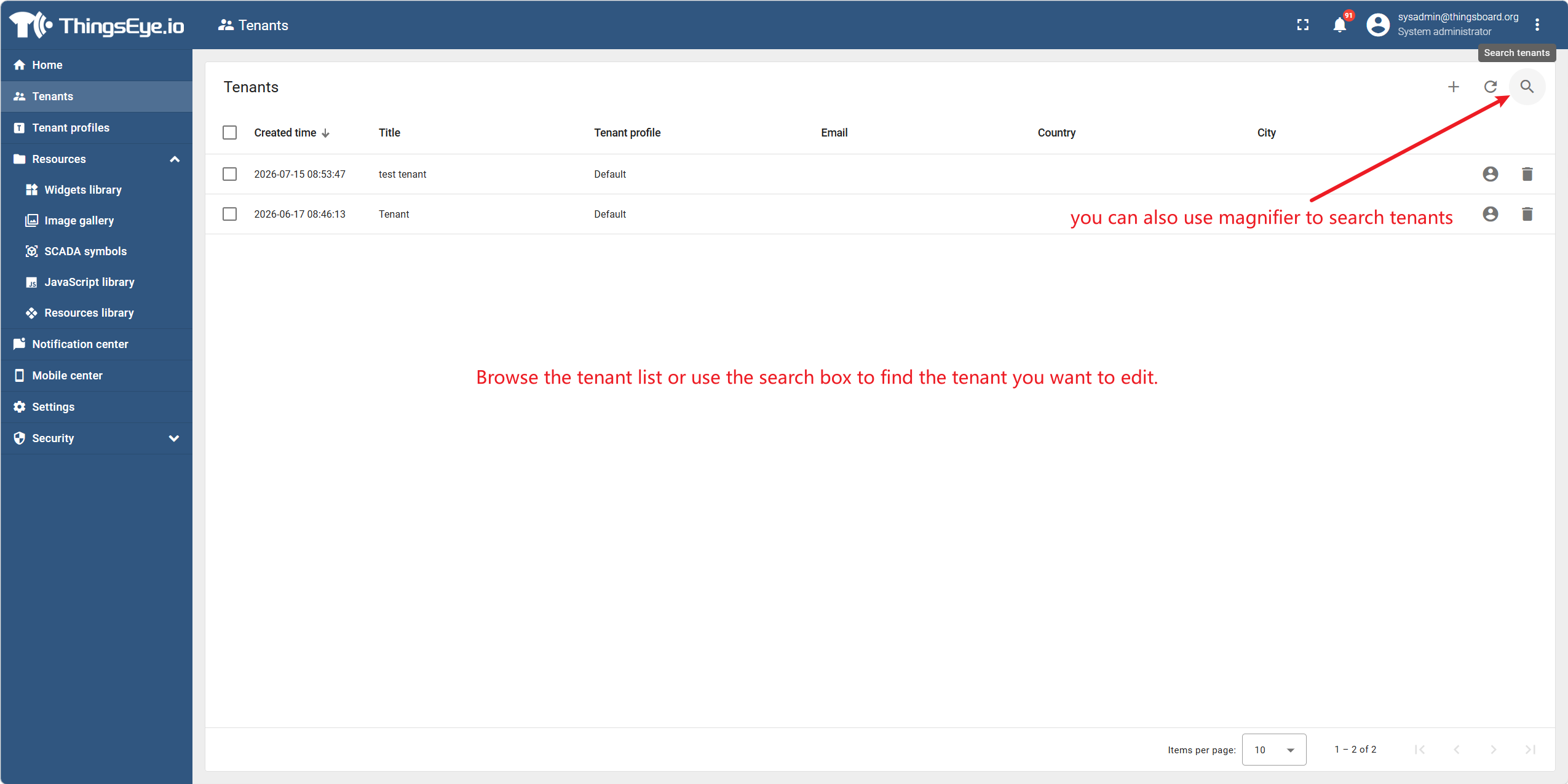
Browse the tenant list or use the search box to find the tenant you want to edit.
| Method | Description |
|---|---|
| Browse list | Scroll through the tenant list to find the target tenant |
| Search box | Enter the tenant name in the search box (supports fuzzy matching) to quickly filter and locate |
Step 3: Enter Edit Mode
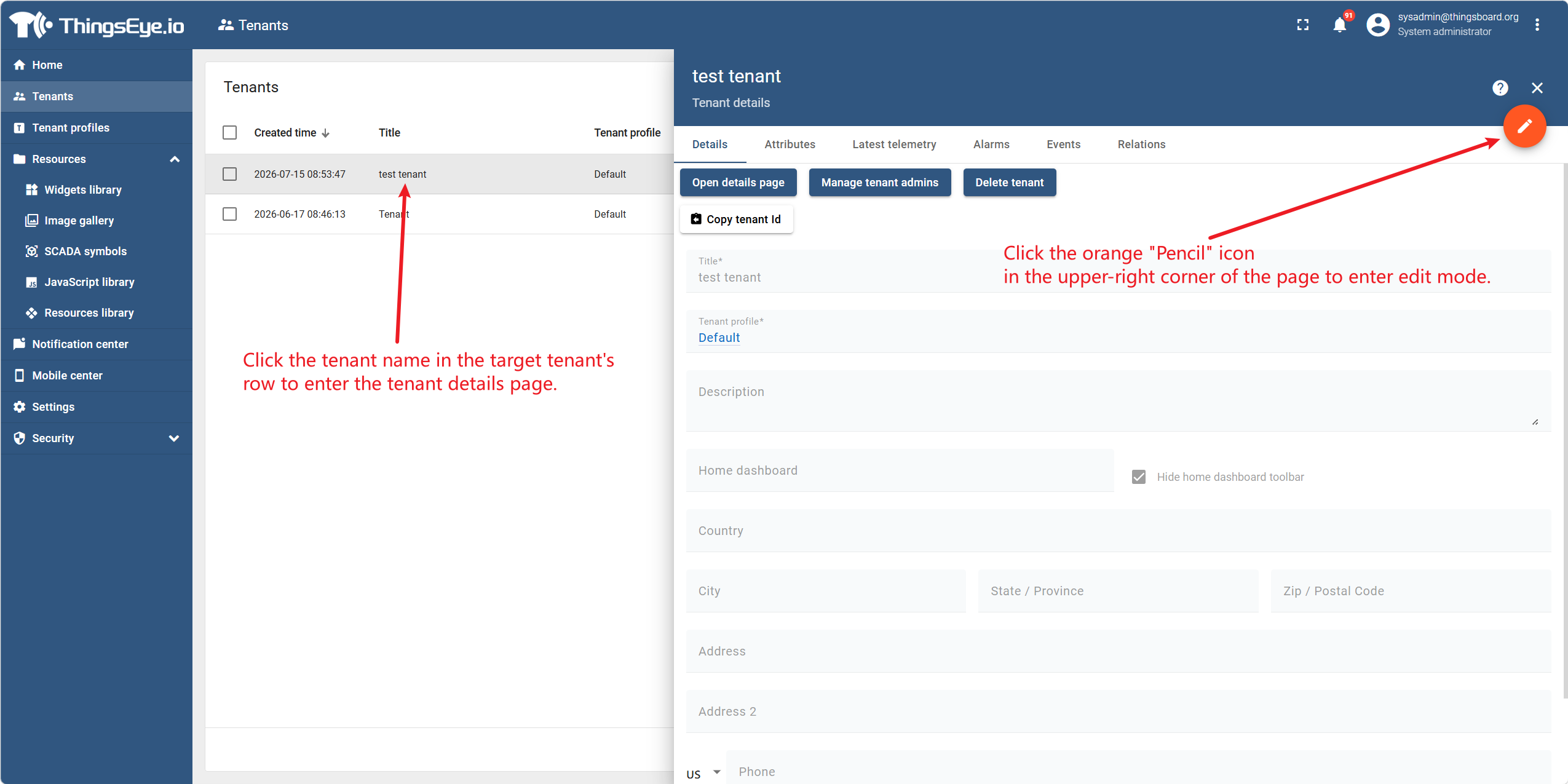
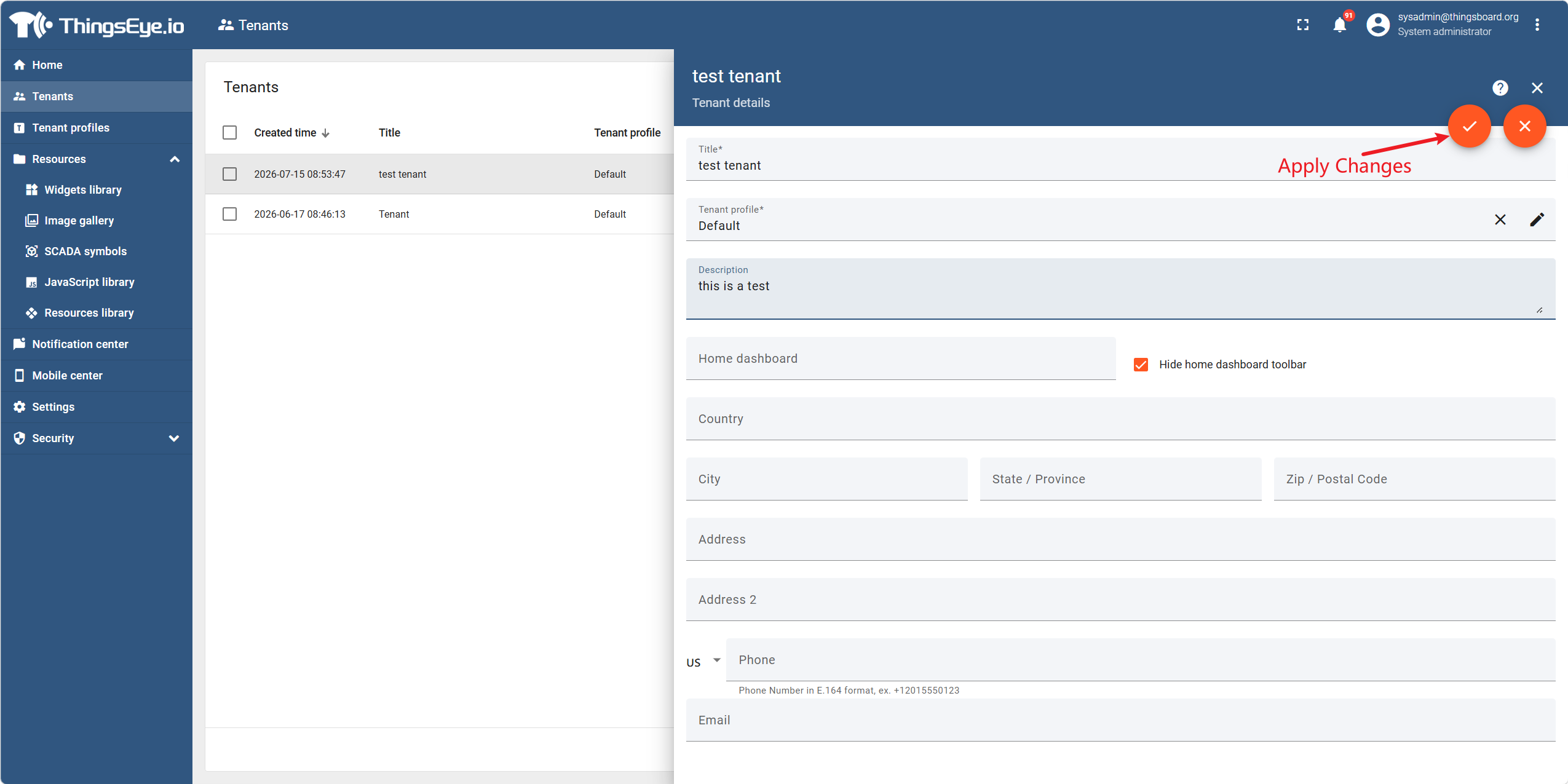
Click the tenant name in the row of the target tenant to go to the tenant details page. Then click the orange Pencil icon in the upper‑right corner of the page to enter edit mode.
Step 4: Modify Tenant Information
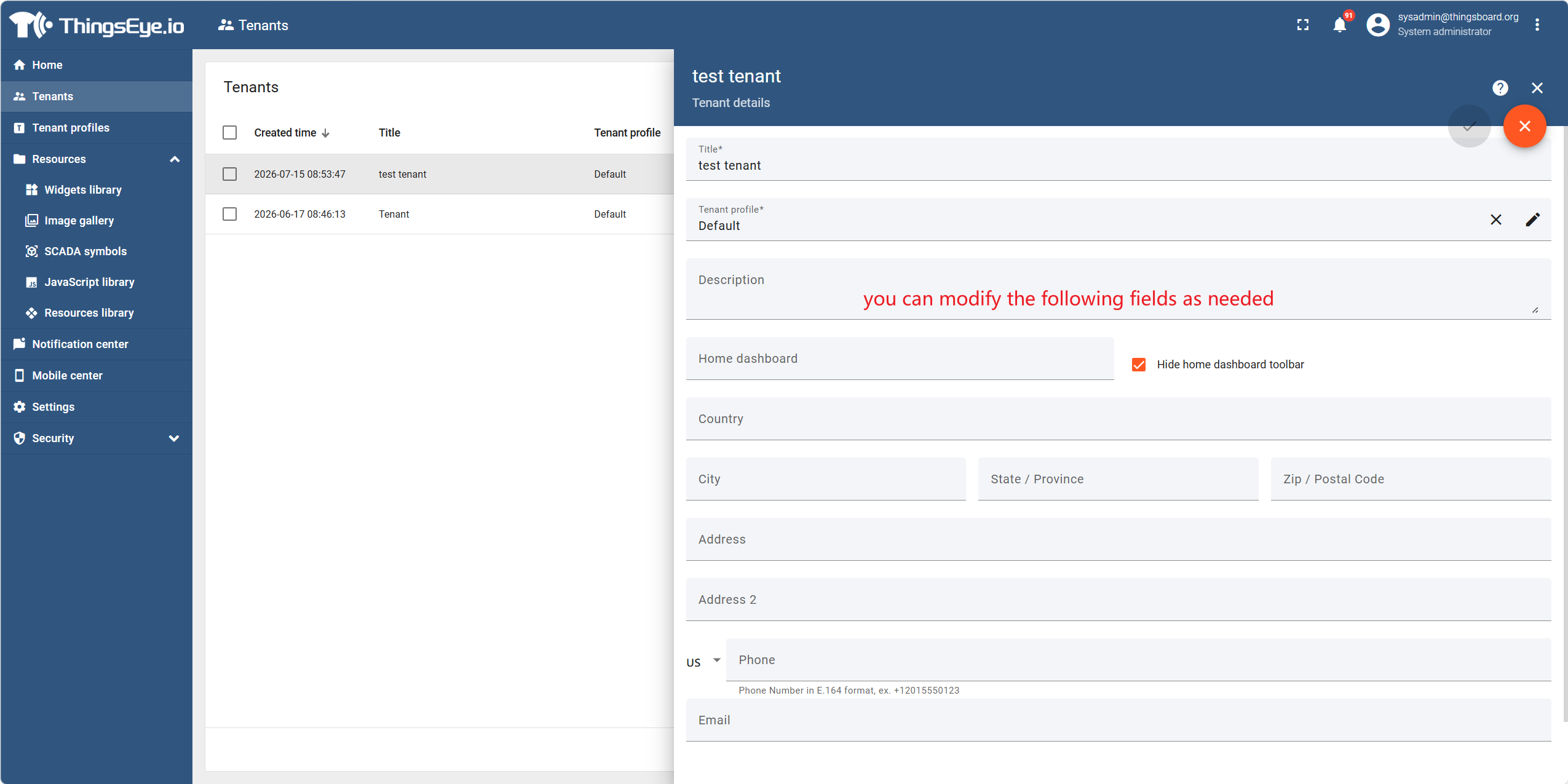
In edit mode, modify the following fields as needed:
| Field | Description | Editable? |
|---|---|---|
| Tenant Name | The unique display name of the tenant; changes will be updated immediately in the list | Yes |
| Tenant Configuration Template | Change the configuration template used by the tenant, which affects feature quotas | Yes |
| Contact Person | The primary contact on the tenant side | Yes |
| Phone Number | The contact’s phone number | Yes |
| Email Address | The contact’s email address | Yes |
| Country/Region | The country or region where the tenant is located | Yes |
| Address | The detailed address of the tenant | Yes |
| Additional Information | Any other remarks or notes | Yes |
Step 5: Save Changes
-
After modifying the information, click the Apply Changes button in the upper‑right corner of the page to submit the update.
-
The system will save the changes and refresh the tenant information. If the tenant configuration template is changed, the new quota limits will take effect immediately.
Notes on Editing
| Note | Description |
|---|---|
| Tenant Name Uniqueness | The modified tenant name must not duplicate any existing tenant; otherwise, the system will display a conflict error. |
| Quota Impact After Template Change | If switching to a template with lower quotas and the current usage exceeds the new limits, the system will issue a warning. Over‑allocated resources will not be deleted, but new operations (such as adding devices or users) will be blocked. |
| Purpose of Contact Information | The contact name, phone, and email are mainly for administrative reference and are not used for system auto‑notifications (unless otherwise configured). |
| Modification Audit | All modifications to tenant information are recorded in the audit log (see Chapter 11). |