How to export the data you want
1. Overview:
ThingsEye exports data for the same time period as the widget is set for, if you want to export data for a certain period of time, you need to set the dashboard time window using the following steps:
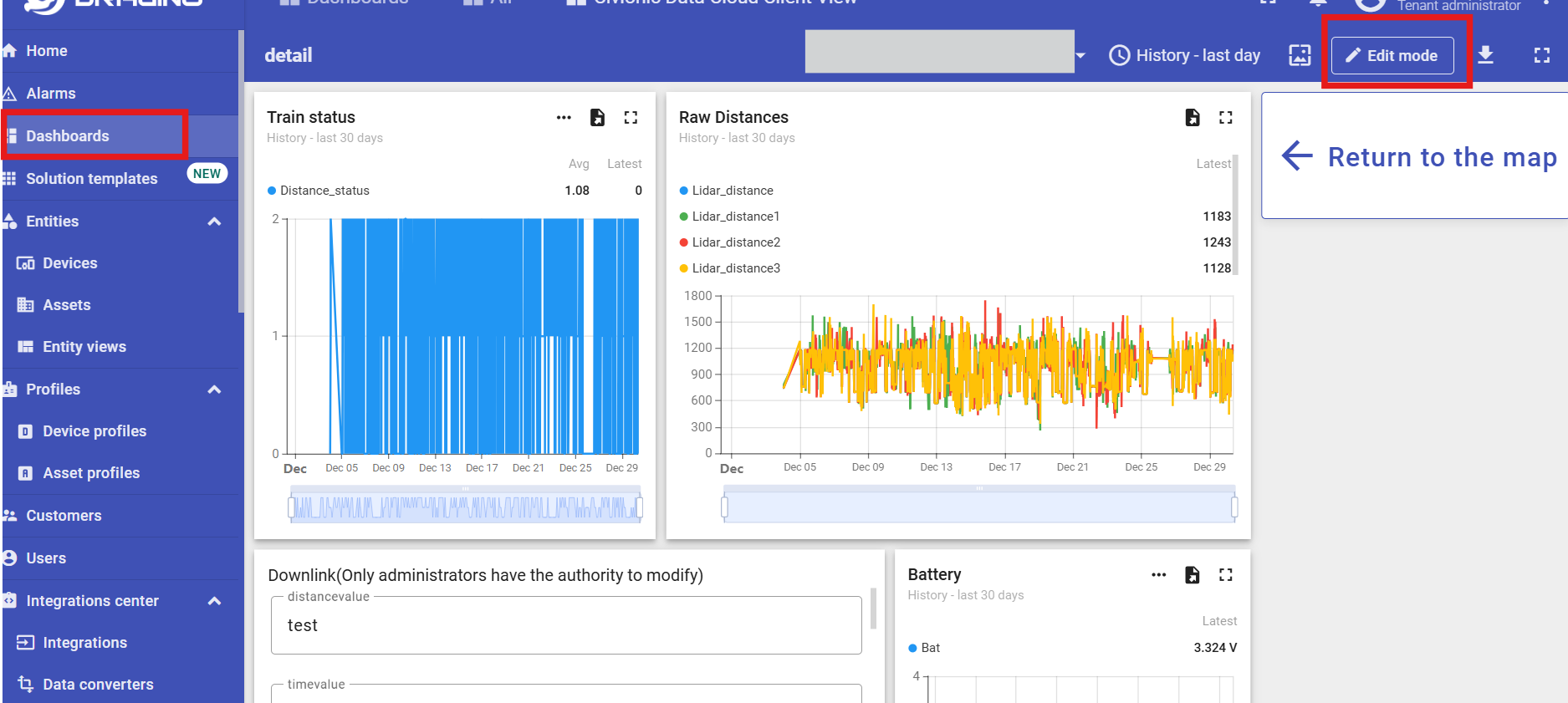
Step1:Open the dashboard to enter the editing screen
Open the dashboard you want to export data to and click “Edit mode” in the upper right corner to enter the editing interface.
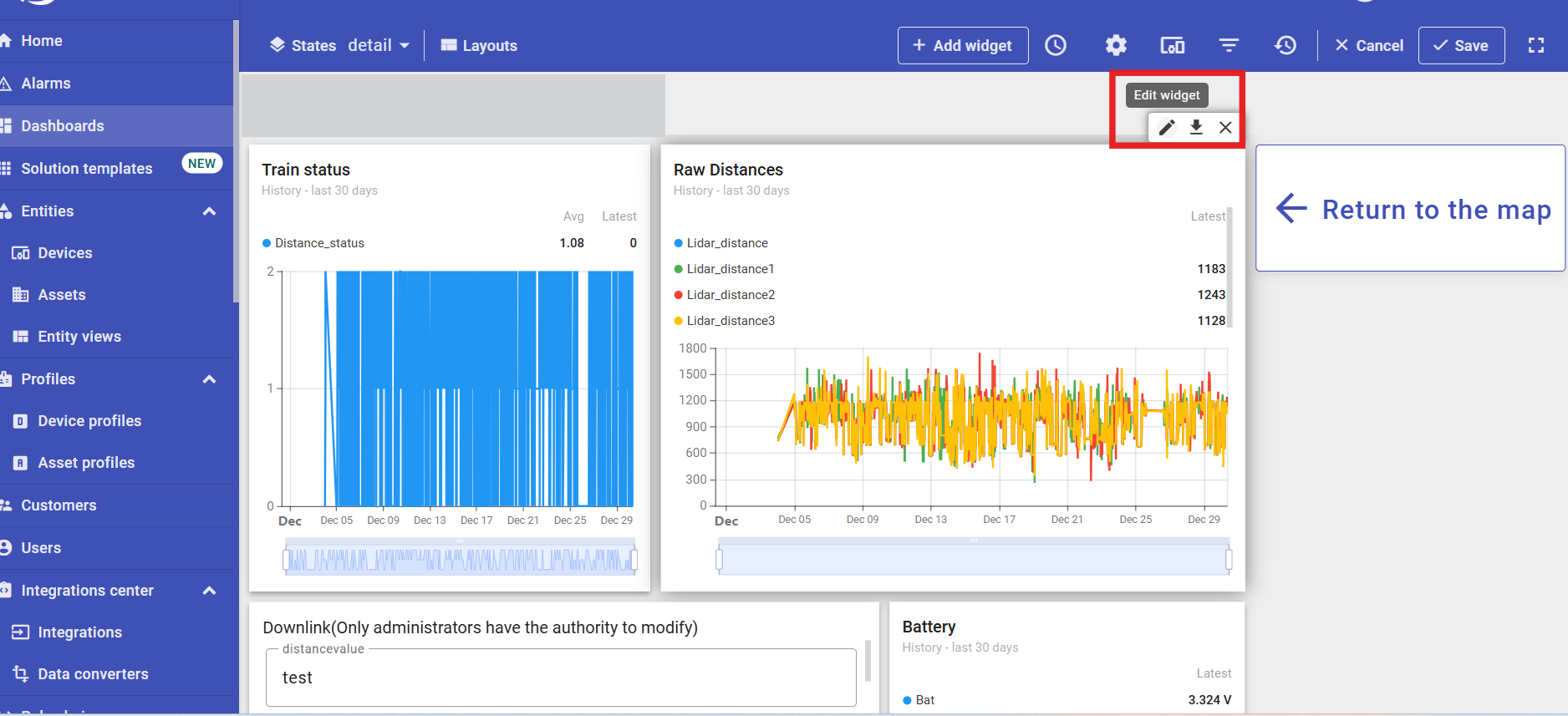
Then click “🖊” in the upper right corner of the widget to enter the widget editing interface.

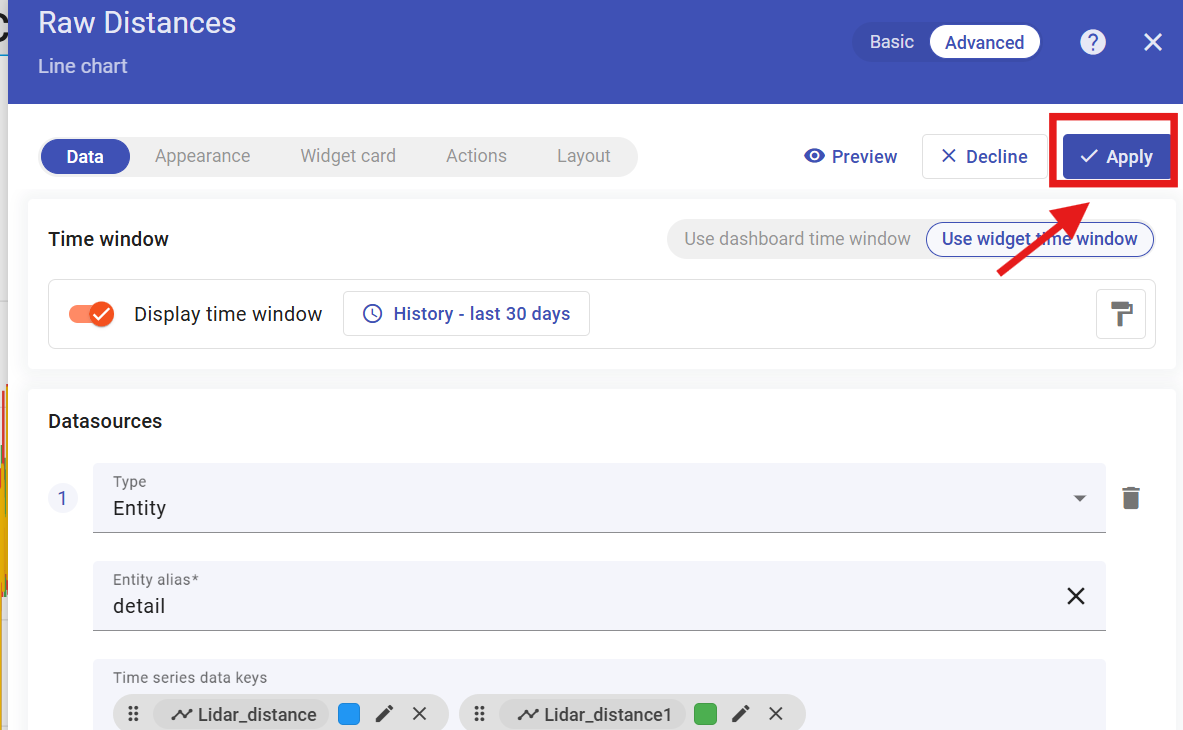
Step2:Edit widget time window
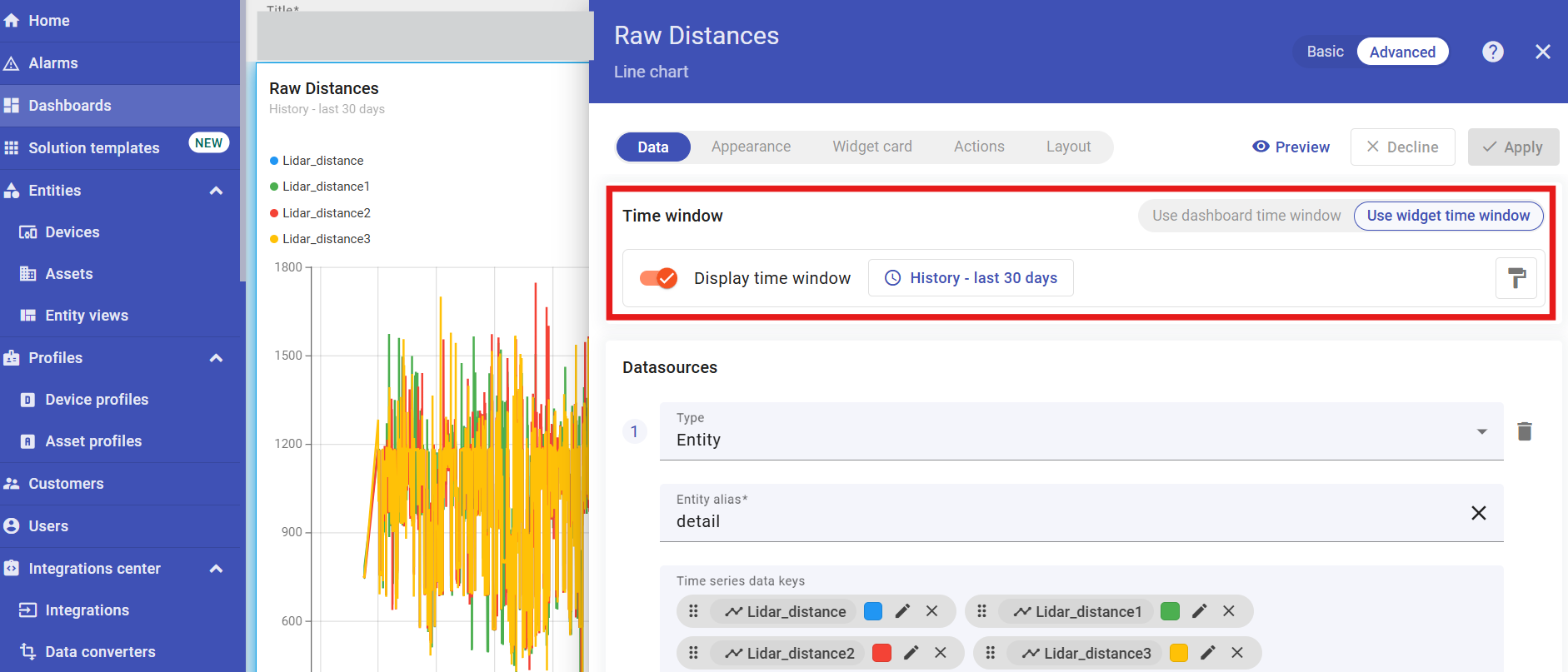
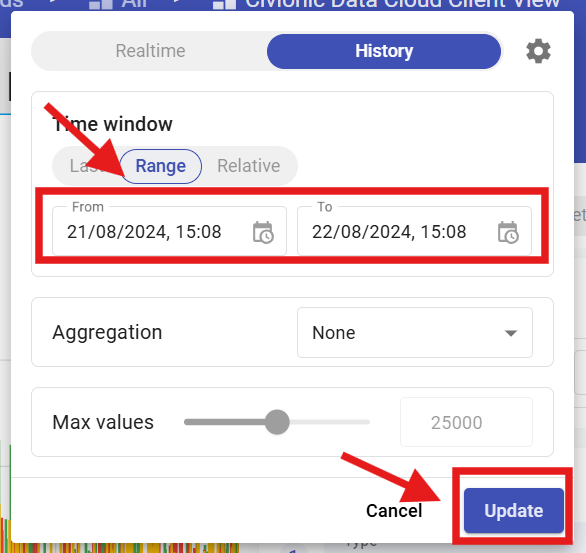
Click on Edit “Time Window” and select the time period for which you want to export the data.
Then click "Update".And then click “Apply” to save.
Step3:Export data
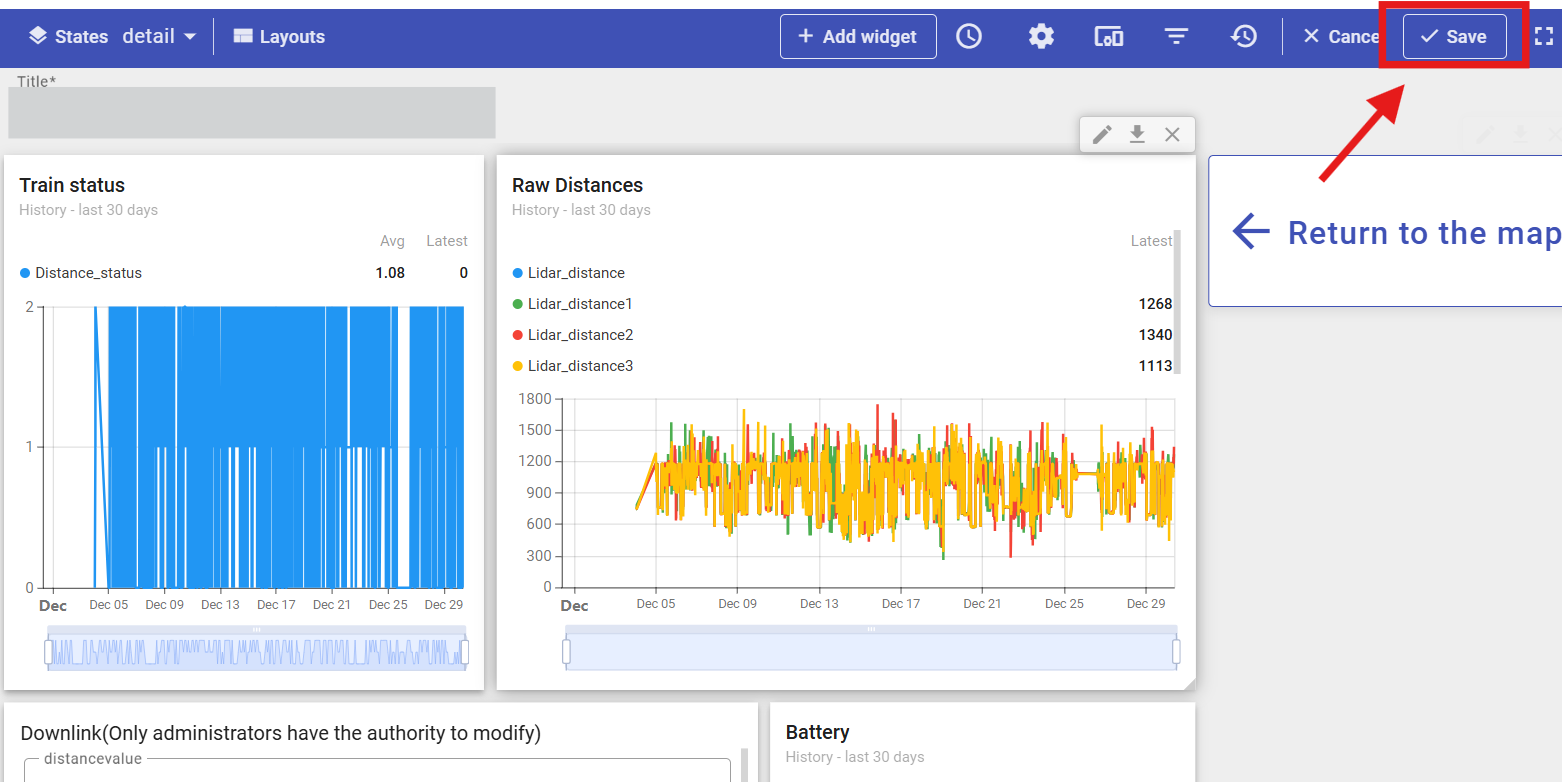
Once you have finished editing the widget, you need to click “Save” in the upper right corner to save it.
After that, click on Export in the upper right corner of the widget and select the format you want to export the data to.
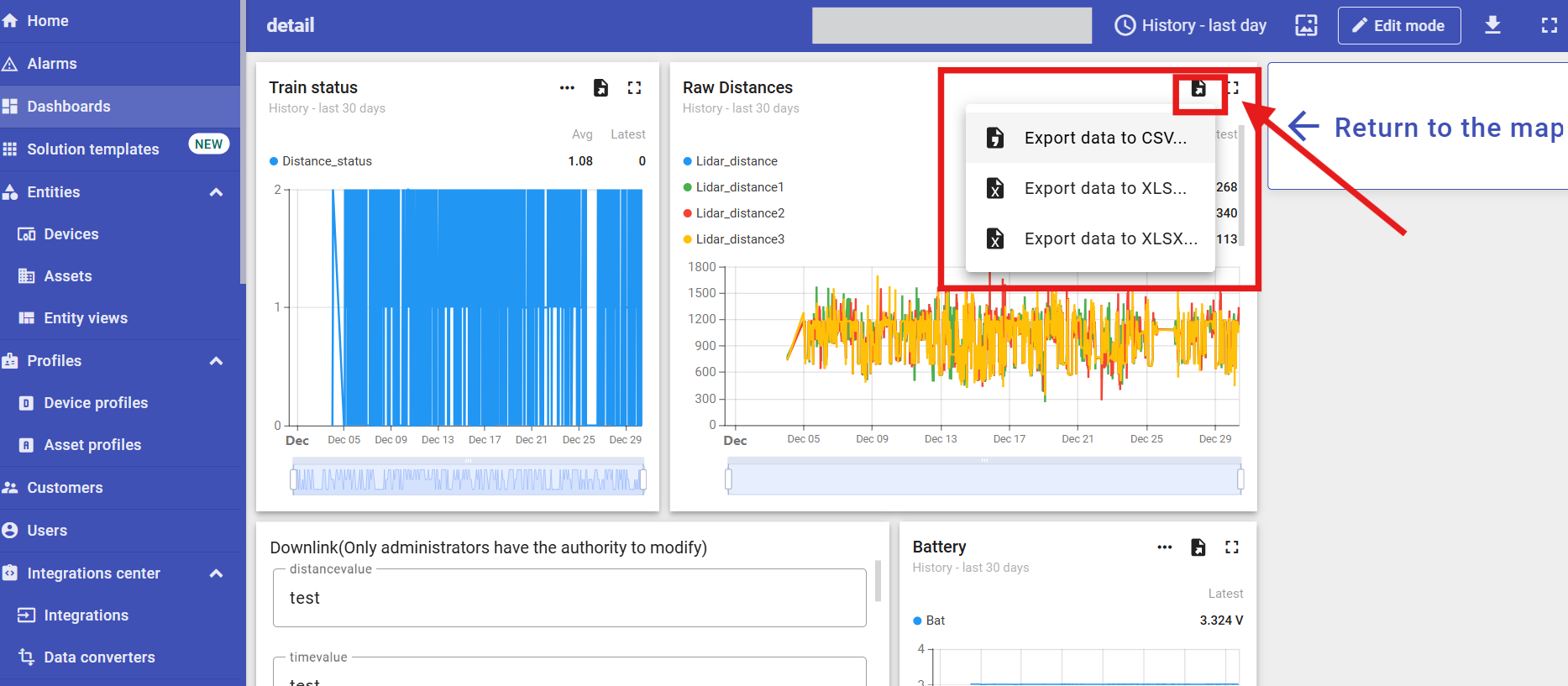
After that you have the data you want to export.
Note: After the data has been exported remember to use the steps above to re-modify the dashboard time window to the time period you want to display.