Login & Logout
Overview
System Administrators access the platform management console through the login module to perform operations such as tenant management and configuration template settings. Logout safely ends the current session.
Applicable Roles: Login applies to all roles (System Administrator, Tenant Administrator, End-User – note that "End-User" is also referred to as "Terminal User" or "Customer User" in the platform). Logout is demonstrated using the System Administrator as an example, but the steps are identical for all other roles.
1. Login to the Platform
Account Source
| Role | Creator | How to Obtain Initial Password |
|---|---|---|
| System Administrator | Operations personnel via backend initialization | Operations personnel notify via secure channels (email / internal enterprise communication tools) |
| Tenant Administrator | System Administrator creates within the platform (see "Tenant Admin Management > 1. Create Tenant Administrator") | Generated at creation; copied and notified by the System Administrator |
| End-User | Tenant Administrator creates within the platform (see "User and Customer Management > 4. Create User"). Note: Must be created from the "Customer" details page, not from the "Users" menu. | Generated at creation; copied and notified by the Tenant Administrator |
Tip: It is recommended to change your password immediately after the first login (see "Login & Personal Settings > 3. Change Password"). If you forget your password, contact your higher‑level administrator to reset it.
Procedure
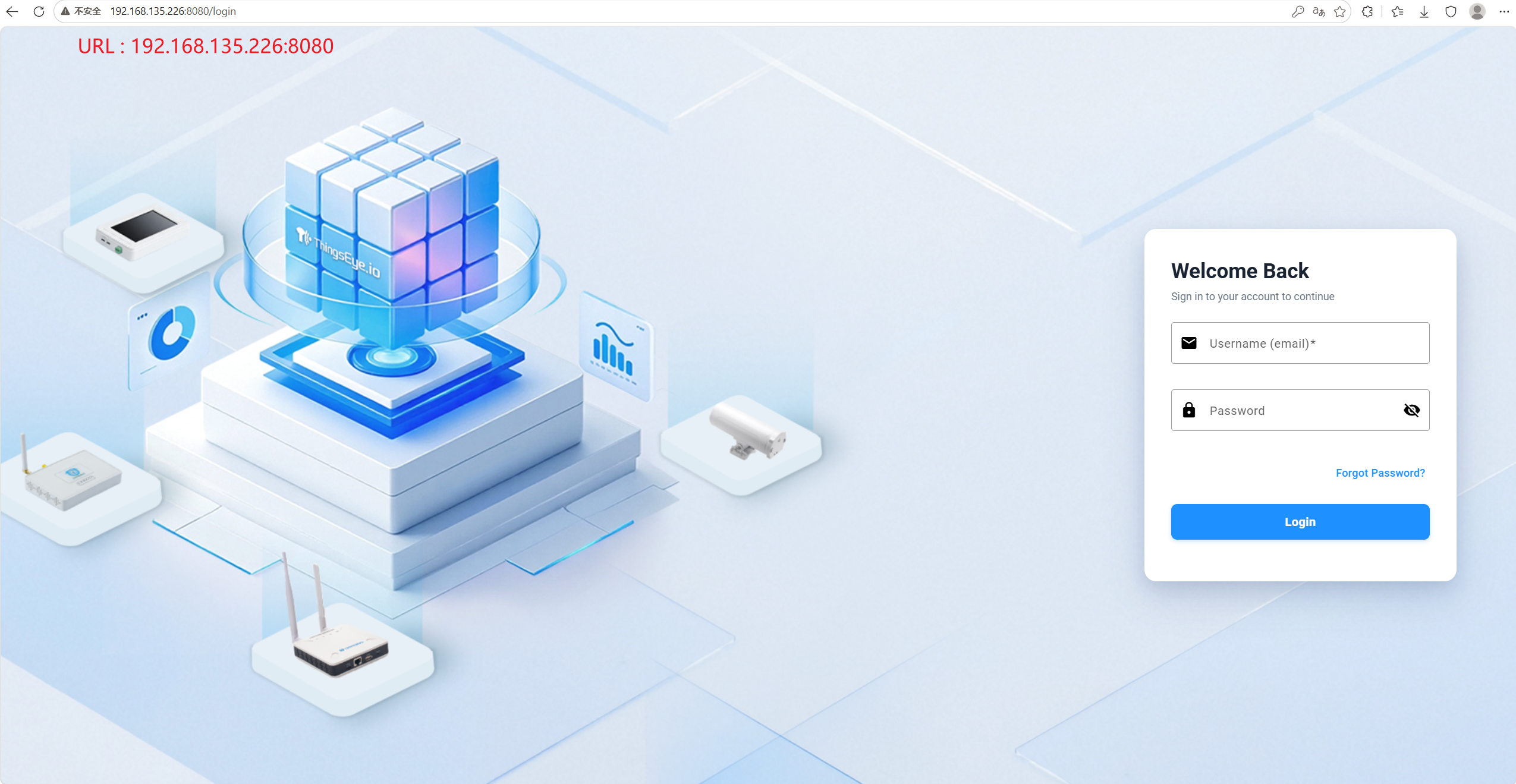
Step 1: Access the login page
Enter the platform access address in the browser's address bar to go to the login page.
Step 2: Enter the console
After successful login, the system automatically redirects you to the corresponding console panel based on your role:
| Role | Target Page | Console Interface |
|---|---|---|
| System Administrator | System Management Console | 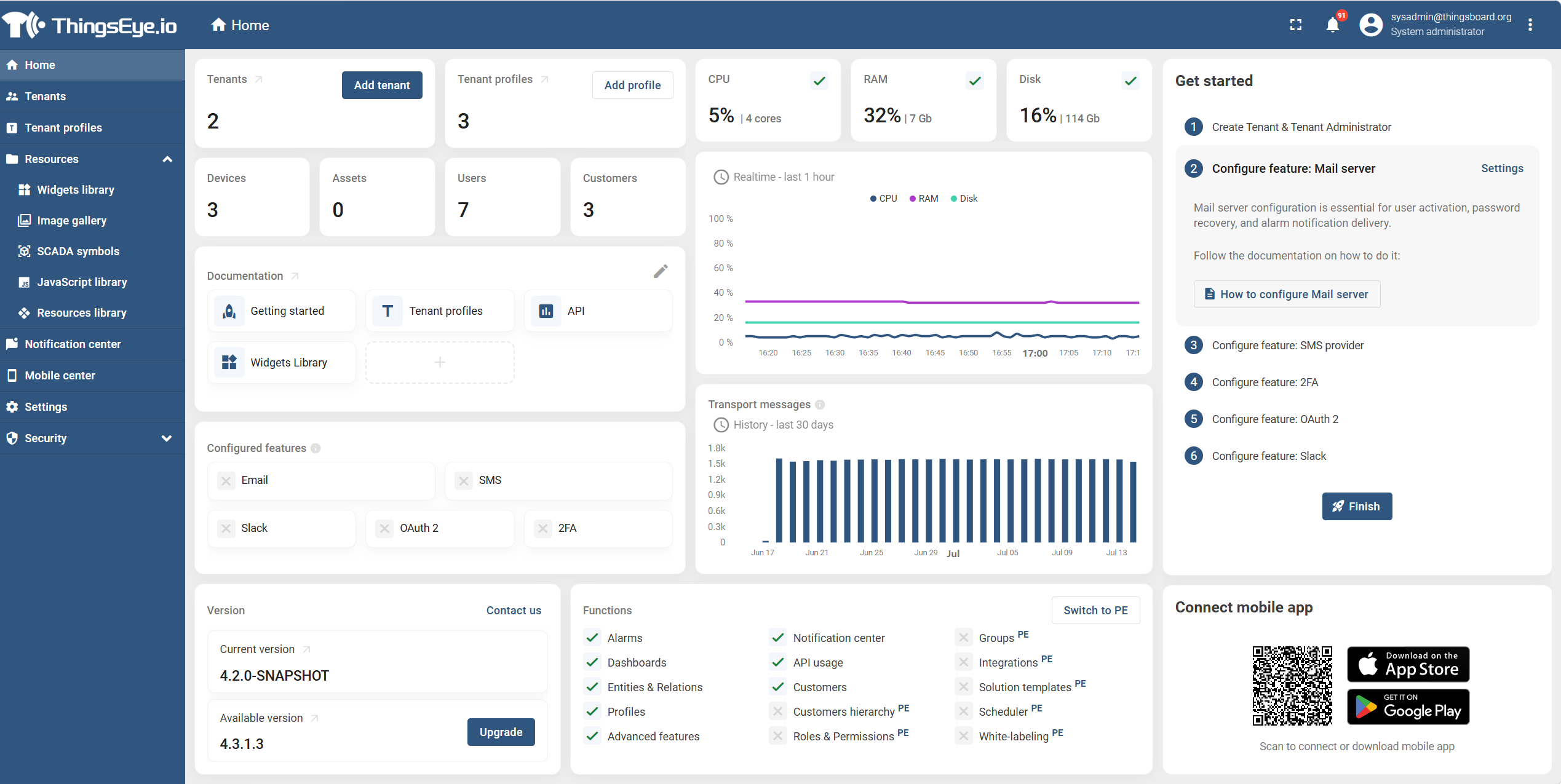 |
| Tenant Administrator | Tenant Management Console | 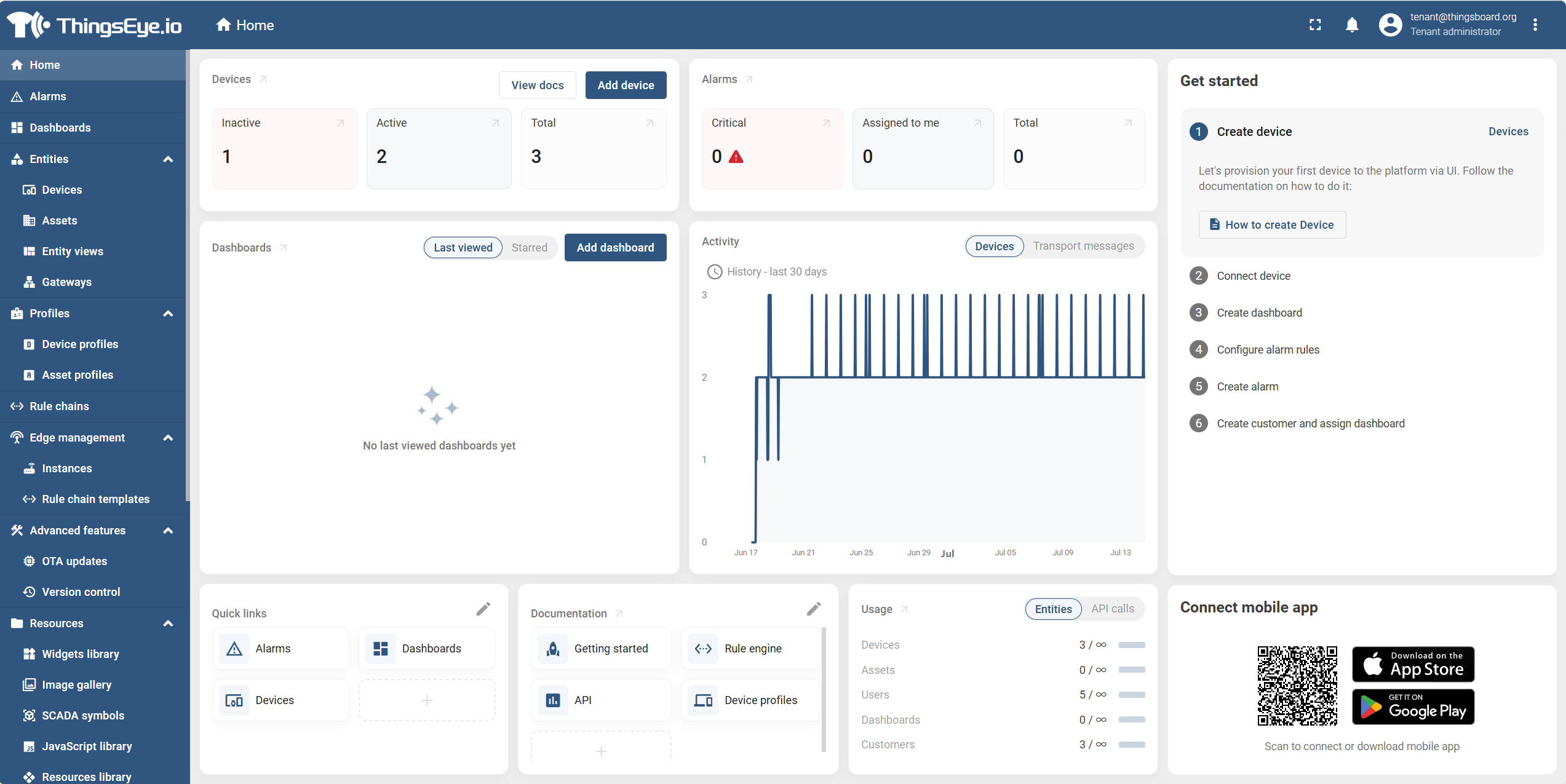 |
| End-User | Personal dashboard view | 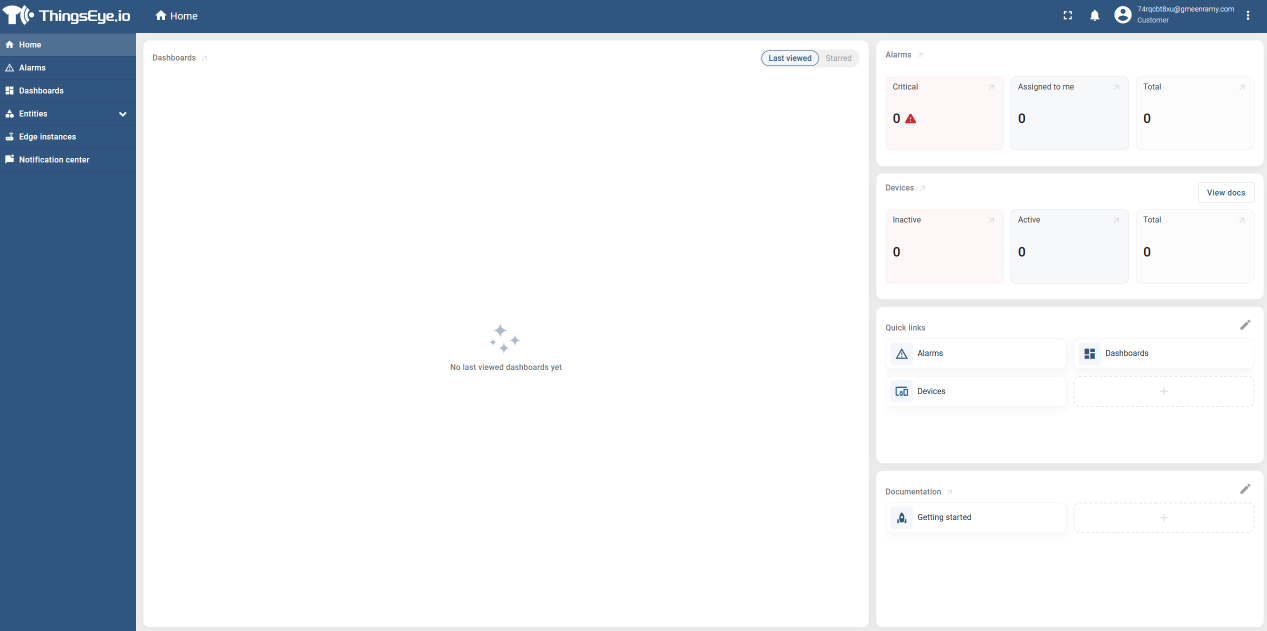 |
2. Logout
Procedure
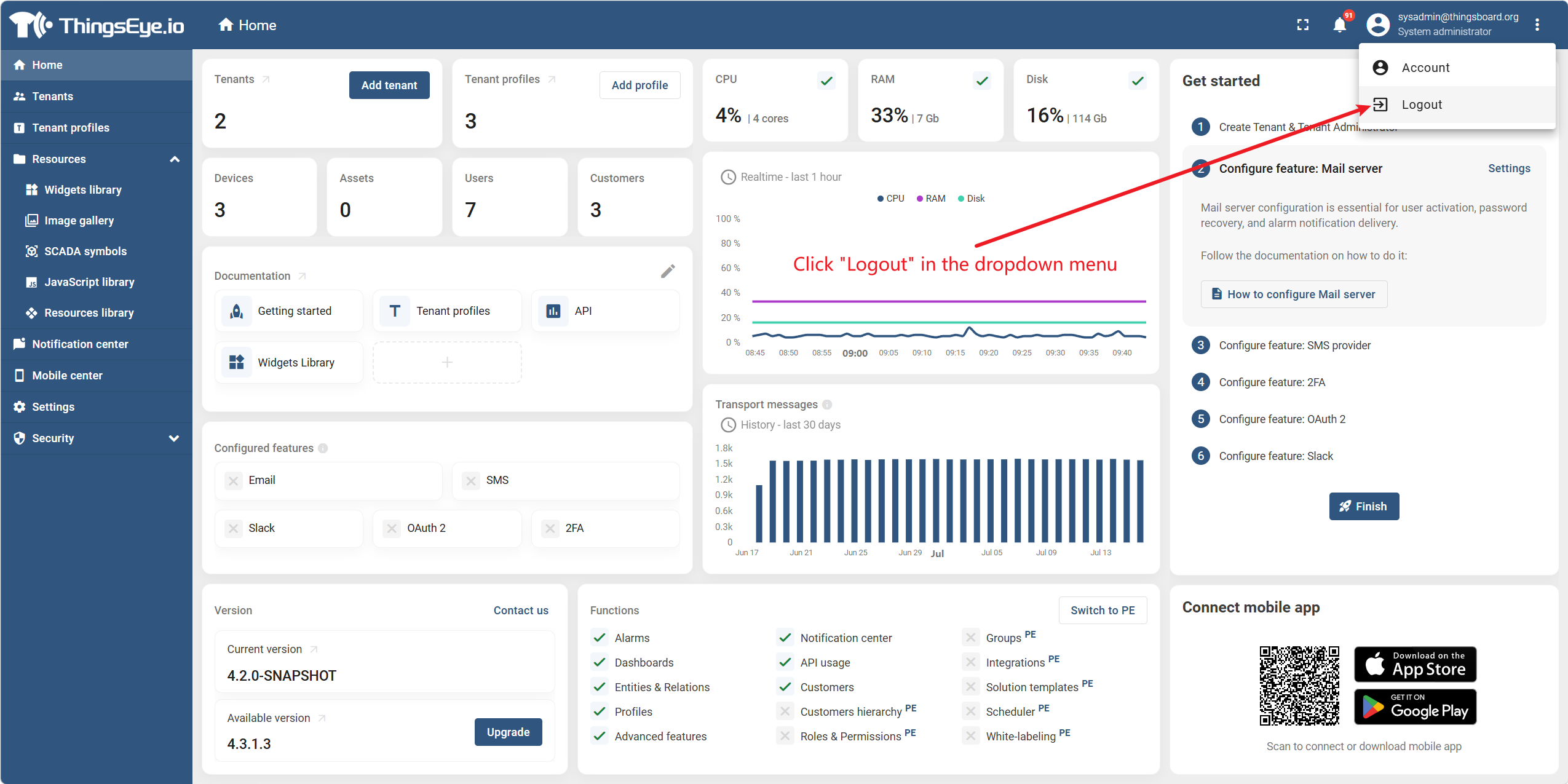
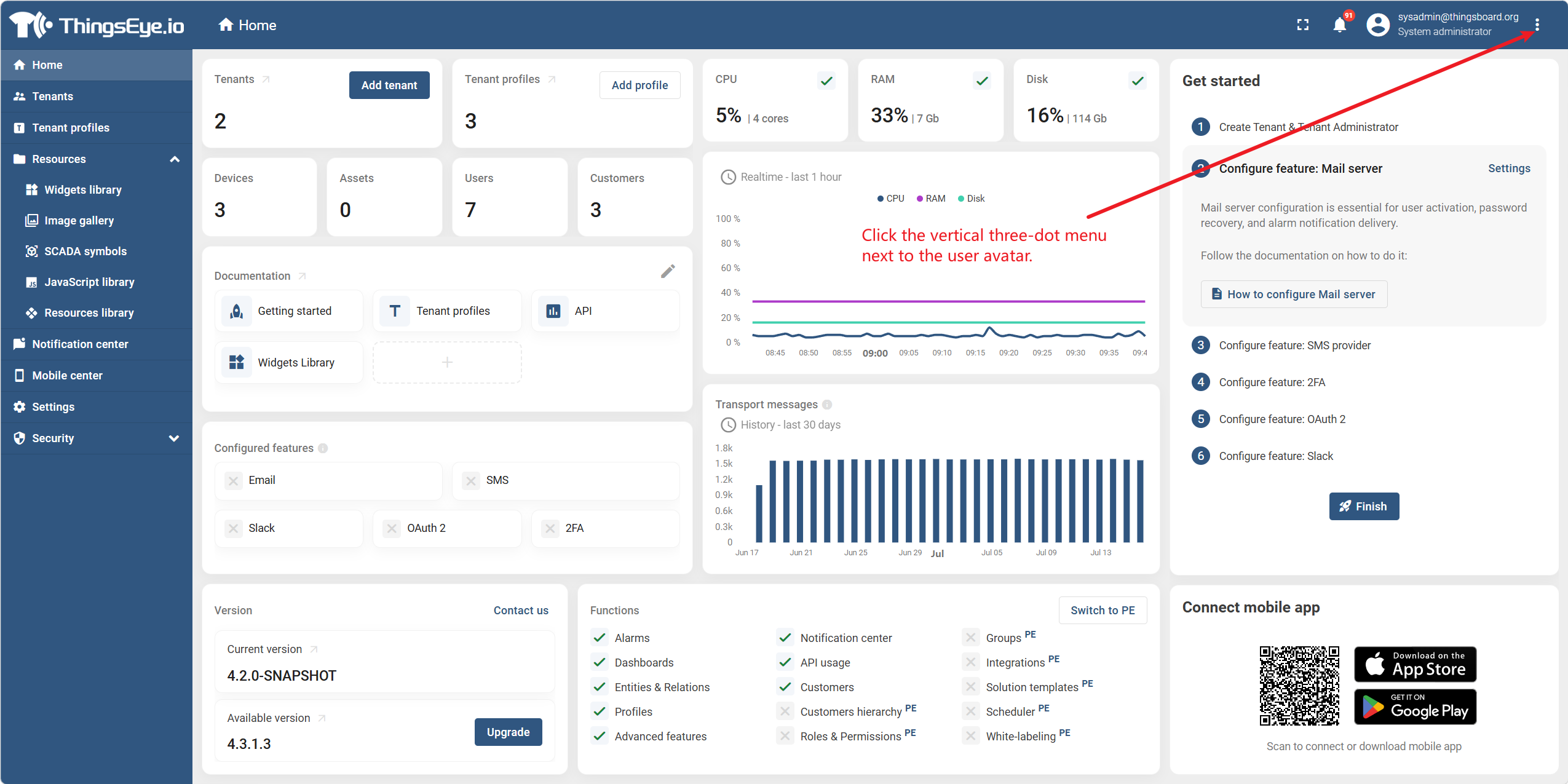
Step 1: Click the vertical three‑dot menu next to the user avatar
Click the current user avatar or username in the upper‑right corner of the platform management interface to expand the user dropdown menu.
Step 2: Click "Logout" in the dropdown menu
Click "Logout" in the dropdown menu. The system will immediately clear the current session and redirect to the login page.