Login & Personal Settings
Overview
Applicable Role: End‑User (i.e., Terminal User / Customer User, CUSTOMER_USER).
End‑Users are the primary operators on the platform for viewing data and dashboards. End‑Users do not have administrative permissions to create, edit, or delete tenant‑level entities (such as devices, assets, or dashboards); their operational scope is limited to viewing resources assigned by the Tenant Administrator and configuring personal preferences.
This chapter describes how End‑Users log in to the platform, edit personal information, and change their passwords. The login entry point is the same as for Tenant Administrators and System Administrators; the system automatically switches to the corresponding interface based on the account role. After logging in, End‑Users first see the default dashboard assigned by the Tenant Administrator, and can also change the default dashboard in personal settings.
All operations of End‑Users are constrained by the role permissions (such as CUSTOMER_USER) configured by the Tenant Administrator. The functions described in this chapter are available under both customer roles.
1. Log in to the Platform
Procedure
Step 1: Open the login page
Enter the platform access URL in your browser (e.g., https://your-domain/login) to open the login page.
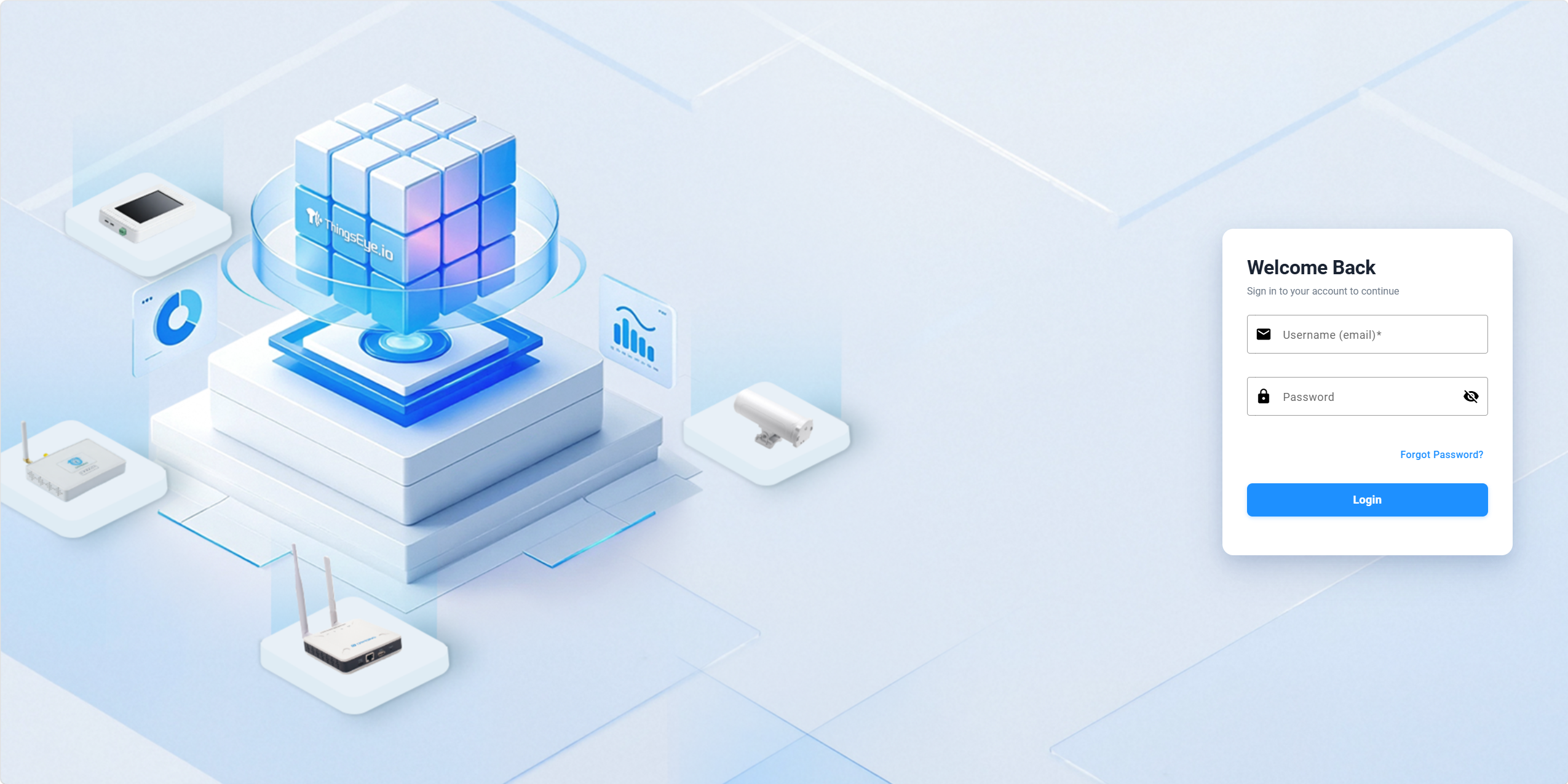
Step 2: Enter credentials
Fill in the following information in the login form:
| Field | Description |
|---|---|
| Login email address (i.e., username) | |
| Password | Login password |
Step 3: Click "Sign In"
Click the "Sign In" button to submit the login request.
After the system verifies the credentials, it automatically redirects to the corresponding interface based on the user role.
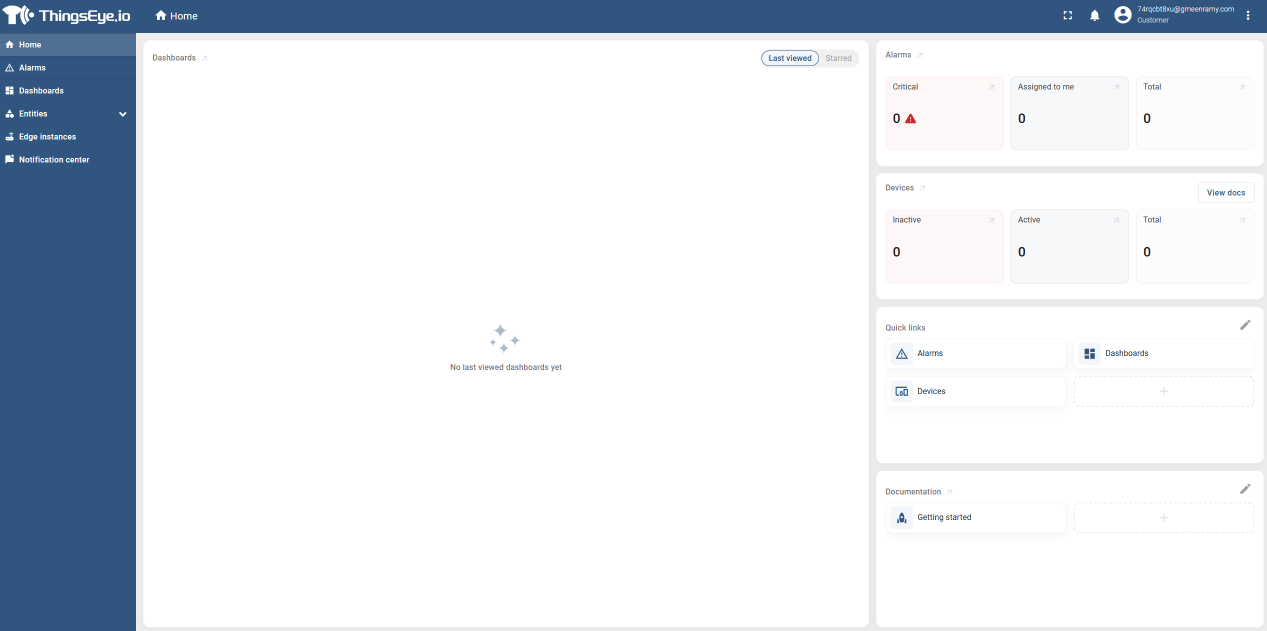
Post‑Login Interface Description
After successful login, the interface presents the following features:
| UI Element | Description |
|---|---|
| Left Menu | Displays menu items assigned by the Tenant Administrator (Dashboards, Devices, Assets, etc.); visibility depends on permission configuration |
| Default Dashboard | The dashboard loaded first after login. If the Tenant Administrator has enabled "Full‑screen mode", the dashboard displays in full screen and the left menu is hidden |
| User Avatar | Located in the upper‑right corner; click to access personal settings, view account information, or log out |
| Dashboard Toolbar | Located at the top of the dashboard; users can switch to other assigned dashboards or set a real‑time time range |
Considerations
-
End‑Users, Tenant Administrators, and System Administrators use the same login entry point; the system automatically assigns the corresponding interface and permission scope based on the account role.
-
If the Tenant Administrator has set both a "Default Dashboard" and a "Home Dashboard" for the End‑User, the system prioritises the Default Dashboard.
-
The default password should be changed immediately after the first login to ensure account security.
-
If you forget your password, contact the Tenant Administrator to reset the account via the "Resend Activation" function.
2. Edit Personal Information
Procedure
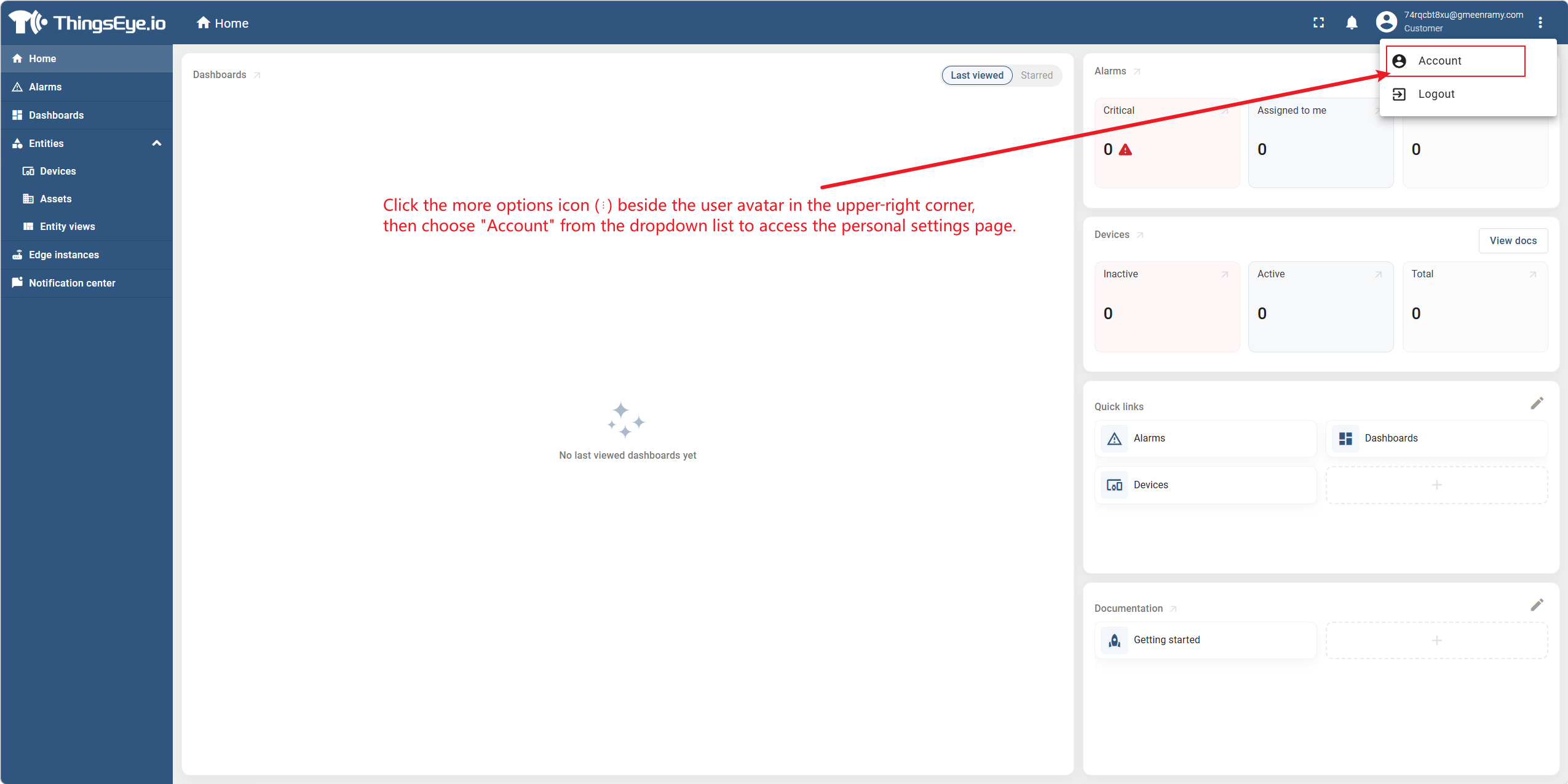
Step 1: Go to the personal settings page
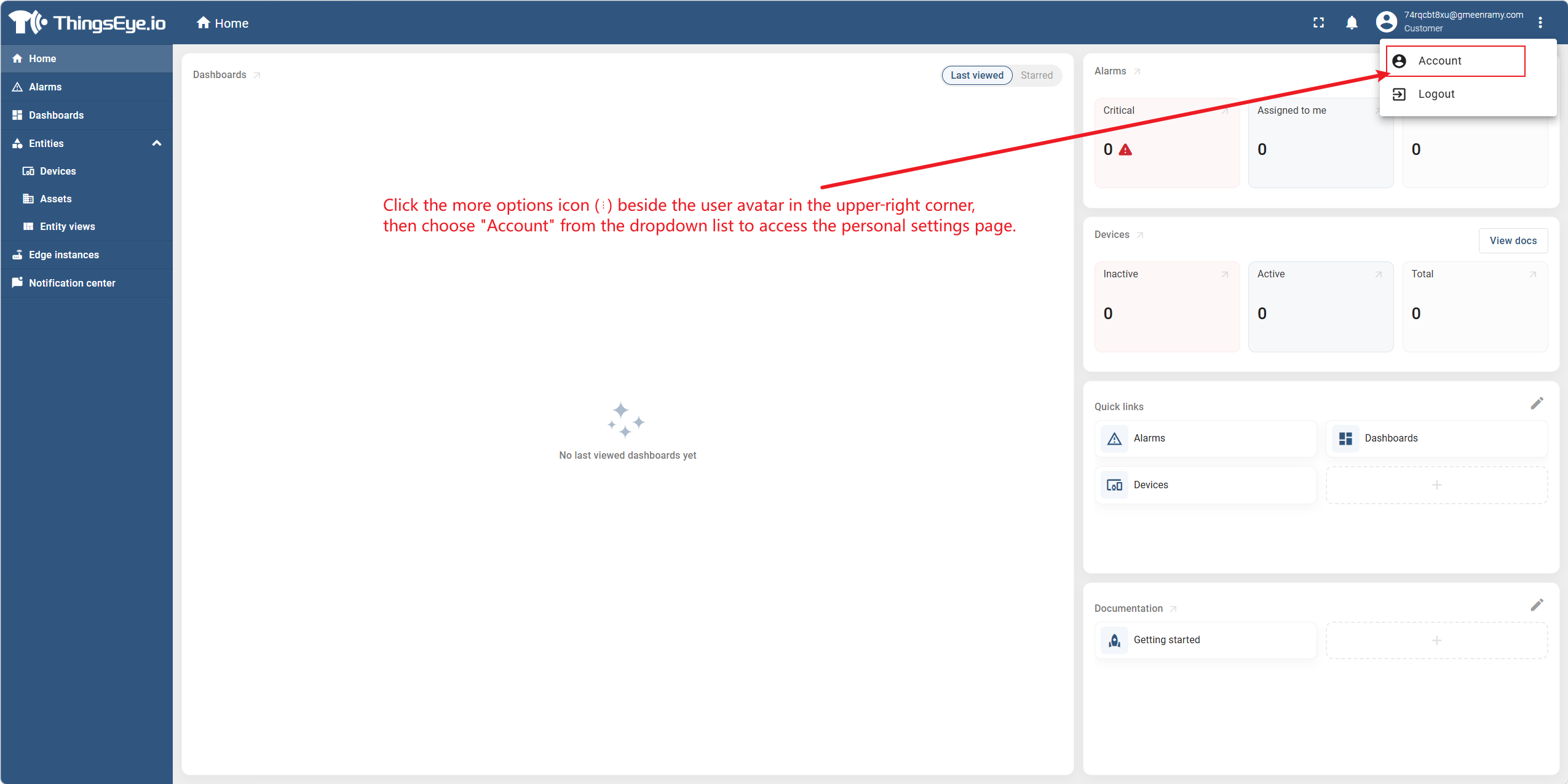
Click the more options icon (⋮) next to the user avatar in the upper‑right corner, and select "Account" from the dropdown list to go to the personal settings page.
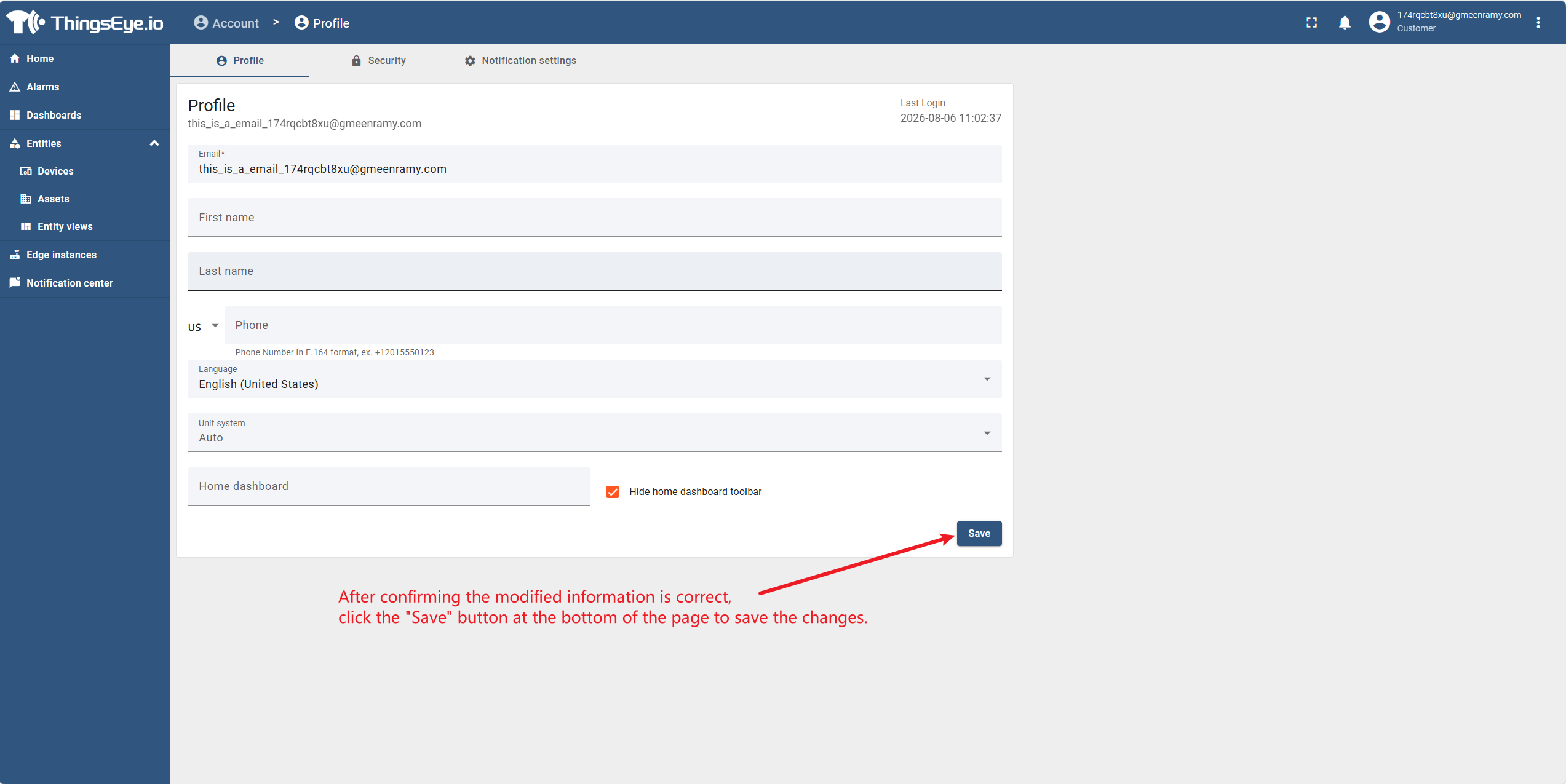
Step 2: Edit personal information
In edit mode, modify the following fields:
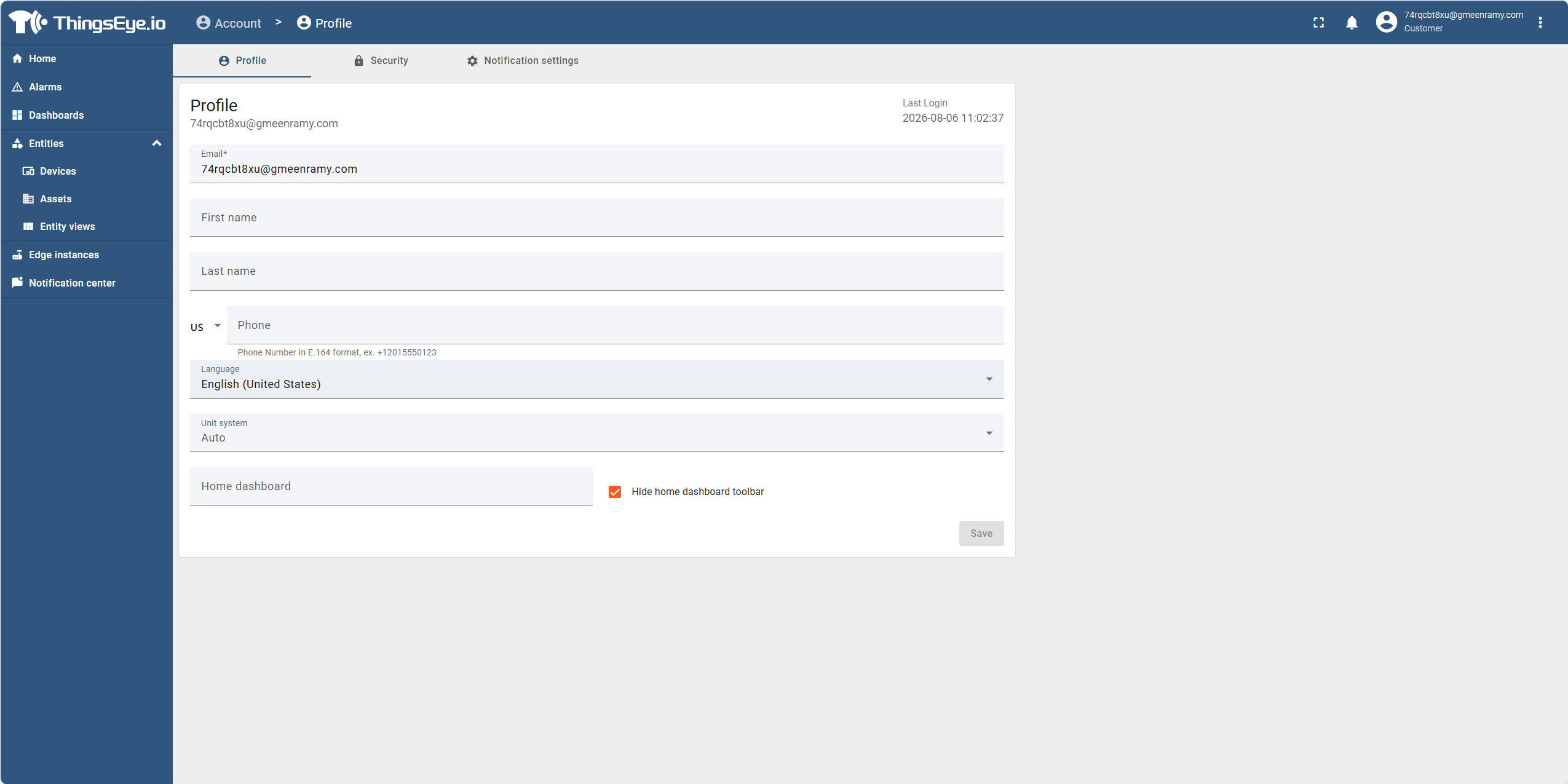
Default Dashboard Note:
- If the Tenant Administrator has already set a default dashboard for the user, this field displays the dashboard specified by the administrator; the user can change it according to personal preference.
- If the Tenant Administrator has not set a default dashboard, the user can select an assigned dashboard as the default on this page.
- The dropdown list only shows dashboards that the Tenant Administrator has already assigned to the user. If the list is empty, it means no dashboards are available.
Step 3: Save changes
After confirming the modifications are correct, click the "Save" button at the bottom of the page to save the changes. The system will update the user's personal information and refresh the interface to reflect the latest settings.
Considerations
-
After changing the "Default Dashboard", the new specified default dashboard will load on the next login.
-
If "Dashboard Fullscreen" is enabled, the dashboard will display in full screen after login; users can still hover or click the edge of the screen to reveal the left menu.
-
After changing the language preference, the page will immediately switch to the corresponding language.
-
The unit system only affects the display format of data in dashboard widgets (e.g., temperature unit °C/°F) and does not affect the raw data reported by devices.
3. Change Password
Procedure
Step 1: Go to the personal settings page
Click the more options icon (⋮) next to the user avatar in the upper‑right corner, and select "Account" from the dropdown list to go to the personal settings page.
Step 2: Switch to the Security tab
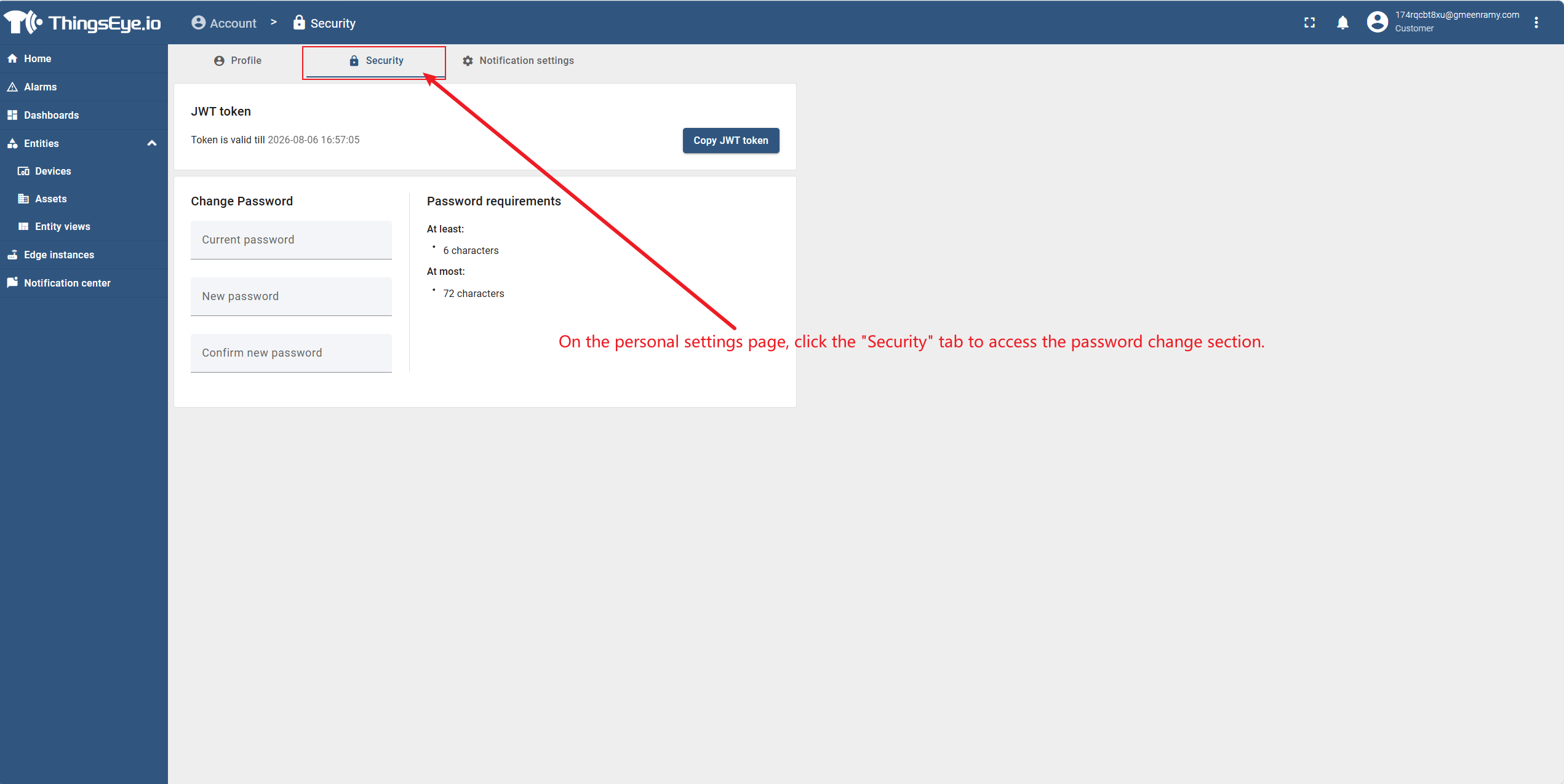
On the personal settings page, click the "Security" tab to go to the password change area.
Step 3: Enter the current password
Enter your current login password in the "Current Password" input field.
Step 4: Set a new password
Enter a new password in the "New Password" input field, then enter it again in the "Confirm New Password" input field to confirm. The new password must meet the password policy requirements configured by the System Administrator.
Step 5: Confirm the change
Click the "Change Password" button to submit the change request. After the system verifies that the current password is correct and the new password meets the policy requirements, the password update is completed.
Considerations
-
After changing the password, previously generated JWT tokens remain valid until they naturally expire. For security reasons, it is recommended to log in again after changing the password.
-
If the System Administrator has enabled a password expiration policy, users will be forced to change their password after it expires.
-
If the System Administrator updates the password policy and enables the "Force password reset for passwords not matching the new policy" option, existing users whose passwords do not comply with the new policy will be forced to reset their passwords via email.
-
If you forget your current password, you cannot recover it through this page. Please contact the Tenant Administrator to reset the account via the "Resend Activation" function. After reset, you will receive an email containing an activation link; click the link to set a new password, and the old password will become invalid immediately.
-
It is recommended that the password be at least 8 characters long and contain a combination of uppercase and lowercase letters, numbers, and special characters to improve account security.