Device and Profile Management
Overview
Applicable Role: Tenant Administrator.
The Device Management module is one of the core functions of the platform, used to manage the complete lifecycle of all IoT devices under the current tenant. Tenant Administrators can perform basic operations such as creating devices, editing information, managing access credentials, viewing operational status, and deleting devices, ensuring that devices can connect to the platform securely and efficiently for data communication.
In addition, Device Management provides the Device Profile feature, allowing administrators to centrally define common configurations (such as transport protocols, rule chains, alarm rules, etc.) for a group of similar devices, simplifying bulk configuration and maintenance for large numbers of devices. The relationship between a device profile and devices is one‑to‑many; modifying a profile automatically affects all devices that reference it.
1. Create a Device
Procedure
Step 1: Go to the device management page
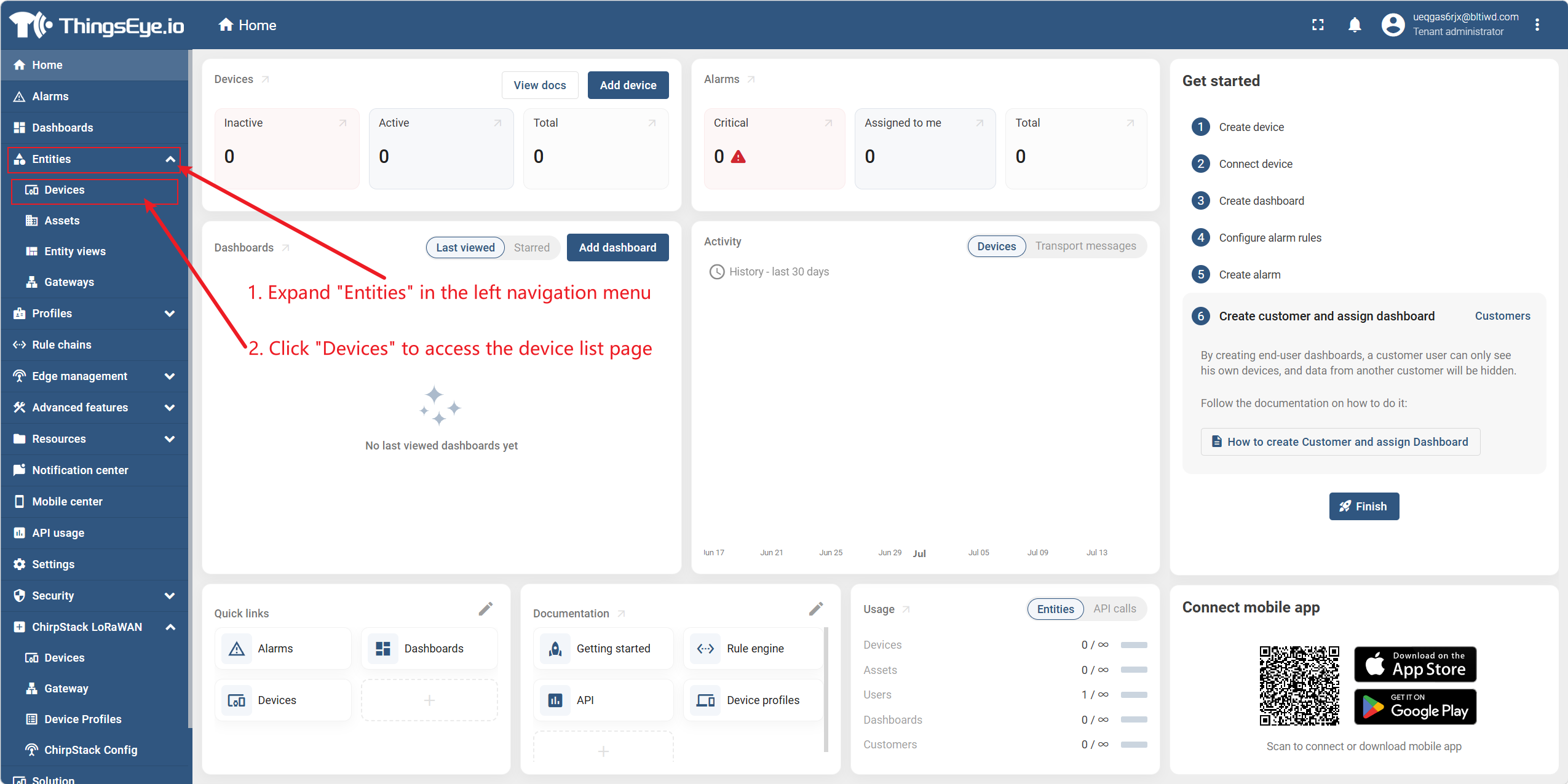
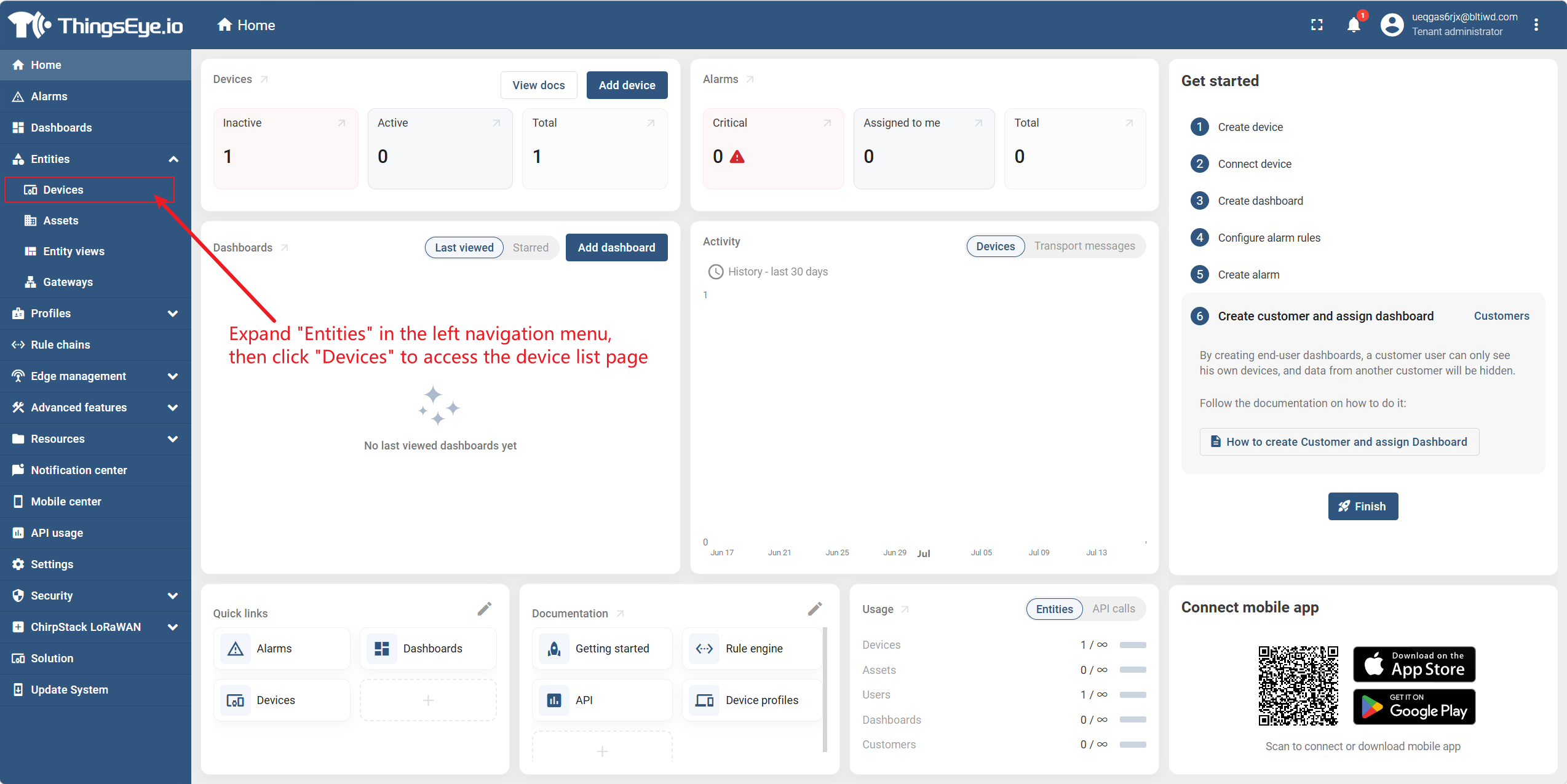
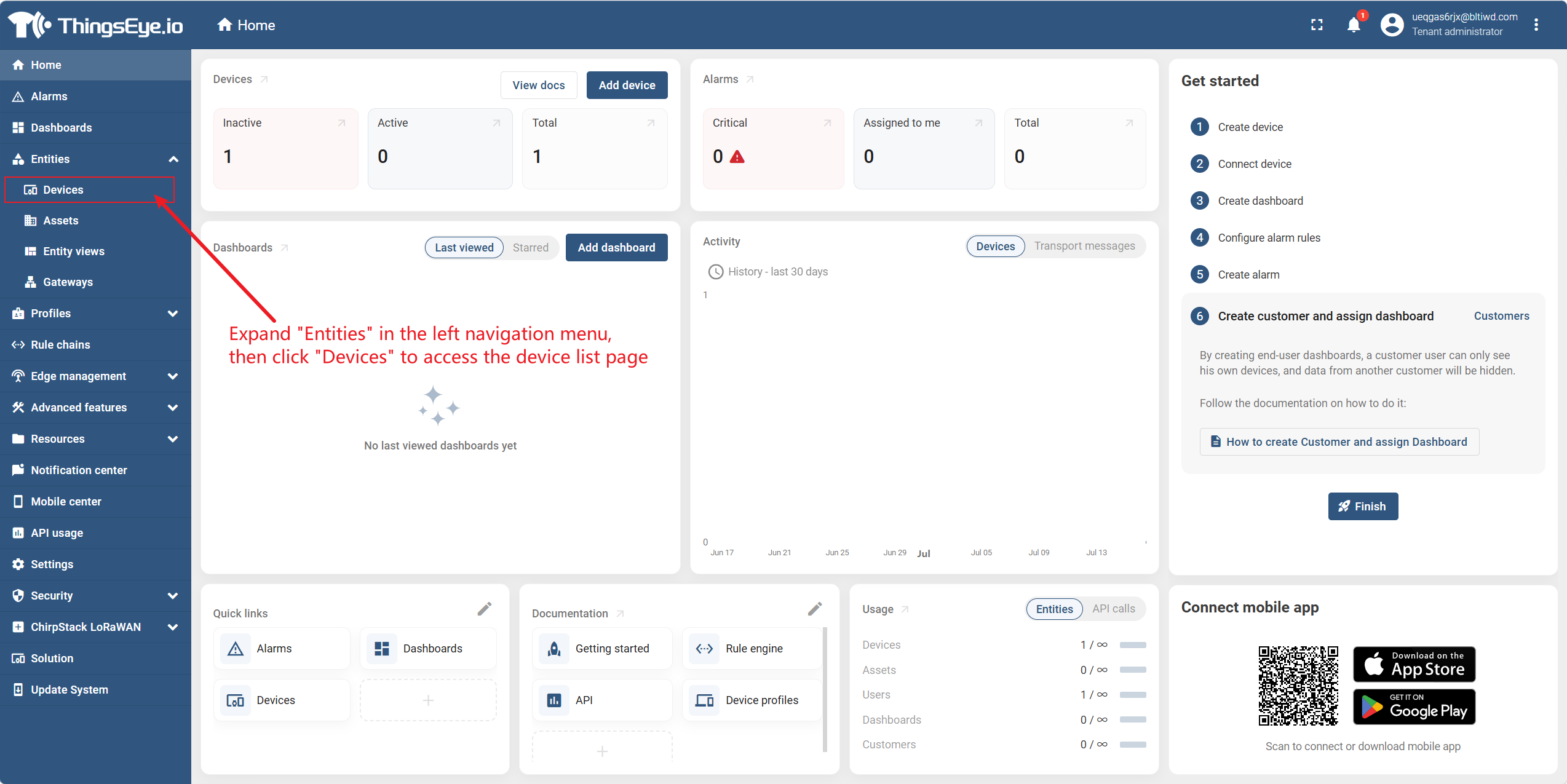
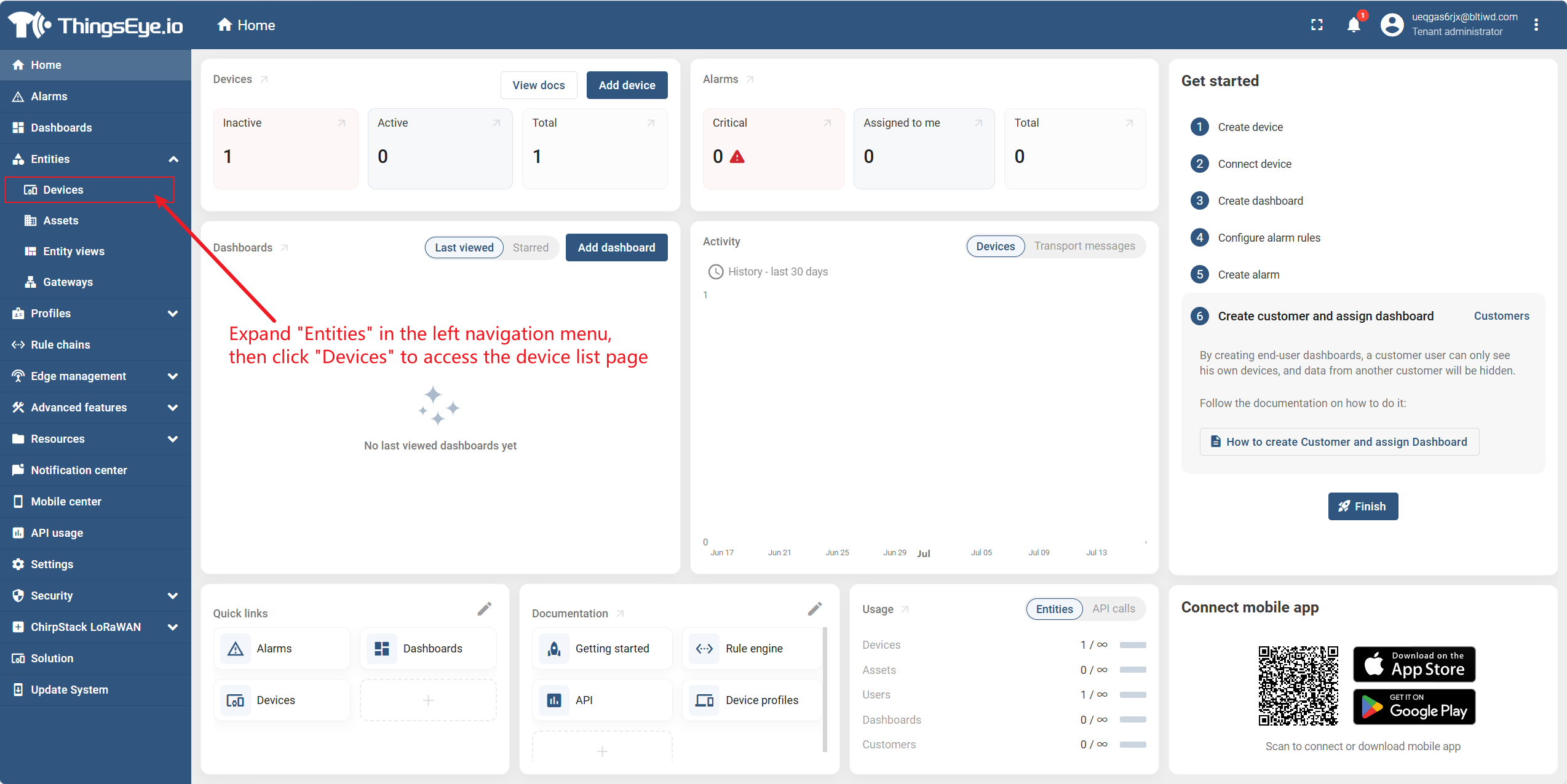
Expand "Entities" in the left navigation bar and click "Devices" to go to the device list page.
Step 2: Click "Add Device"
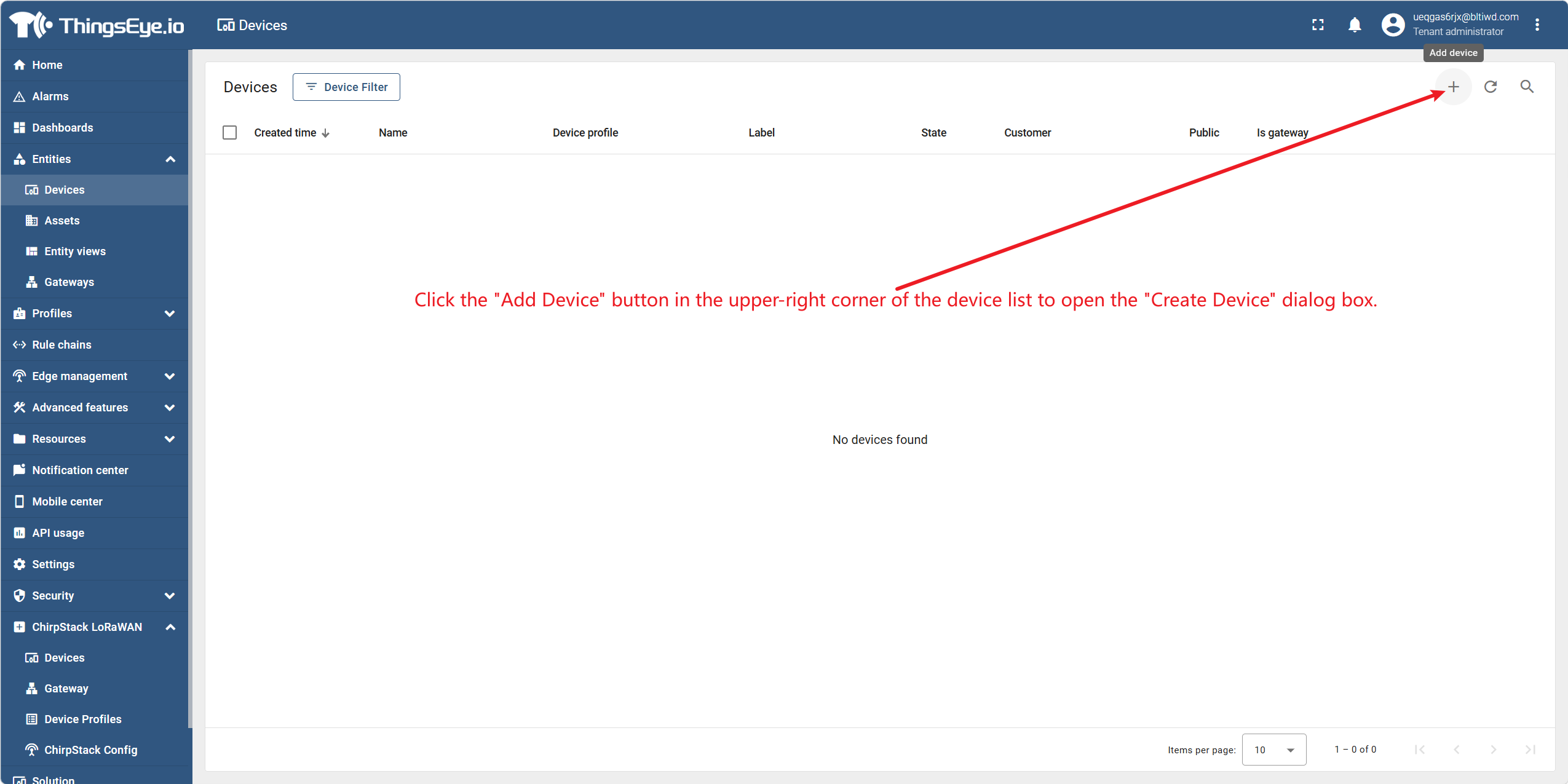
Click the "Add Device" button in the upper‑right corner of the device list to open the "Create Device" dialog.
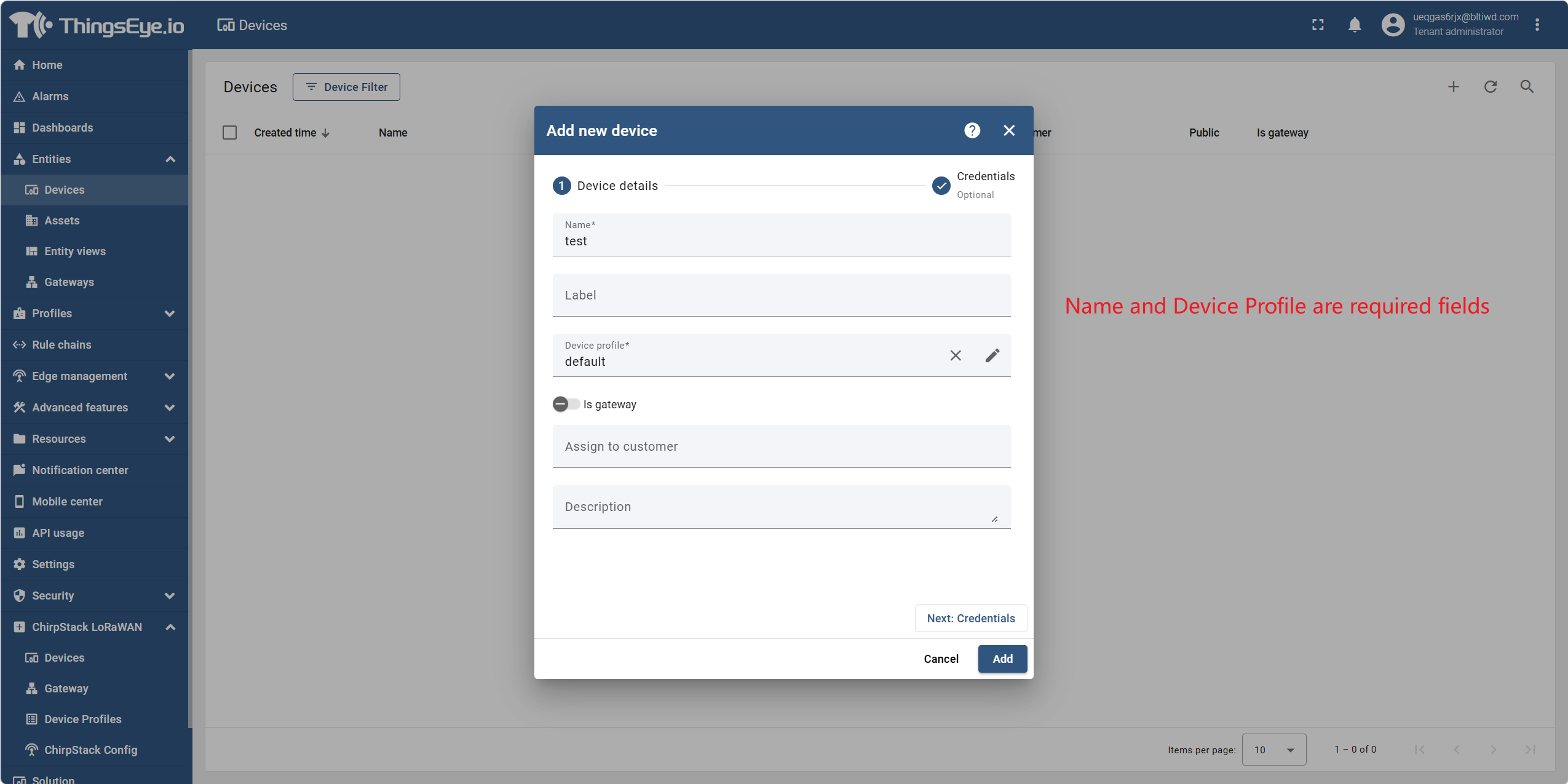
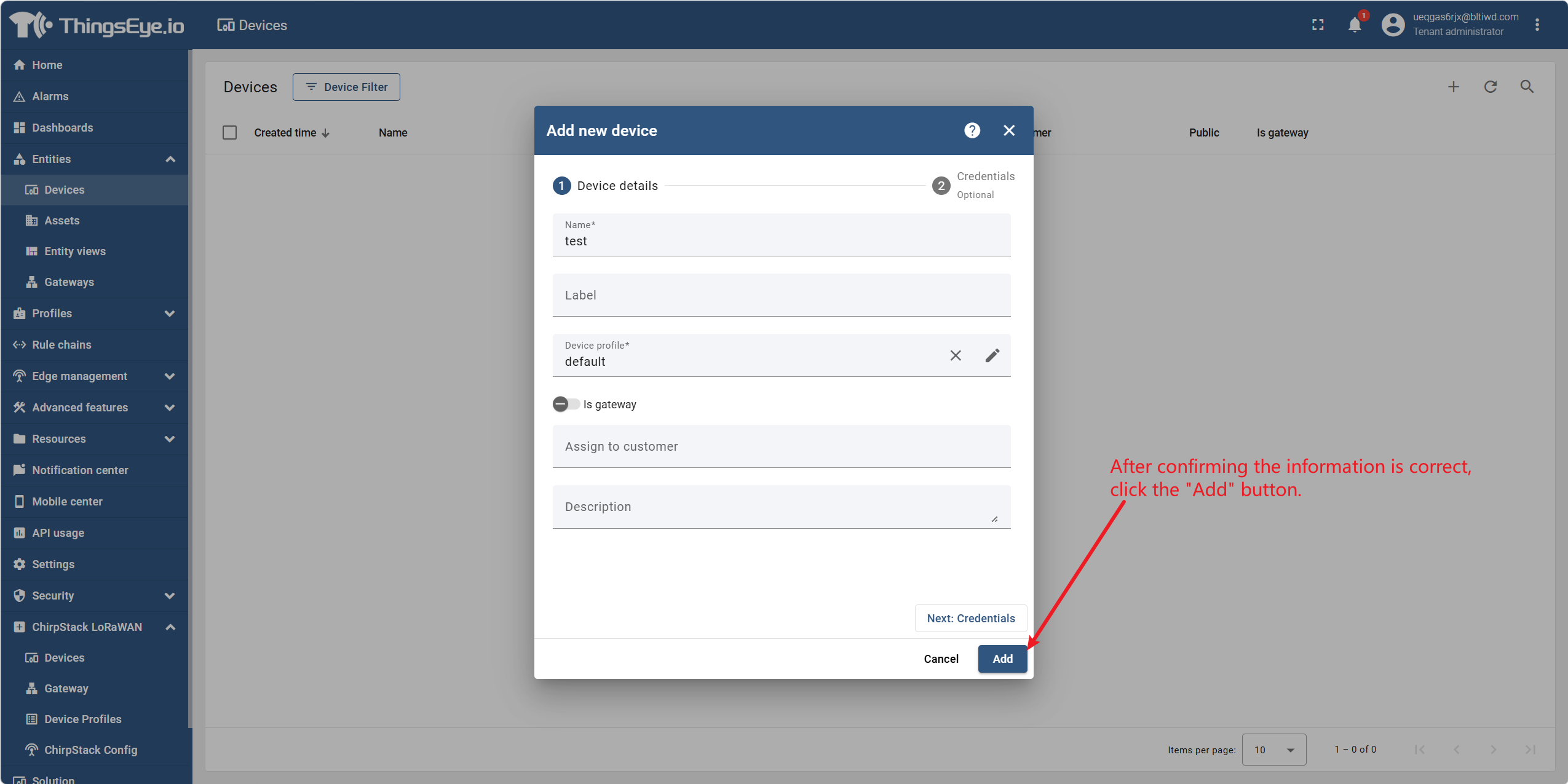
Step 3: Fill in the basic device information
Fill in the following fields in the dialog:
Step 4: Configure device credentials (optional)
If you do not wish to use auto‑generated credentials, you can manually specify the credential value at creation time. If left blank, the system will automatically generate a unique credential.
| Field | Description | Required | Example |
|---|---|---|---|
| Credential Value | The authentication key used by the device when connecting to the platform | No (auto‑generated if left blank) | ABC123XYZ789 |
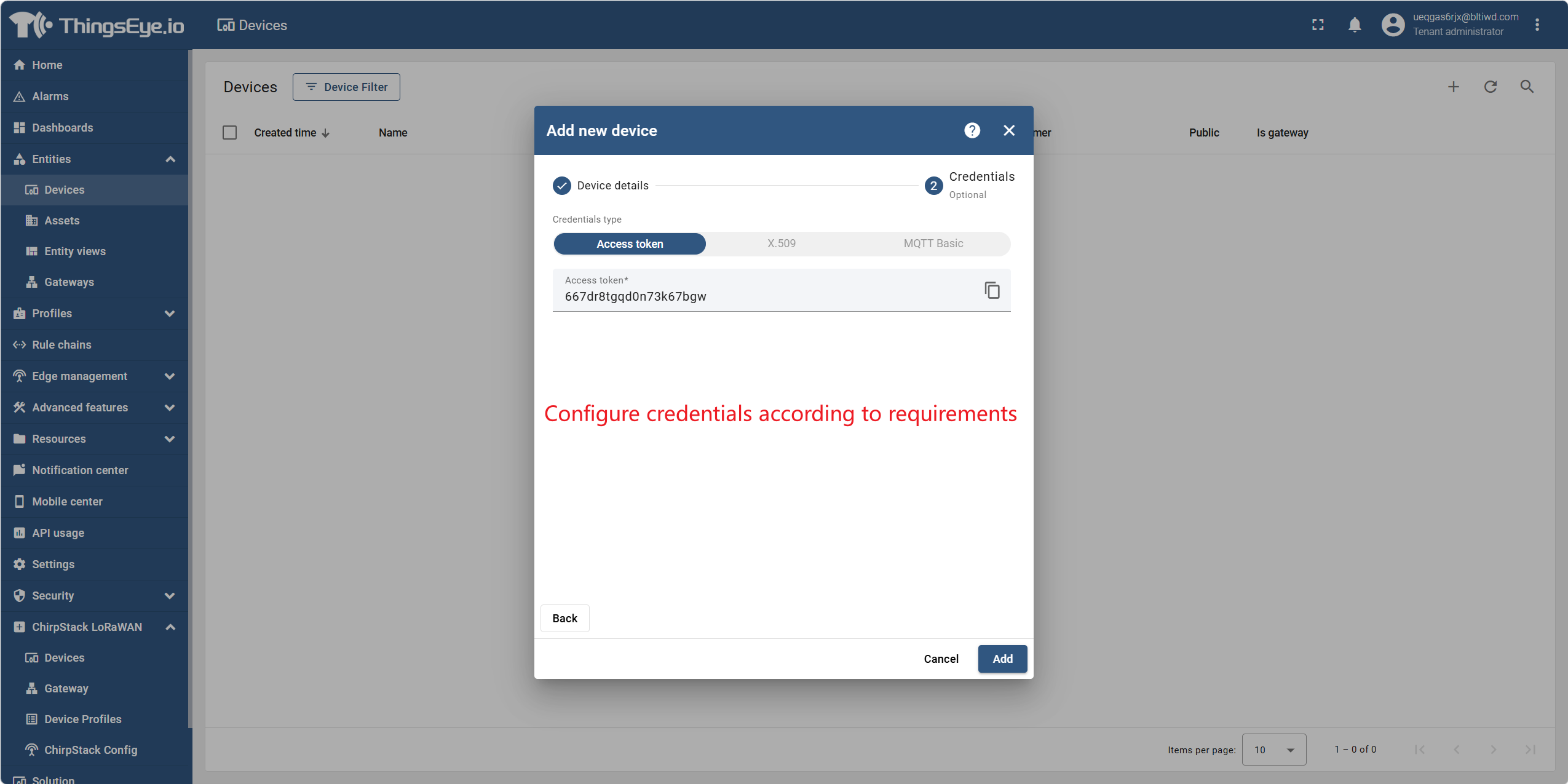
Credential Type Notes: The platform supports multiple device authentication methods, including Access Token and X.509 certificates. The default is Access Token, which is suitable for most scenarios. For detailed credential configuration, see "3. Device Credential Management".
About Credential Sources: The credential value can be manually set by the Tenant Administrator or automatically generated by the platform. Auto‑generation uses a high‑randomness algorithm to ensure uniqueness and security. If manually specified, it must be unique within the current tenant.
Step 5: Submit the creation
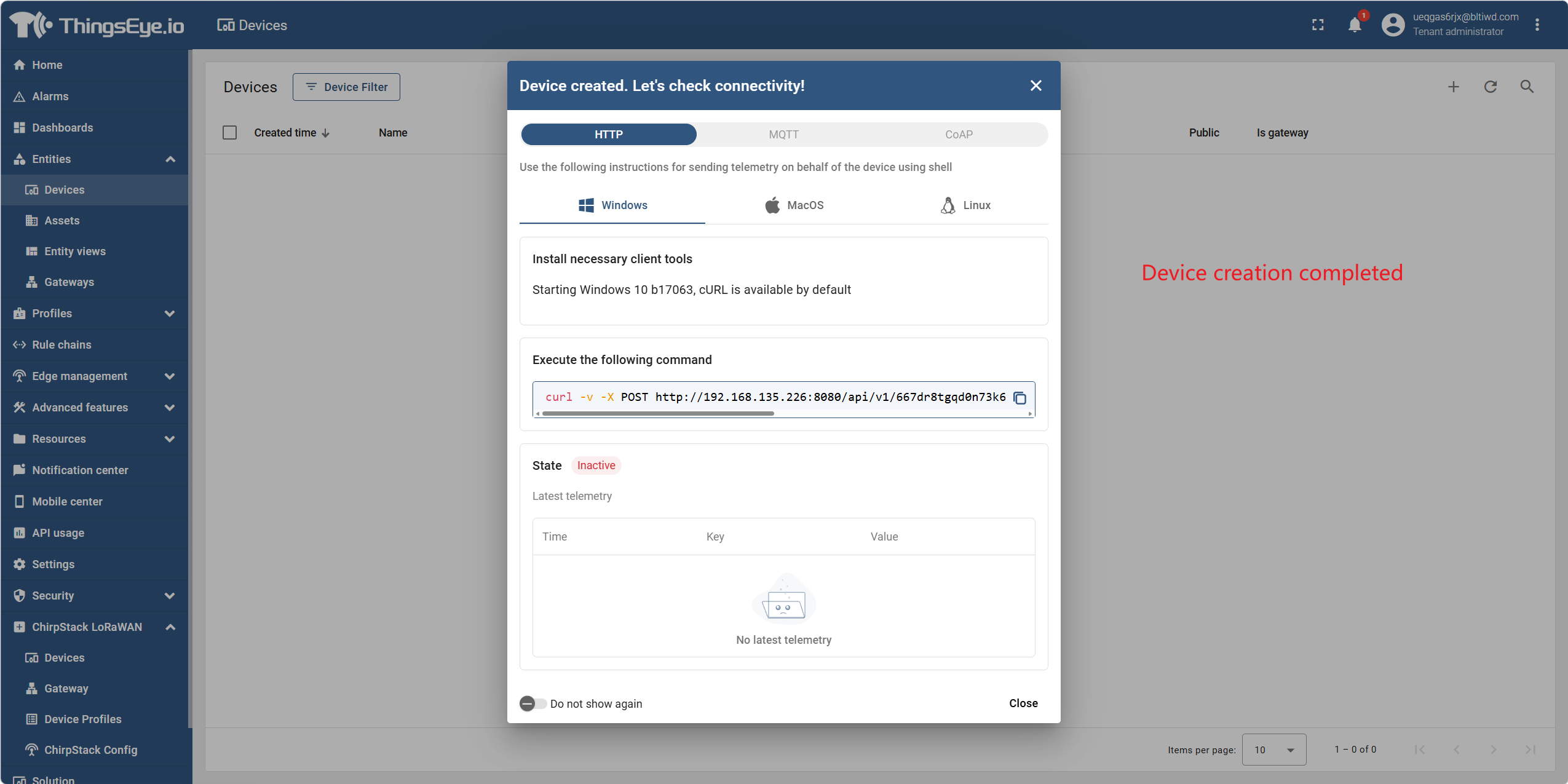
After confirming the information is correct, click the "Add" button. The system completes the device creation.
2. Edit a Device
Procedure
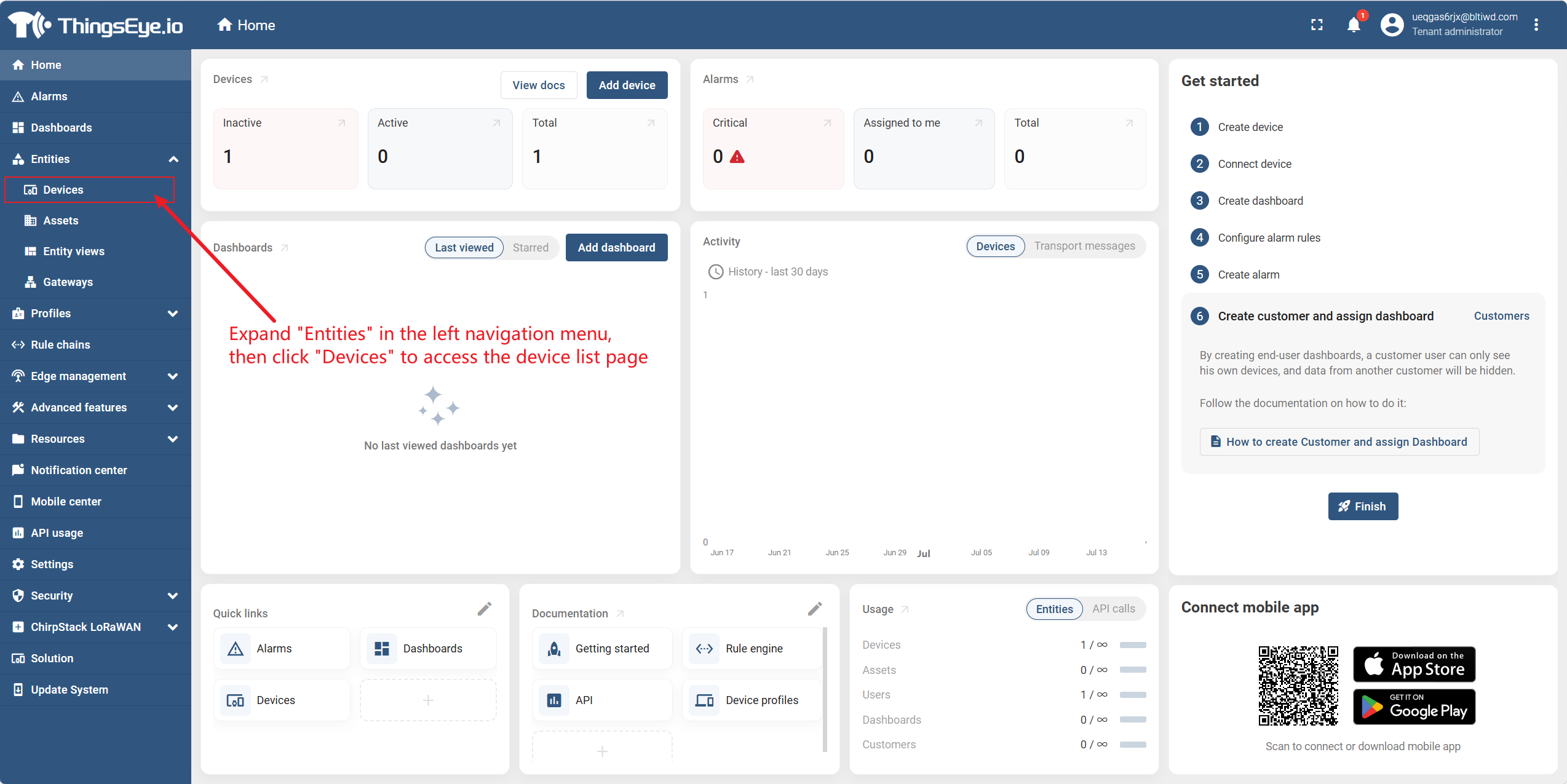
Step 1: Go to the device management page
Expand "Entities" in the left navigation bar and click "Devices" to go to the device list page.
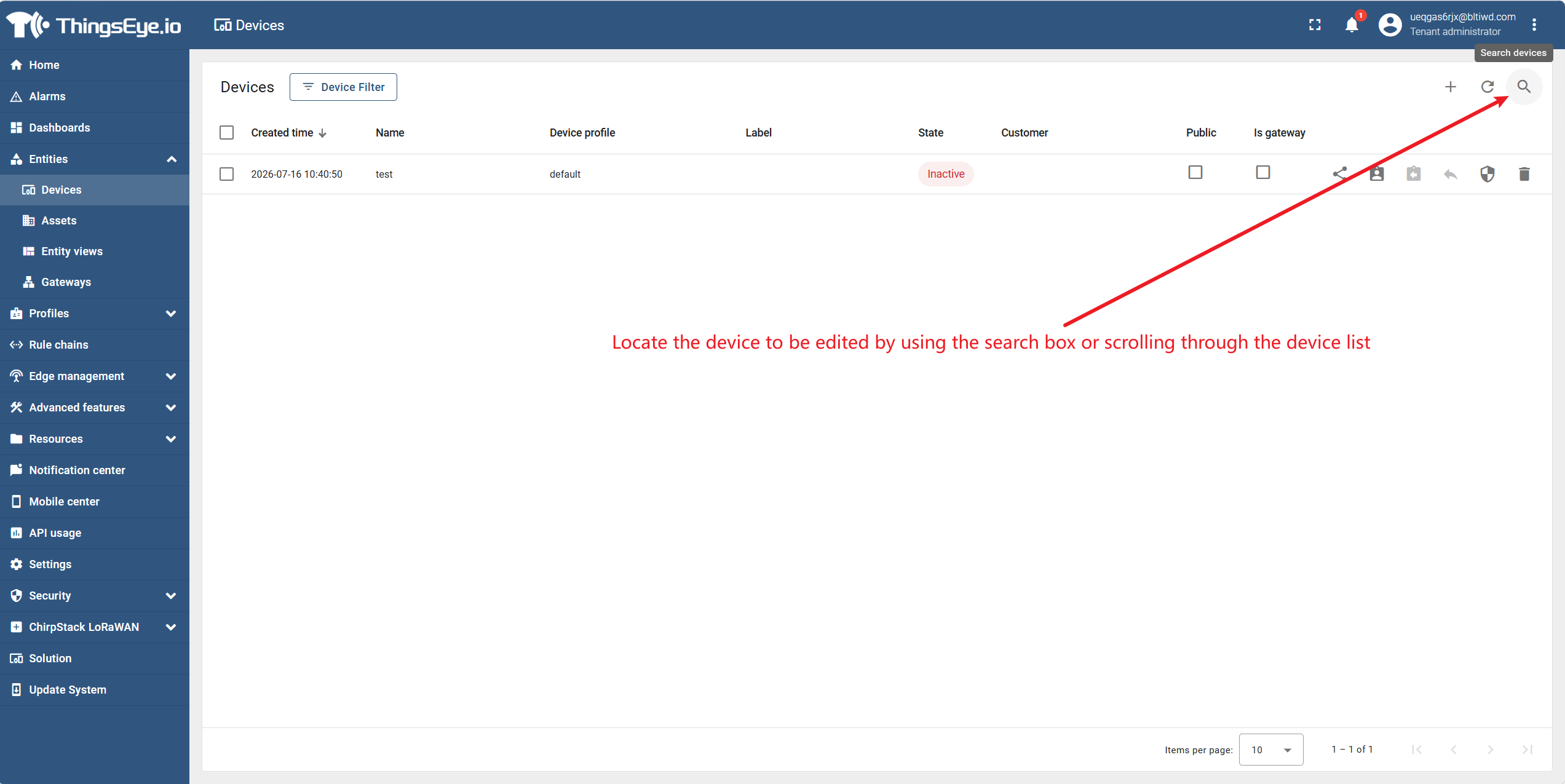
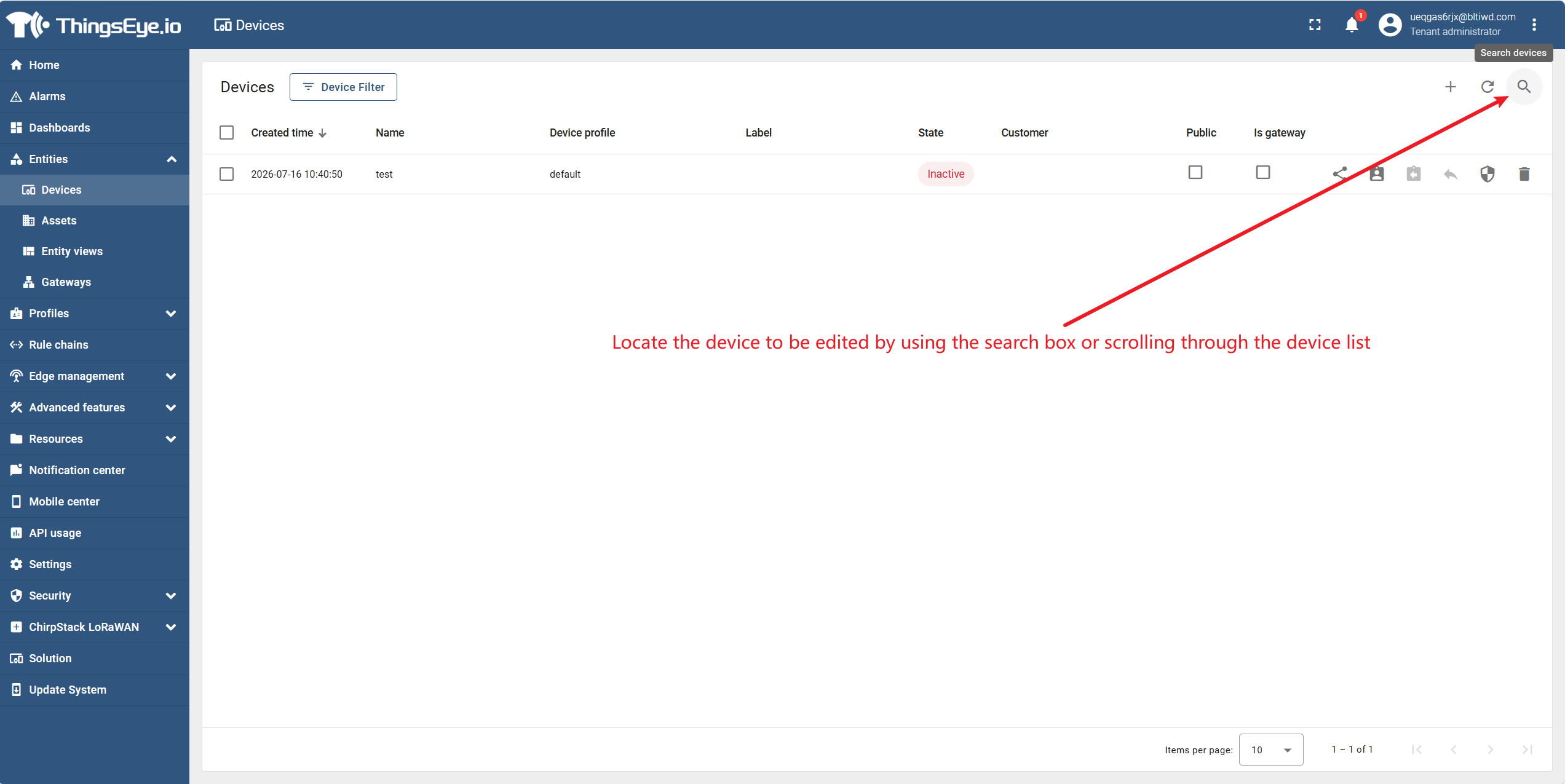
Step 2: Locate the target device
Find the device you want to edit using the search box or by scrolling through the list.
Step 3: Open the device edit interface
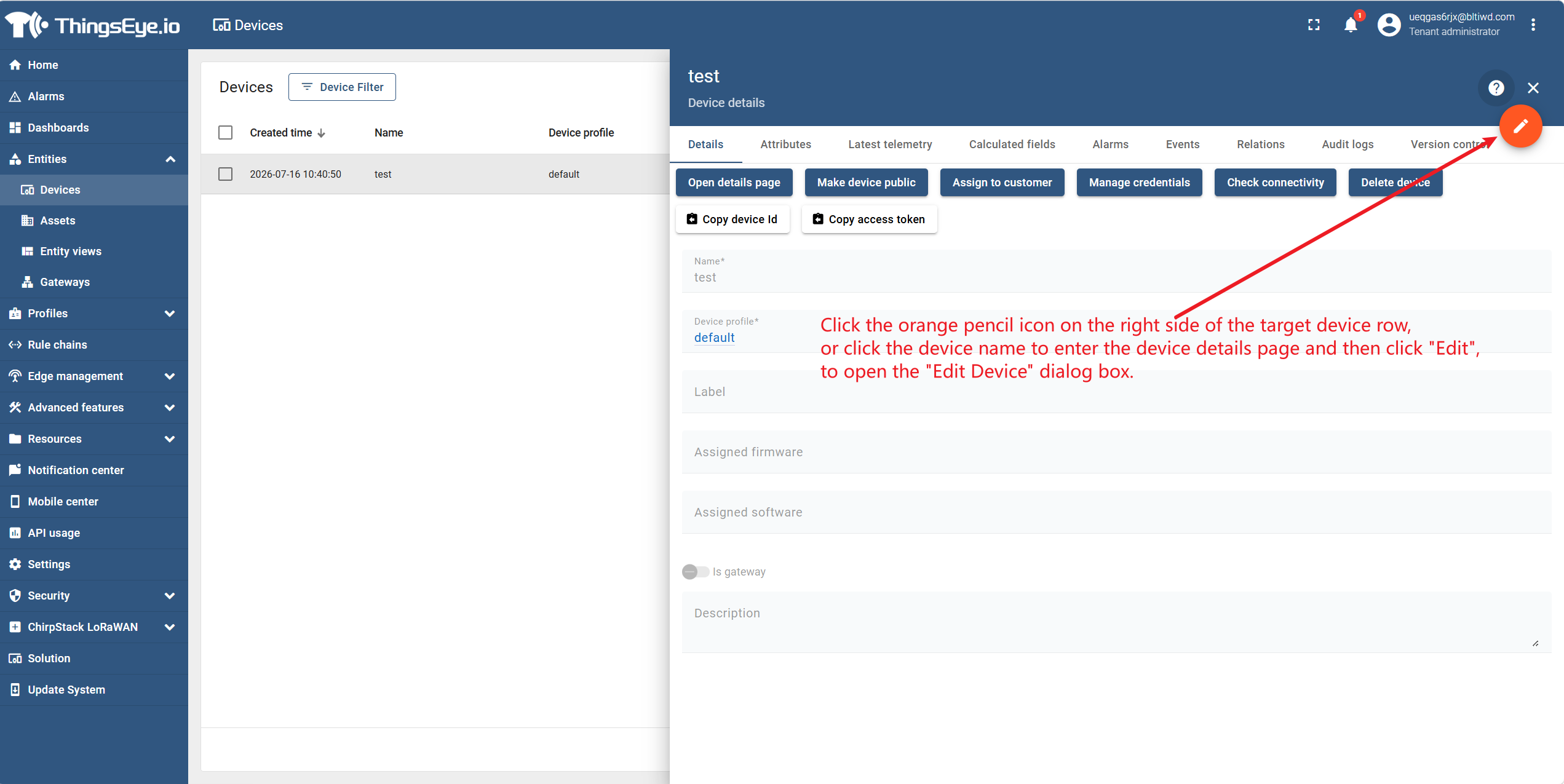
Click the orange pencil icon on the right side of the target device row, or click the device name to go to the device details page and then click "Edit", to open the "Edit Device" dialog.
Step 4: Modify device information
Modify the following fields in the dialog:
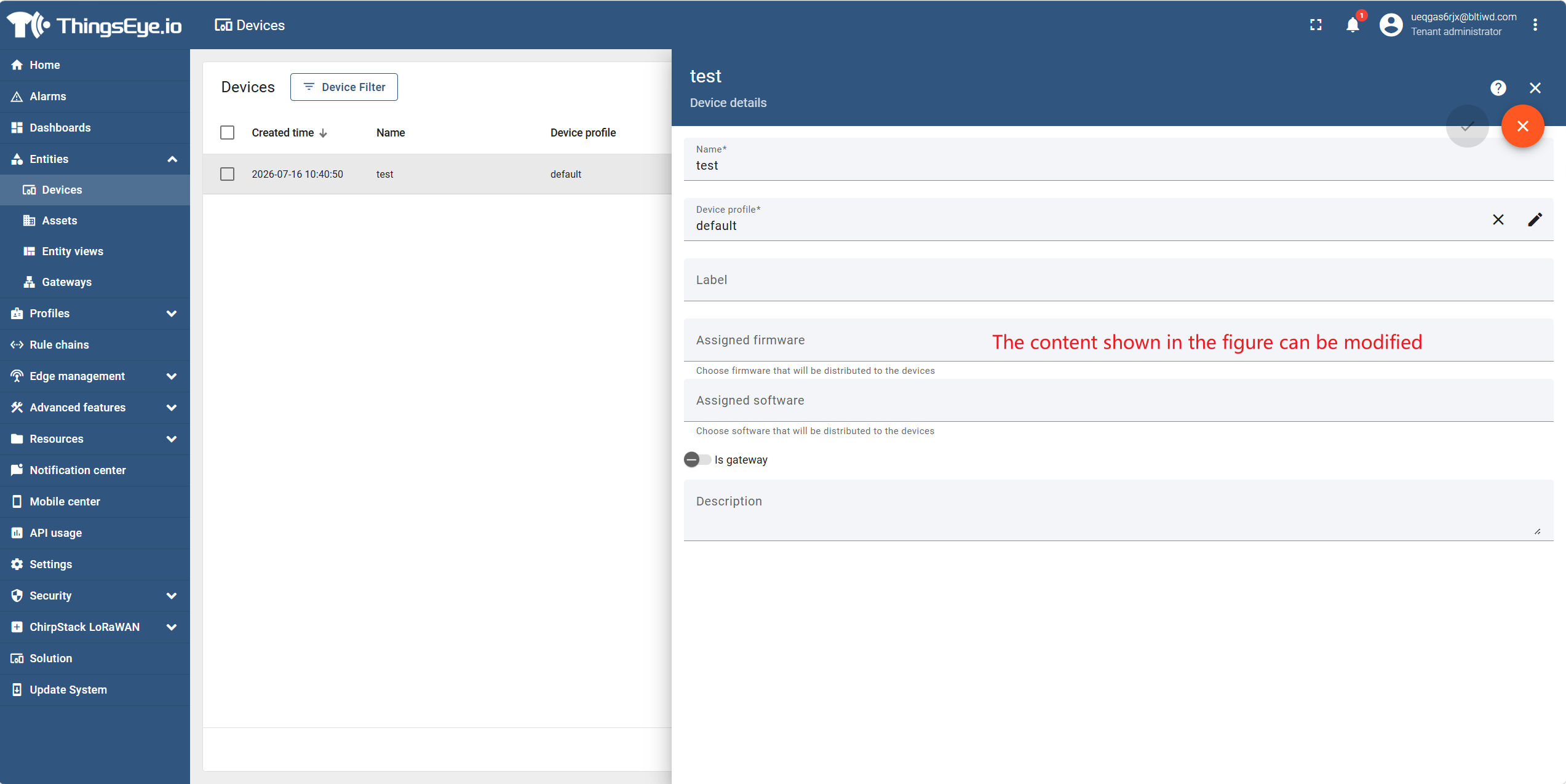
Note: After changing the device name, the original name will no longer be available. Device credentials are not modified on this page; for credential management, see "3. Device Credential Management".
Step 5: Save changes
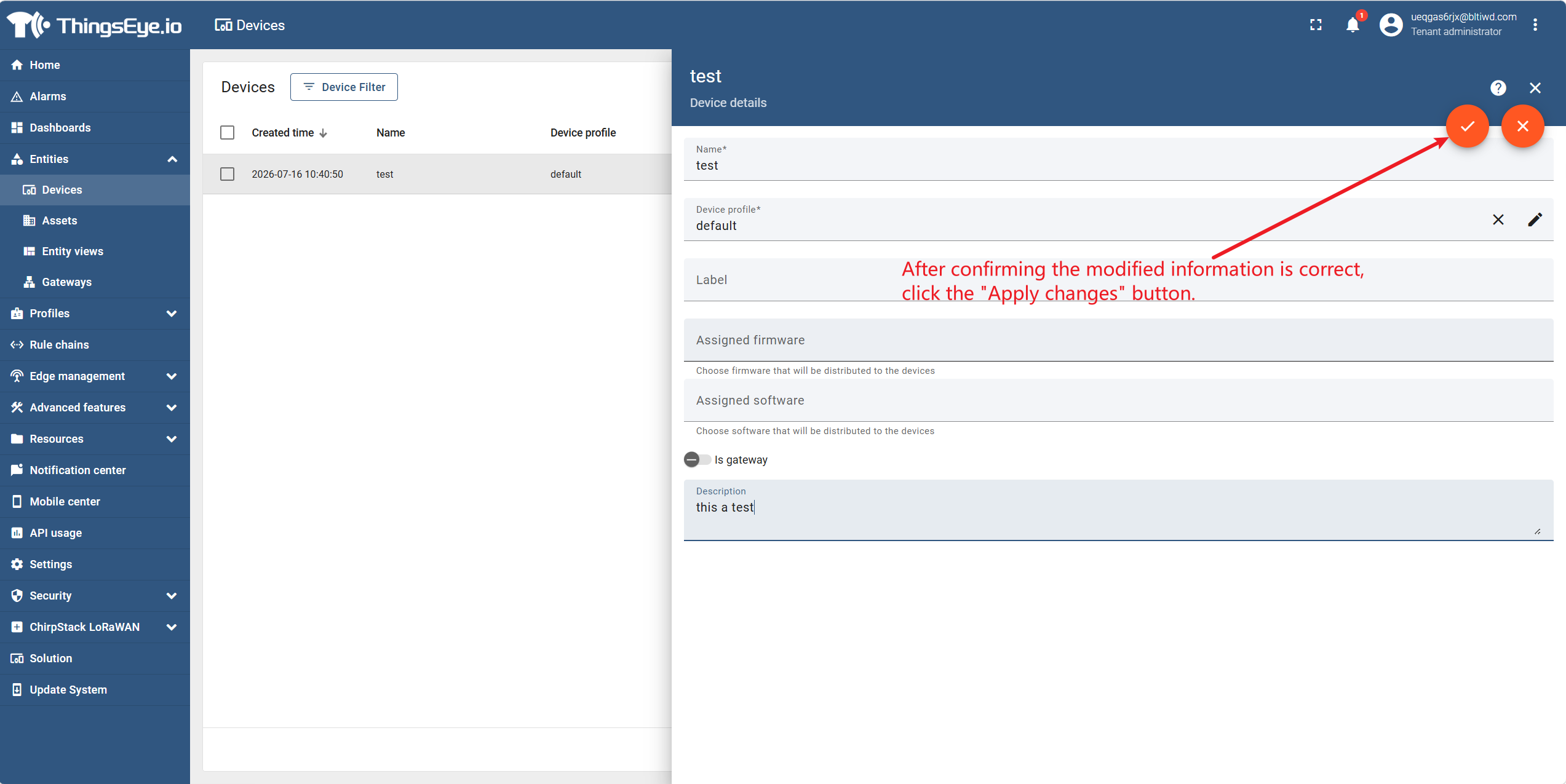
After confirming the modifications are correct, click the "Apply Changes" button. The system verifies the uniqueness of the device name and completes the information update.
3. Device Credential Management
Procedure
Step 1: Go to the device management page
Expand "Entities" in the left navigation bar and click "Devices" to go to the device list page.
Step 2: Locate the target device
Find the device whose credentials you want to manage using the search box or by scrolling through the list.
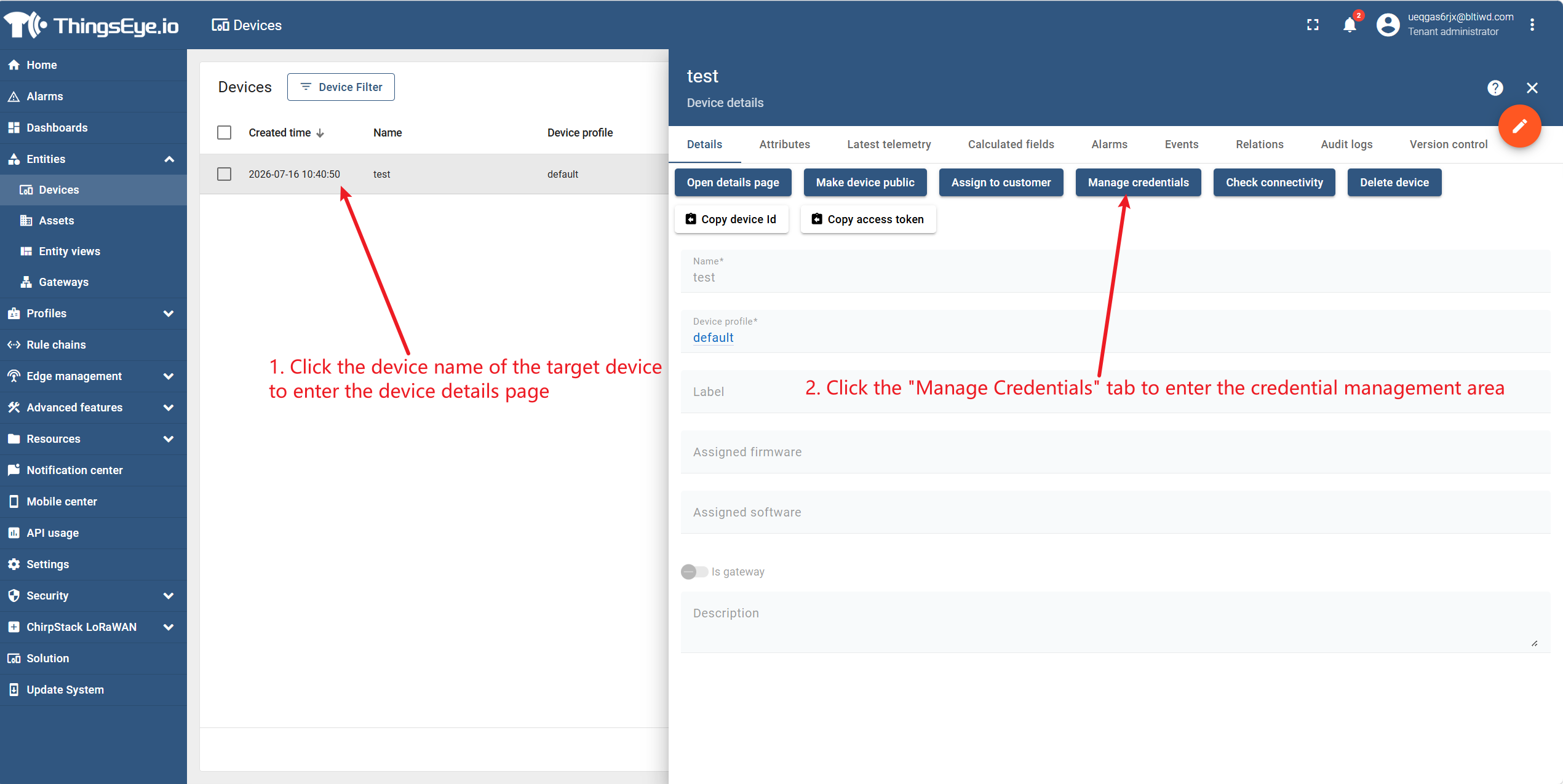
Step 3: Go to the device details page and switch to the "Credentials" tab
Click the device name of the target device to go to the device details page, then click the "Manage Credentials" tab to go to the credential management area.
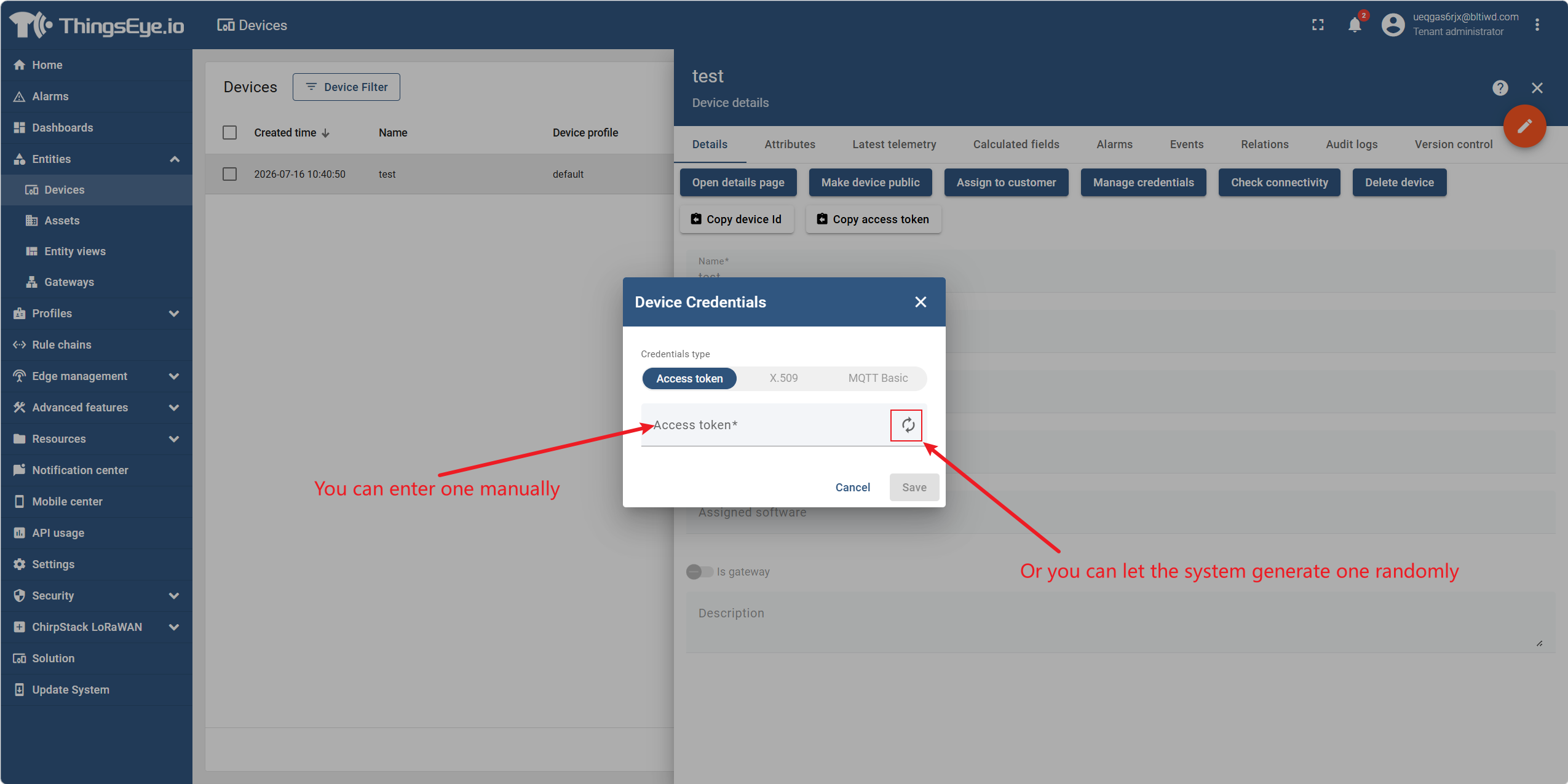
Step 4: View the current credentials
View the current credential type and credential value in the credential management area.
About Credential Viewing Permissions: The credential value is sensitive information. When viewing the complete credential, ensure the operating environment is secure to avoid credential leakage.
Step 5: Update credentials (optional)
If you need to change the device access credential, the system provides two update methods:
| Method | Description |
|---|---|
| Auto‑generate | The system generates a new unique credential value; the old credential becomes invalid immediately |
| Manual specify | The Tenant Administrator manually enters a new credential value, which must be unique within the tenant |
About Credential Updates: After updating credentials, the original credential value becomes invalid immediately. Devices currently connected using the old credential will be disconnected and must reconnect using the new credential. Plan the credential change time in advance to avoid business impact.
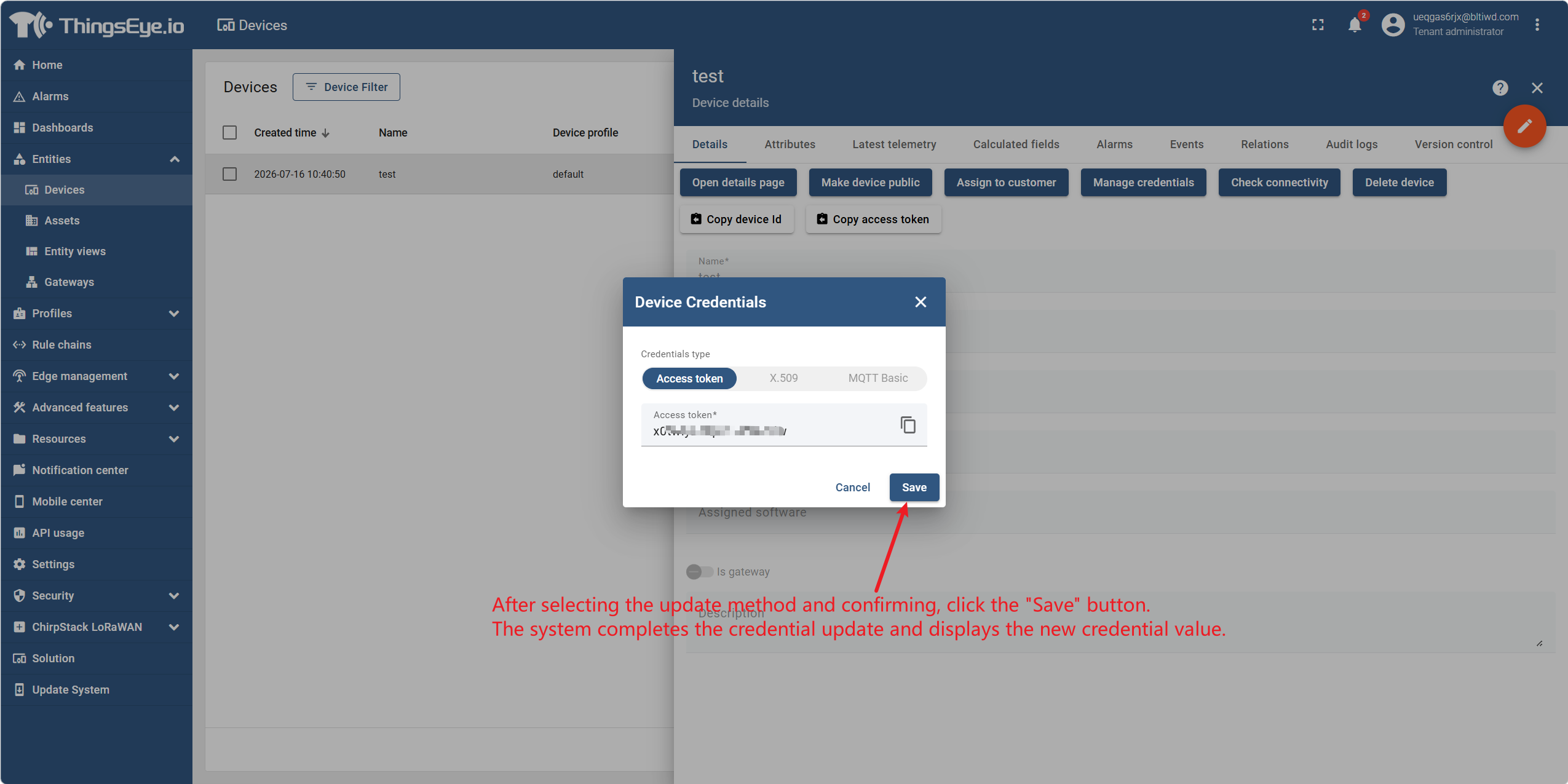
Step 6: Confirm the update
After selecting the update method and confirming, click the "Save" button. The system completes the credential update and displays the new credential value. Be sure to record the new credential value and securely transmit it to the device side.
4. View Device Details
Procedure
Step 1: Go to the device management page
Expand "Entities" in the left navigation bar and click "Devices" to go to the device list page.
Step 2: Select the target device
In the device list, locate the device you want to view using the following methods:
| Method | Description |
|---|---|
| Search box | Enter keywords of the device name or device type for fuzzy search |
| Scroll | Scroll through the list to find the target device |
Step 3: Go to the device details page
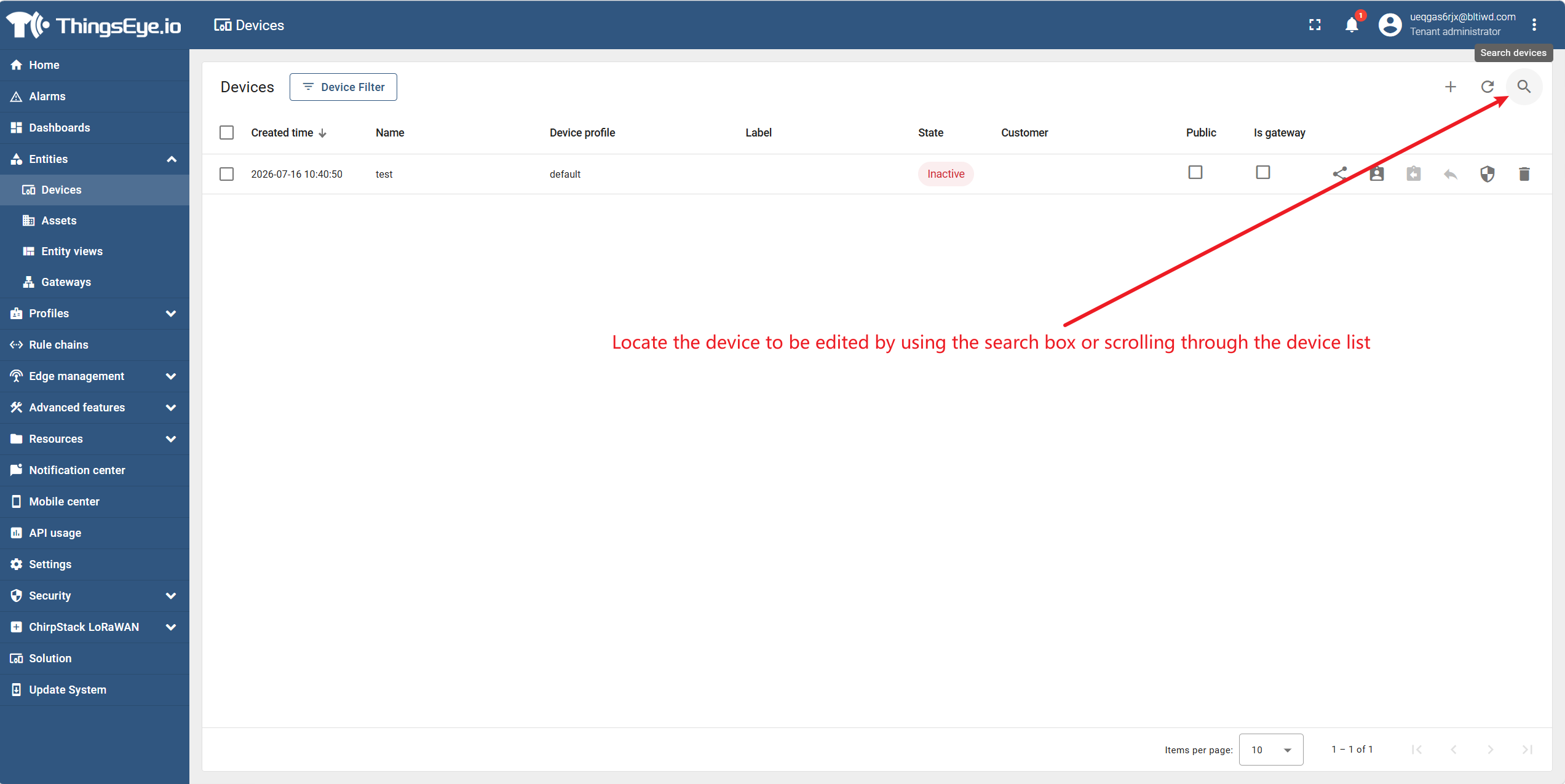
Click the device name of the target device to go to the device details page.
Step 4: Browse device information
The device details page contains the following information sections:
| Tab | Content |
|---|---|
| Basic Information | Device name, device type, device labels, assigned asset, status, creation time, etc. |
| Attributes | Attribute data reported by the device (client‑side attributes, server‑side attributes, shared attributes) |
| Telemetry | Time‑series data reported by the device, such as temperature, humidity, etc. |
| Alarms | Alarm records triggered by the device |
| Events | Device activity event logs, such as online, offline, data reporting, etc. |
| Relations | Association relationships between the device and assets, other devices, etc. |
Note: The names and number of tabs may vary slightly across different platform versions.
Step 5: View device status
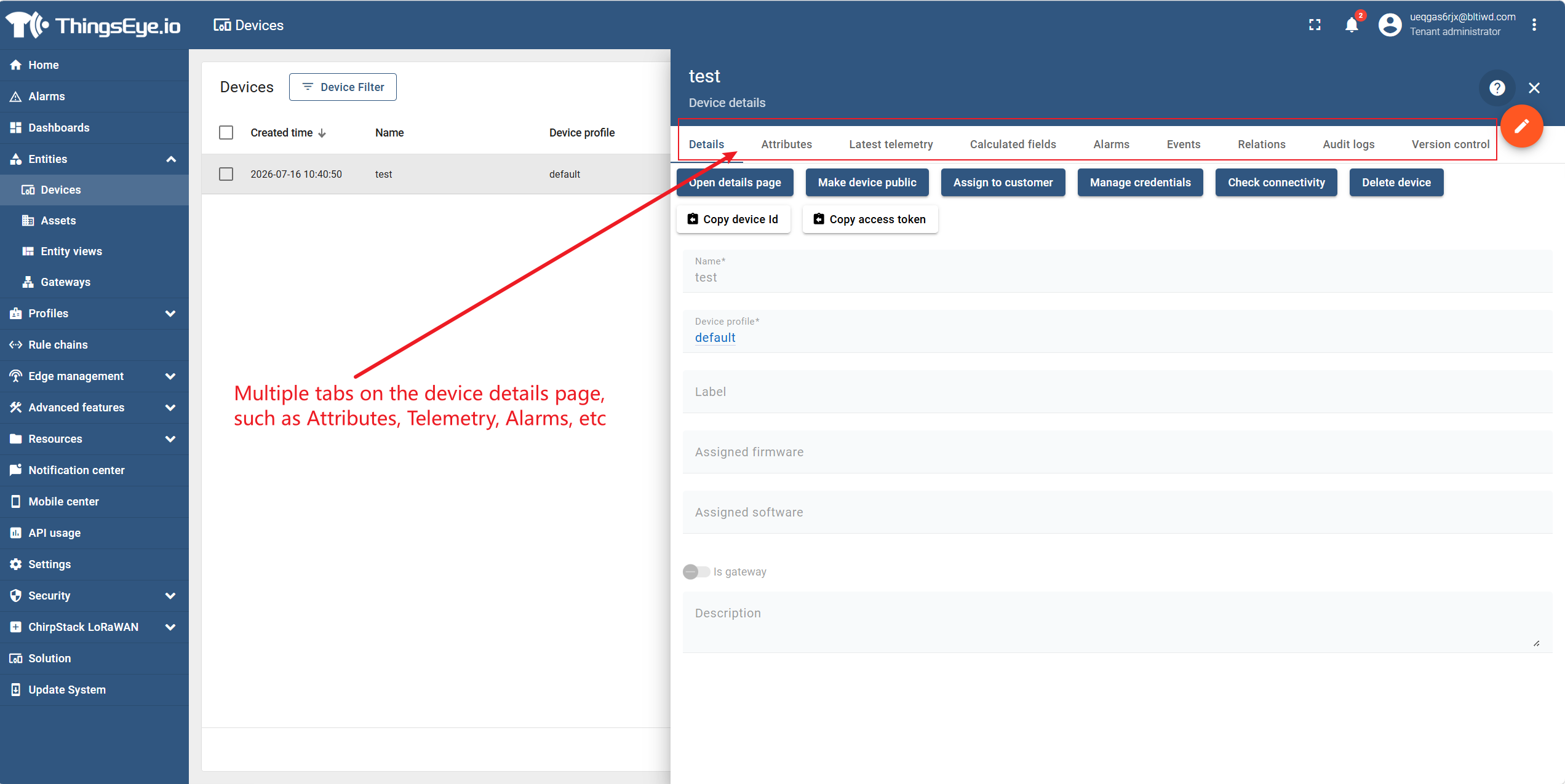
View the current device status in the basic information area of the device details page:
| Status | Description |
|---|---|
| Active | The device has successfully connected to the platform and communication is normal |
| Inactive | The device has disconnected, or has never connected to the platform |
| Disabled | The Tenant Administrator has manually disabled the device |
5. Delete a Device
Procedure
Important Note: Deletion is irreversible. Confirm that the device is no longer needed and that its historical data does not need to be retained.
Step 1: Go to the device management page
Expand "Entities" in the left navigation bar and click "Devices" to go to the device list page.
Step 2: Locate the target device
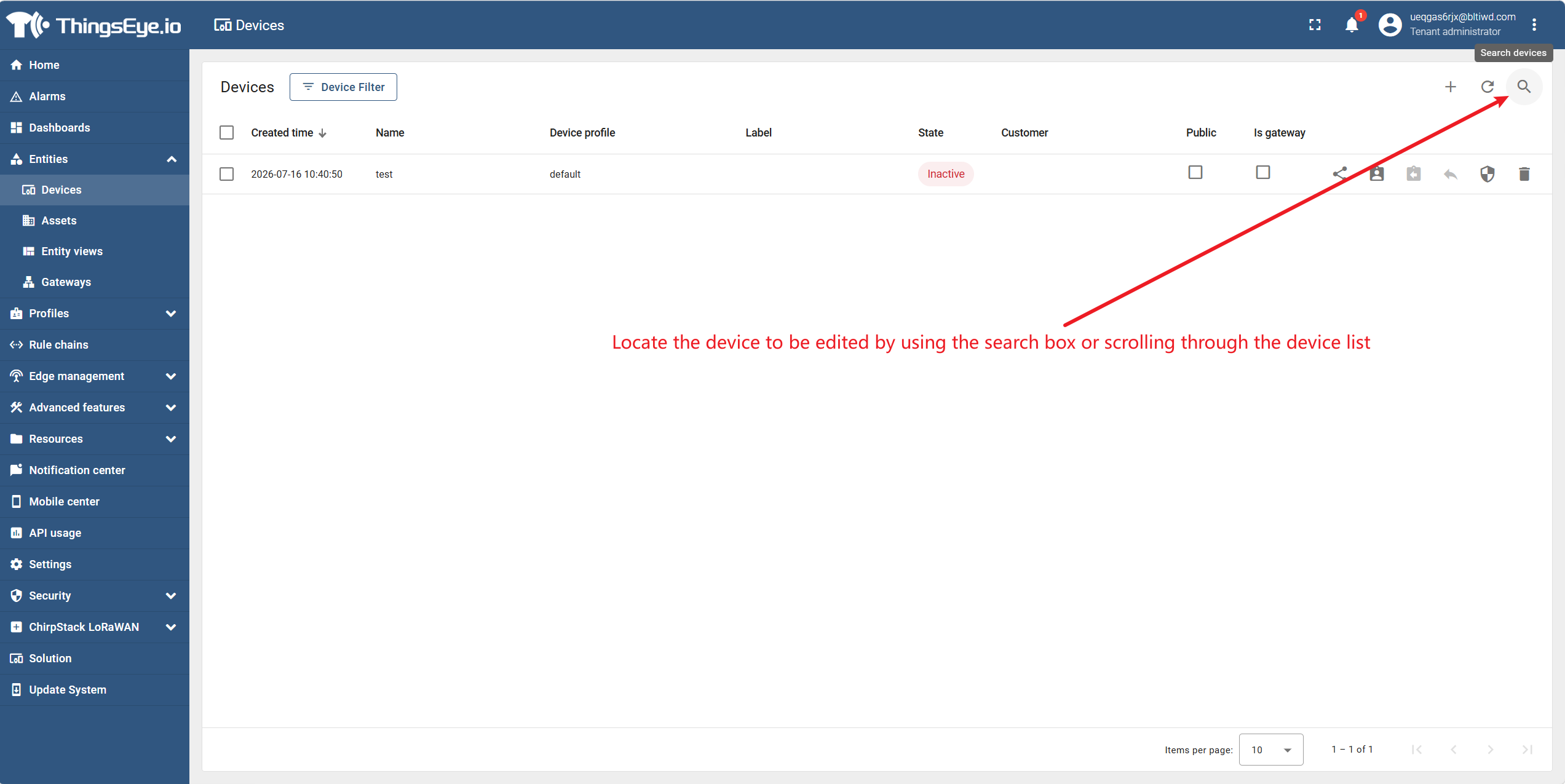
Find the device you want to delete using the search box or by scrolling through the list.
Step 3: Perform the deletion operation
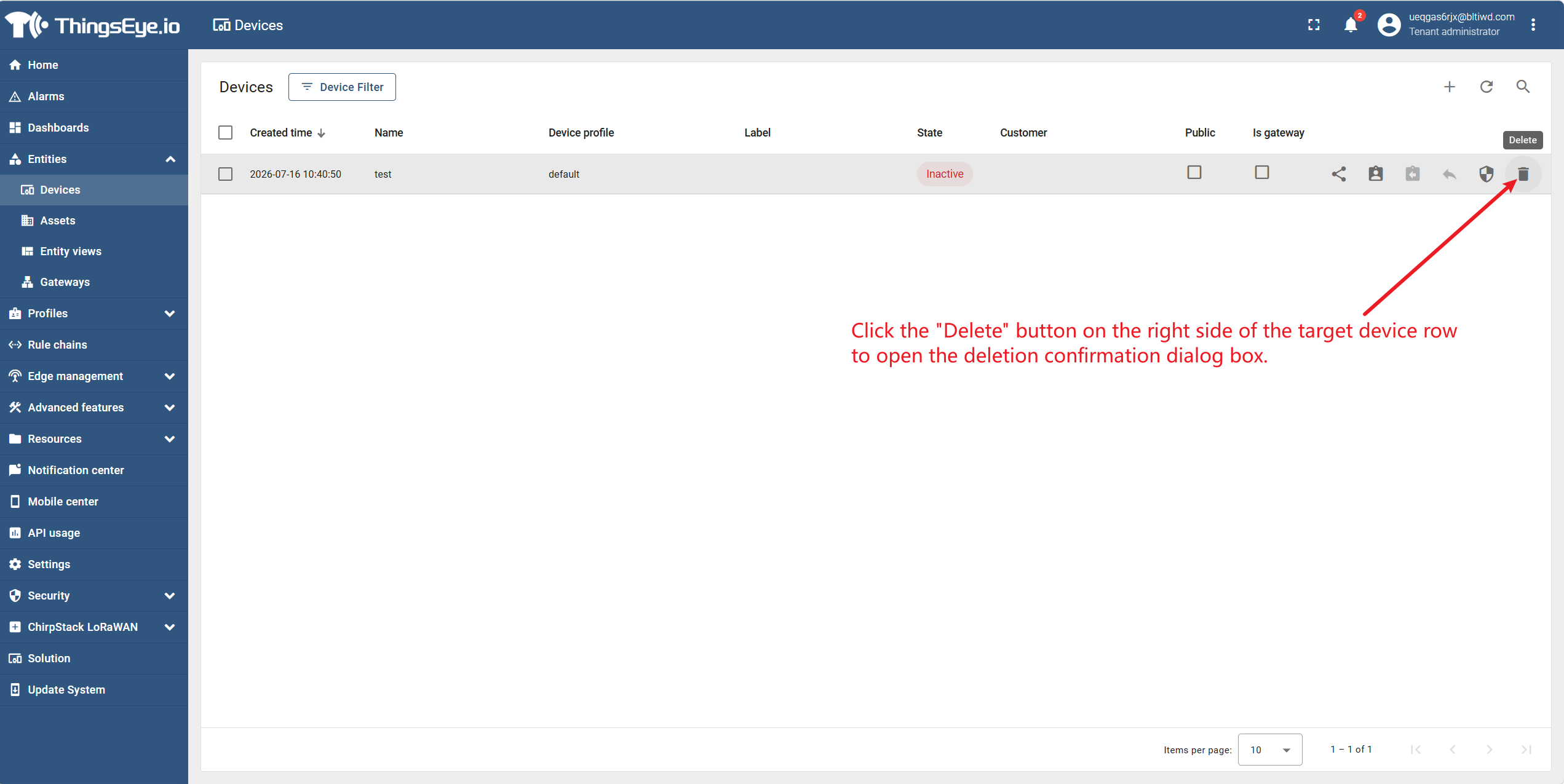
Click the "Delete" button on the right side of the target device row to open the deletion confirmation dialog.
Step 4: Confirm the deletion
Read the prompt message in the confirmation dialog and confirm the irreversibility of the deletion operation. Click the "Yes" button to complete the deletion.
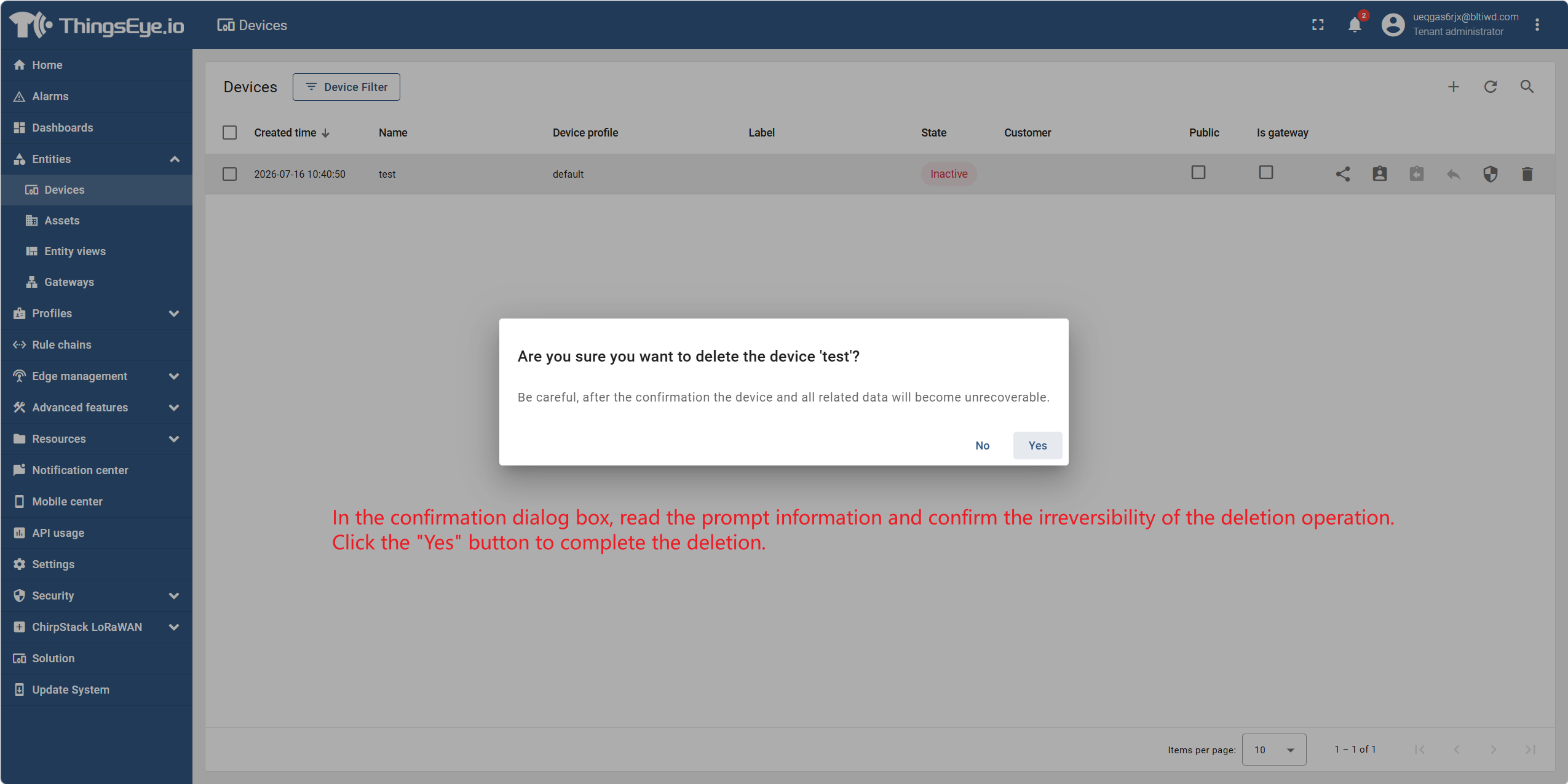
Note: Some platform versions require entering the device name for secondary confirmation to prevent accidental operations; follow the instructions in the dialog.
6. Create a Device Profile
Background
The Device Profile feature allows Tenant Administrators to centrally define and manage common settings for a group of similar devices. By pre‑defining transport protocols, rule chains, alarm rules, and other configurations, when creating devices later, you only need to select the corresponding profile to inherit all settings, eliminating the need to configure each parameter individually. The relationship between device profiles and devices is one‑to‑many: one profile can be assigned to multiple devices.
Procedure
Step 1: Go to the device profile page and open the creation dialog
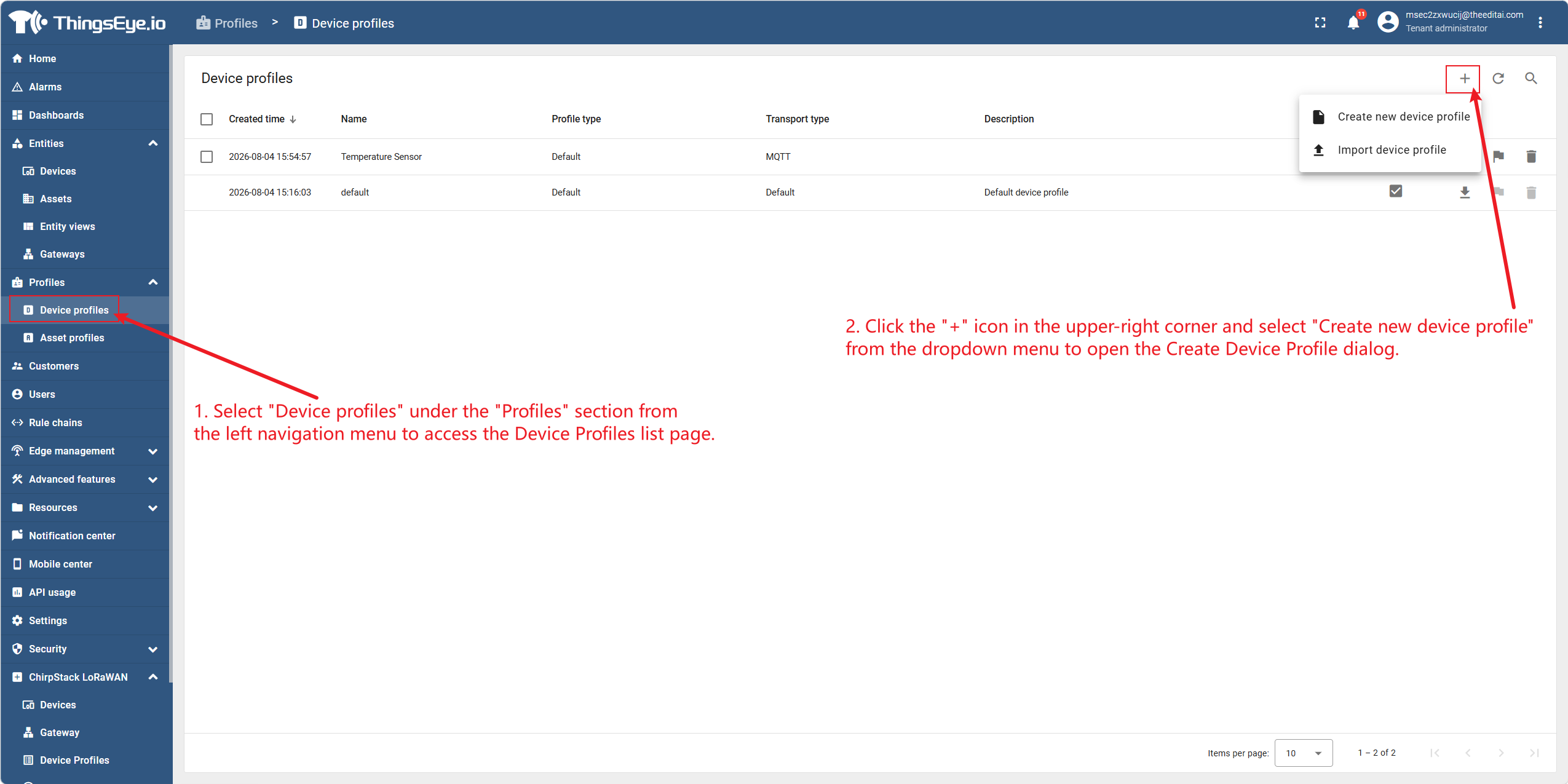
Select "Device Profiles" from the "Profiles" section of the left navigation bar to go to the device profile list page. Click the "+" icon in the upper‑right corner, select "Create New Device Profile" from the dropdown menu, and open the creation dialog.
Step 2: Fill in basic information and complete the creation
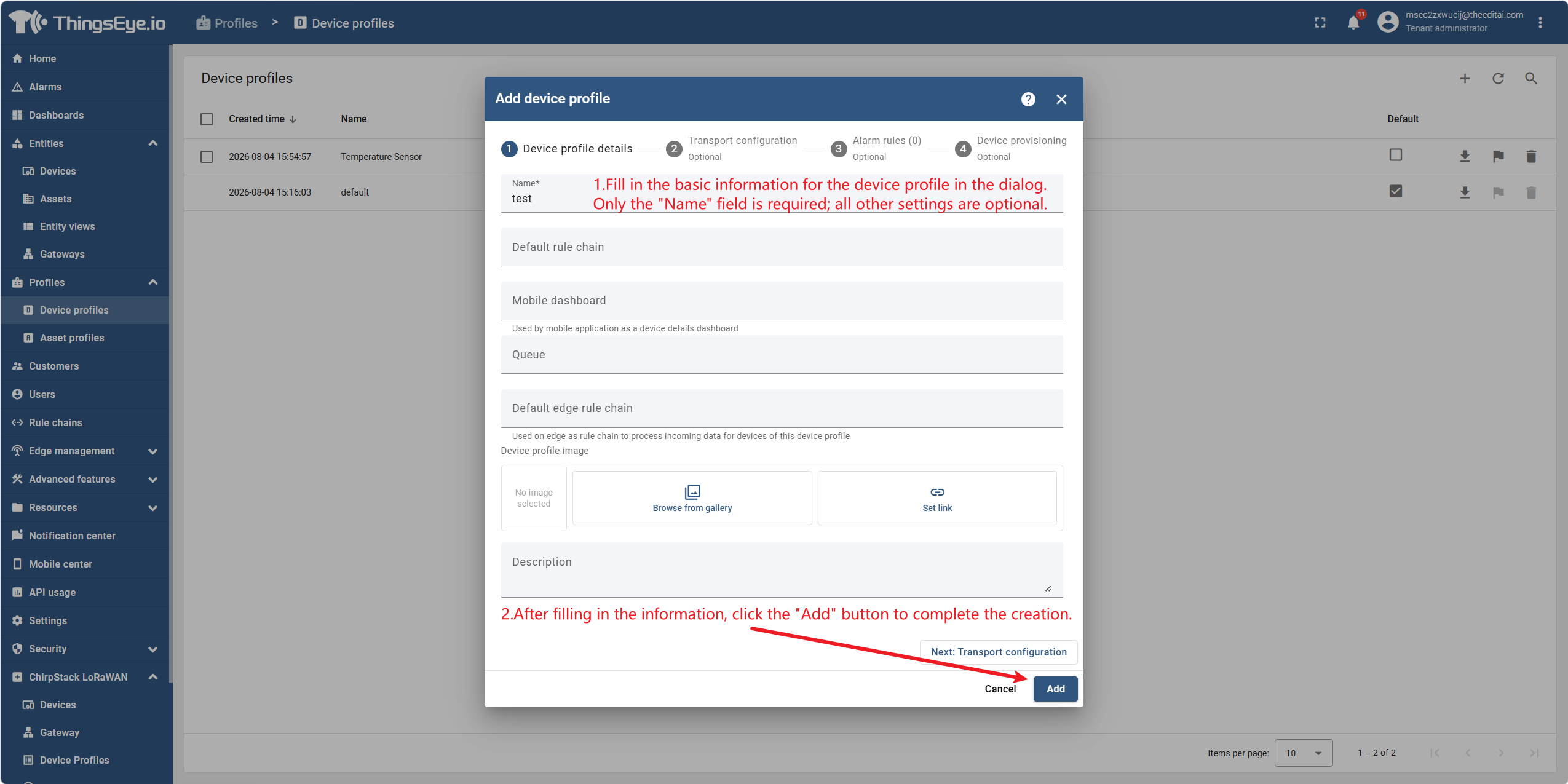
Fill in the basic information of the device profile in the dialog. Only the "Name" field is required; all other settings are optional.
| Field | Description | Required | Example |
|---|---|---|---|
| Name | The unique identifier name of the device profile | Yes | Temperature & Humidity Sensor Profile |
| Default Rule Chain | The rule chain that processes all device messages using this profile. Dedicated rule chains can be assigned to different device types to isolate processing logic | No | Temperature & Humidity Rule Chain |
| Queue | The queue that stores messages. Dedicated queues can be assigned to high‑priority devices (e.g., fire alarms) to prevent them from being blocked by high‑traffic devices | No | alarm-queue |
| Transport Type | The protocol for device‑platform communication: Default (standard HTTP/MQTT/CoAP), MQTT, CoAP, LWM2M, or SNMP | No | MQTT |
| Alarm Rules | Alarm conditions applicable to all devices using this profile, e.g., trigger a critical alarm when temperature exceeds 40°C | No | — |
Note: The Name field is required and cannot be left empty. Other fields can be modified after creation via edit mode.
After filling in the information, click the "Add" button to complete the creation. Once created successfully, the new device profile will appear in the profile list.
Supplementary Note: Full Configuration Items
After creating a device profile, Tenant Administrators can further configure the following advanced options on the details page:
| Configuration Item | Description |
|---|---|
| Details | Name, Default Rule Chain, Mobile Dashboard, Queue, Default Edge Rule Chain, Firmware/Software versions, profile image, and description |
| Transport Configuration | Protocol‑specific settings: authentication method, payload format, topic filters, etc. |
| Calculated Fields | Formulas that derive metrics from device telemetry or attributes |
| Alarm Rules | Alarm conditions, severity levels, and actions applicable to all devices using this profile |
| Device Provisioning | Auto‑registration methods, token generation, and provisioning strategies |
| Audit Logs | Operation history performed on this profile |
| Version Control | Git‑based export and restore for backup and collaboration |
Important Considerations
| Item | Description |
|---|---|
| Name Uniqueness | Device profile names must be unique within the tenant. |
| Transport Type Change Impact | Changing the transport type does not migrate existing device credentials; devices using incompatible credentials will need new credentials configured for the new transport type. |
| Custom Queue Prerequisite | Custom queues must be pre‑configured by the System Administrator before they can be used. |
| Configuration Inheritance | Alarm rules and calculated fields are shared by all devices using this profile. Device‑level configurations and profile‑level configurations take effect in parallel. |
7. Edit a Device Profile
Procedure
Step 1: Enter device profile edit mode
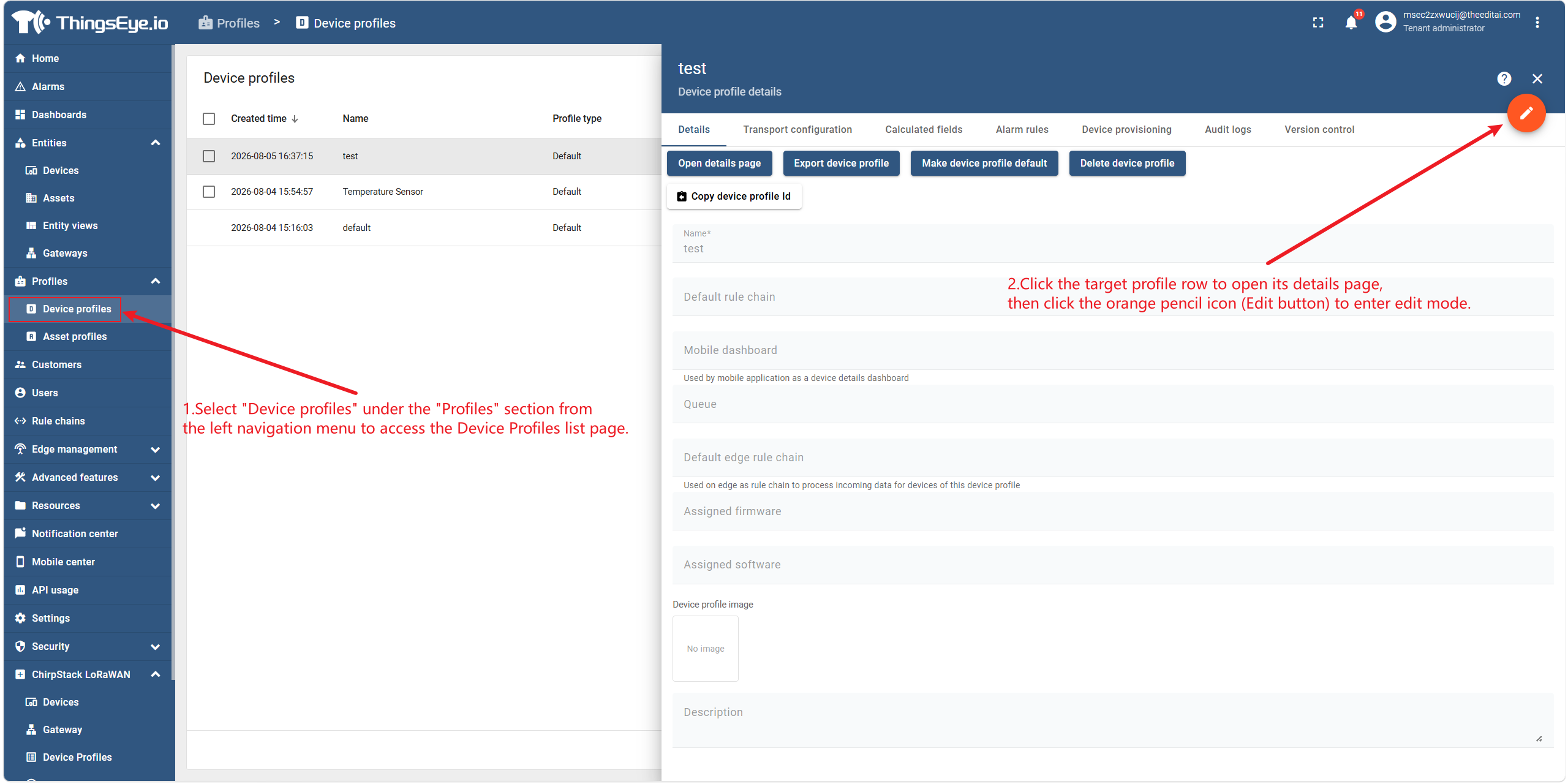
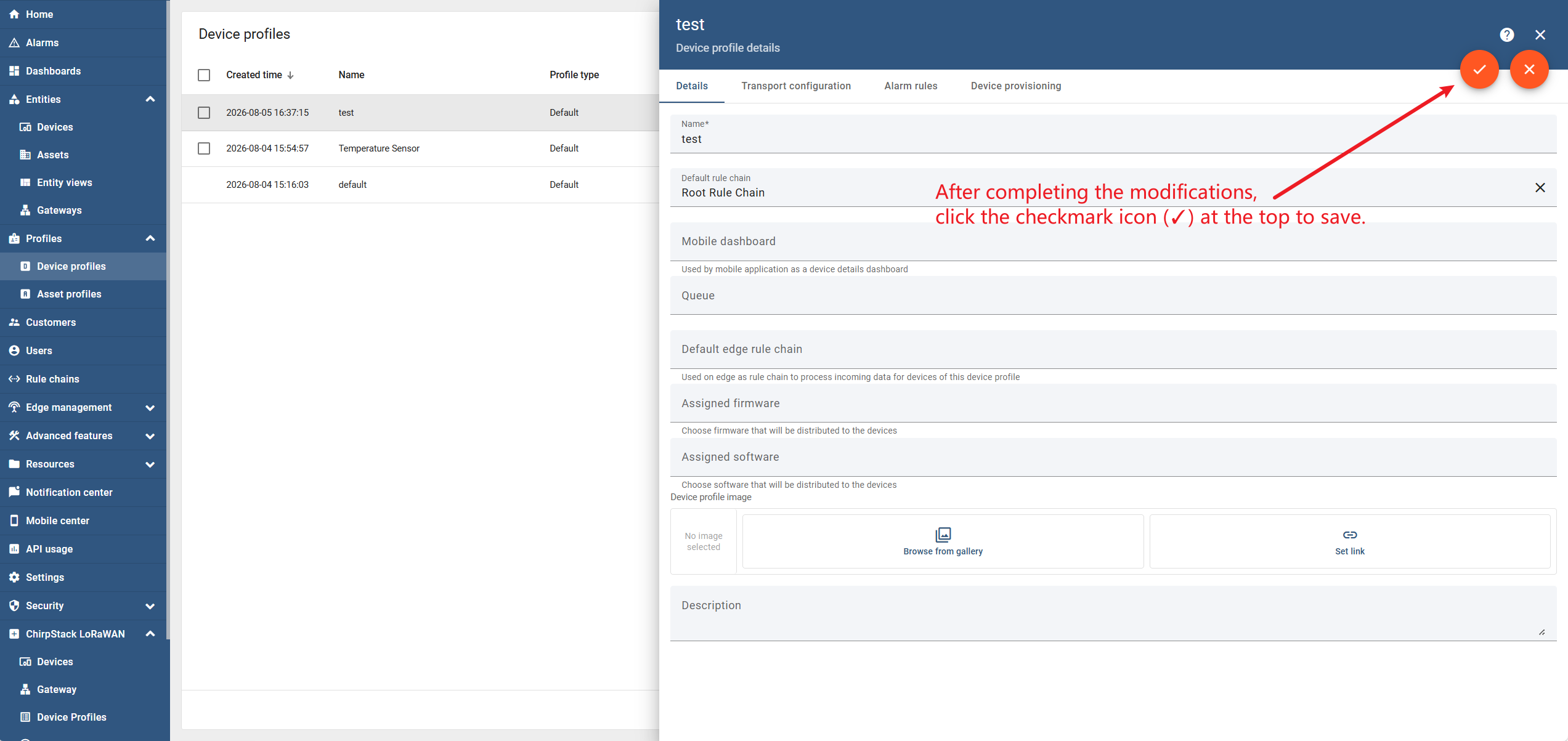
Select "Device Profiles" from the "Profiles" section of the left navigation bar to go to the device profile list page. Click the row of the target profile to go to its details page, then click the orange pencil icon (edit button) to enter edit mode.
Step 2: Modify profile information
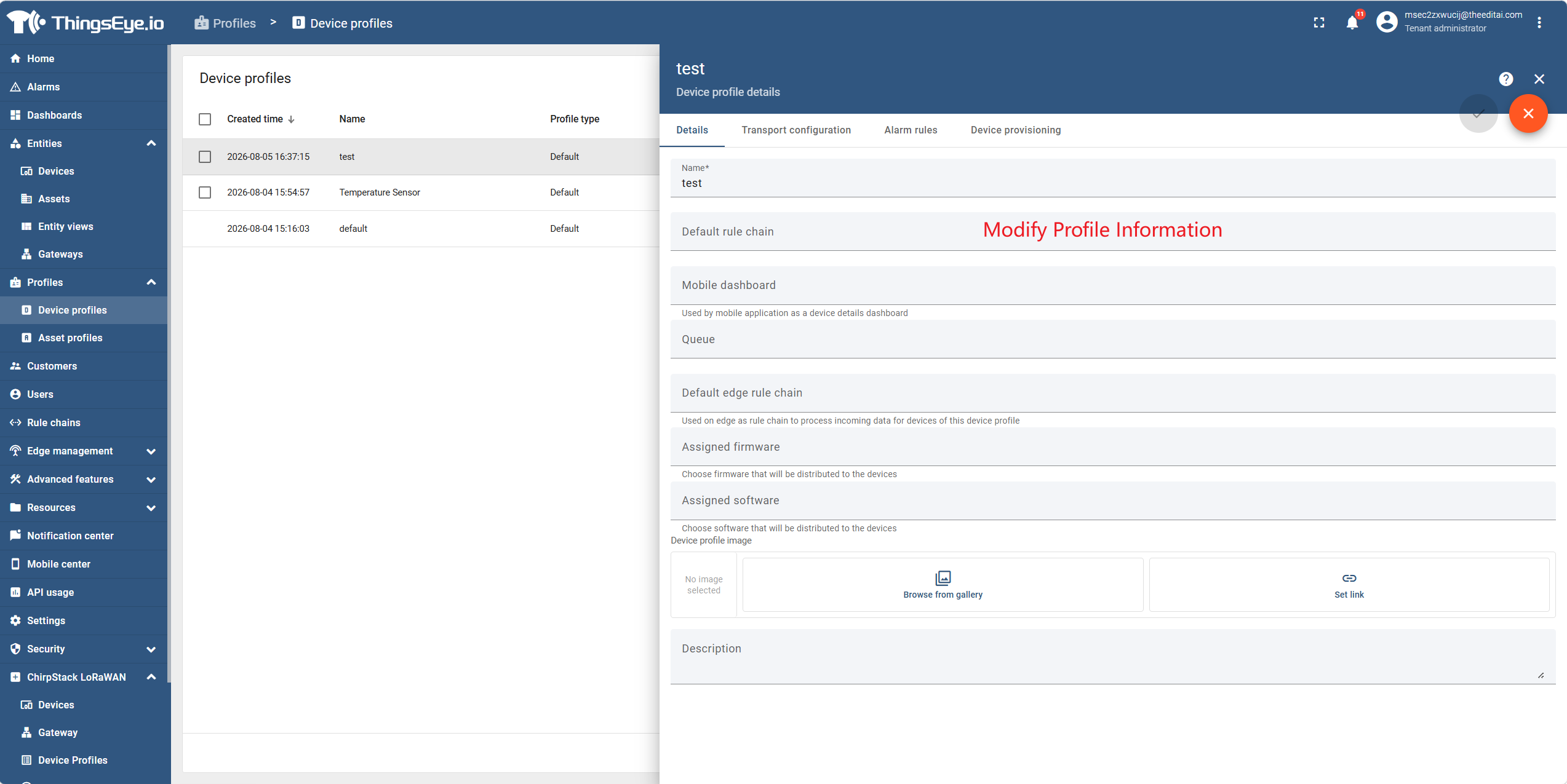
In edit mode, modify the fields that need updating. Field descriptions are as follows:
| Field | Description | Required | Example |
|---|---|---|---|
| Name | The unique identifier name of the device profile | Yes | Temperature & Humidity Sensor Profile |
| Default Rule Chain | The rule chain that processes all device messages using this profile | No | Temperature & Humidity Rule Chain |
| Queue | The queue that stores messages | No | alarm-queue |
| Transport Type | The protocol for device‑platform communication: Default, MQTT, CoAP, LWM2M, or SNMP | No | MQTT |
Important Note: The Name field is required and cannot be left empty. Changing the transport type does not migrate existing device credentials; devices using the original credentials will need new credentials configured to function properly.
Step 3: Save changes
After modification, click the checkmark icon (✓) at the top to save. To discard changes, click the "✕" button to exit edit mode.
Editing Other Advanced Configuration Items
In addition to basic information, the device profile details page provides multiple independent configuration tabs where Tenant Administrators can edit various advanced settings:
| Tab | Configuration Content |
|---|---|
| Transport Configuration | Protocol‑specific settings: authentication method, payload format, topic filters, etc. |
| Calculated Fields | Formulas that derive metrics from device telemetry or attributes |
| Alarm Rules | Alarm conditions, severity levels, and actions applicable to all devices using this profile |
| Device Provisioning | Auto‑registration methods, token generation, and provisioning strategies |
| Audit Logs | Operation history performed on this profile |
| Version Control | Git‑based export and restore for backup and collaboration |
Each tab is saved independently; modifications only affect the configuration items within that tab.
Important Considerations
| Item | Description |
|---|---|
| Name Uniqueness | Device profile names must be unique within the tenant. |
| Transport Type Change | Changing the transport type does not automatically migrate existing device credentials; they need to be manually regenerated. |
| Alarm Rules Shared | Alarm rules are shared by all devices using this profile; modifications affect all devices that use it. |
| Configuration Inheritance | Device‑level configurations and profile‑level configurations take effect in parallel and do not override each other. |
8. Delete a Device Profile
There are two ways to delete a device profile:
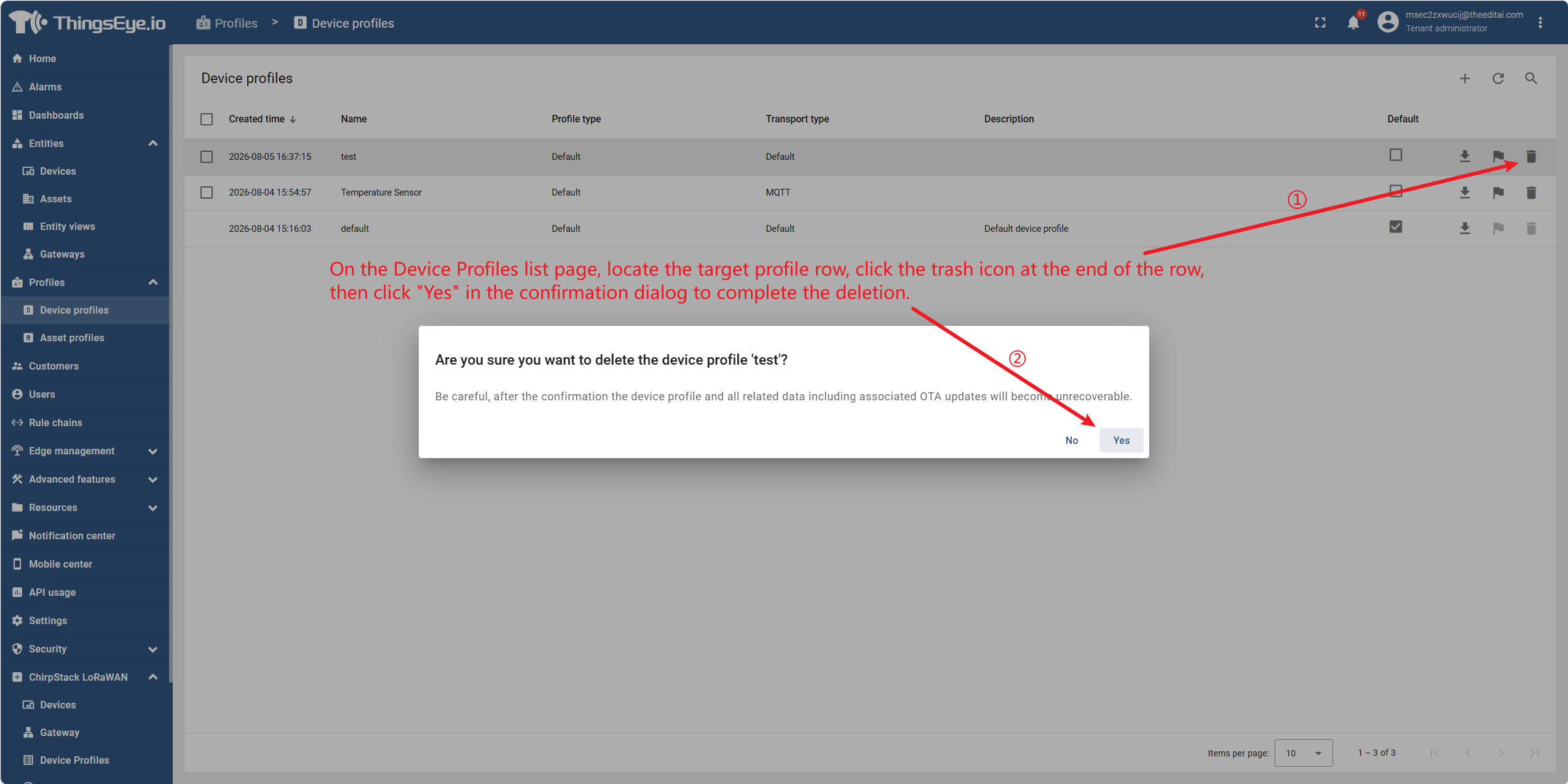
Method 1: Delete directly from the list page
On the device profile list page, locate the row of the target profile, click the trash can icon at the end of the row, then click "Yes" in the confirmation dialog to complete the deletion.
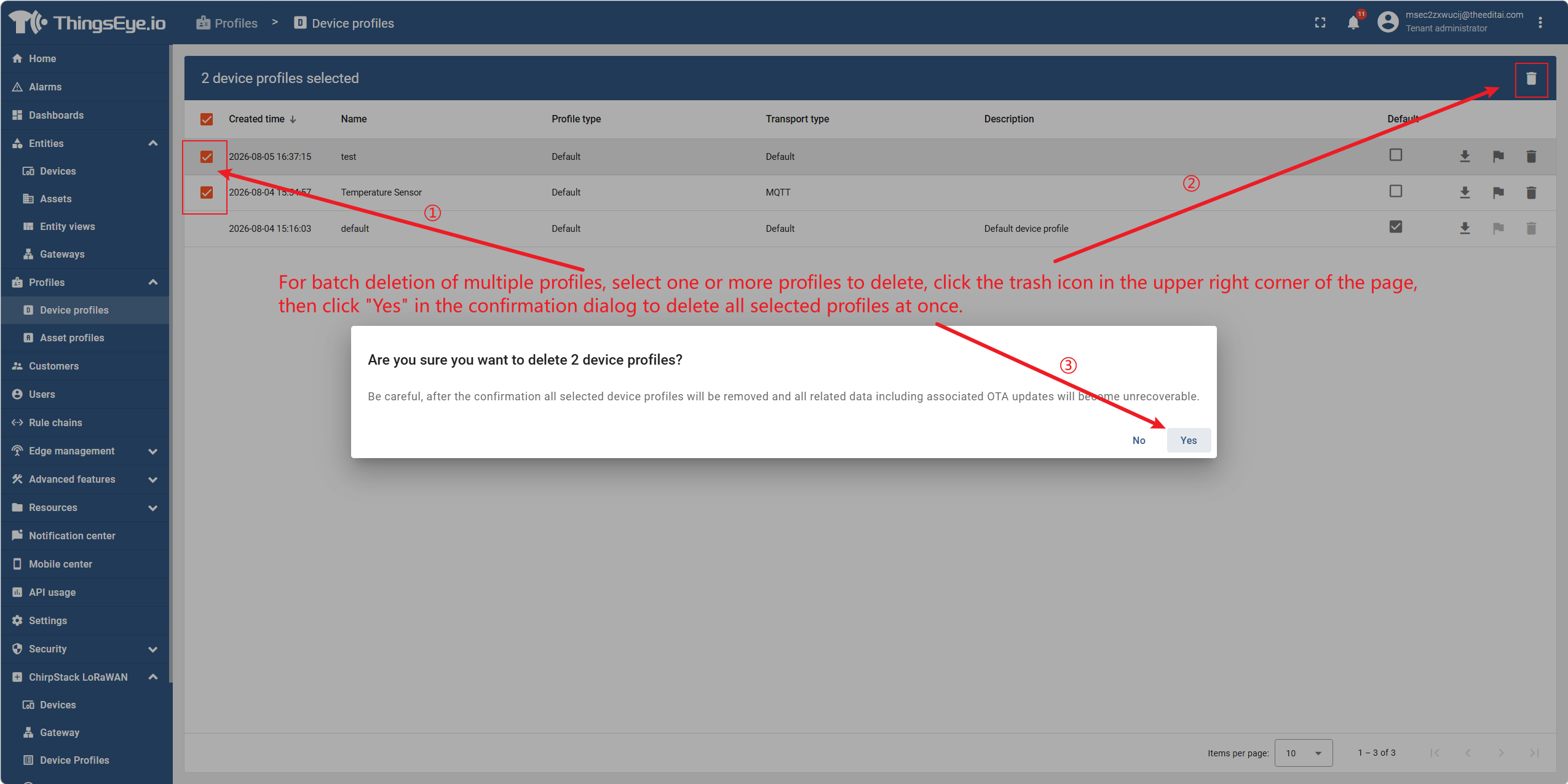
Bulk delete multiple profiles: Select one or more profiles to delete, click the trash can icon in the upper‑right corner of the page, then click "Yes" in the confirmation dialog to delete all selected profiles at once.
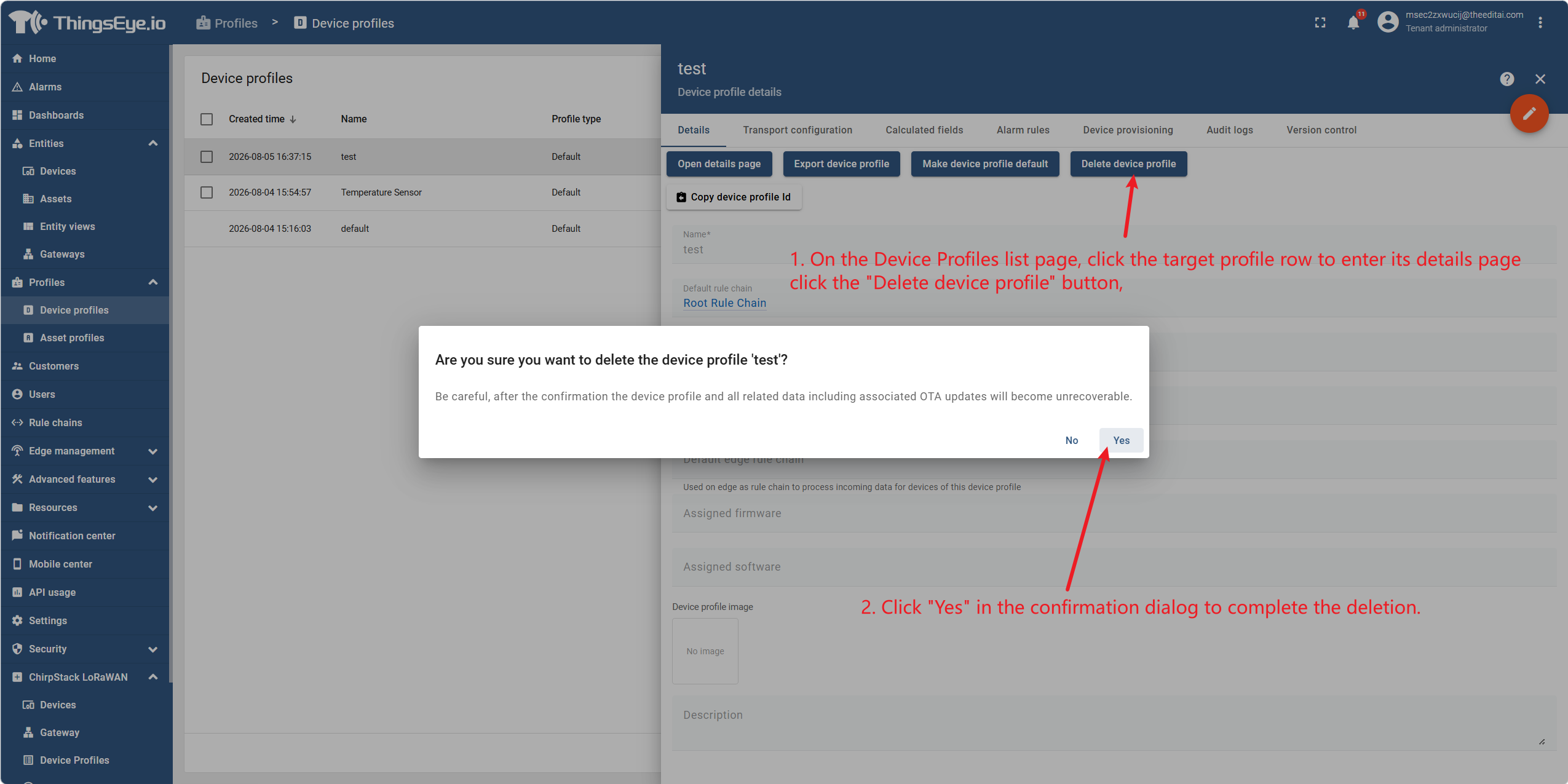
Method 2: Delete from the details page
On the device profile list page, click the row of the target profile to go to its details page, click the "Delete Device Profile" button, then click "Yes" in the confirmation dialog to complete the deletion.
Important Considerations
| Item | Description |
|---|---|
| Irreversibility | Deleting a device profile is irreversible; data cannot be recovered. |
| Secondary Confirmation | Each deletion operation requires secondary confirmation in a pop‑up dialog to prevent accidental operations. |
| Profiles Referenced by Devices | If a device profile is referenced by devices, you must first migrate those devices to other profiles before deletion; otherwise, device operation may be affected. |
| Profiles Referenced by OTA Packages | The platform allows deletion of profiles referenced by OTA upgrade packages, but after deletion, opening the details of that OTA package will cause an error. Confirm that the profile is not referenced by any OTA package before deletion. |
| Impact Scope | Deleting a profile does not affect the operational status of devices already created using that profile, but those devices will lose the profile configuration (e.g., alarm rules, calculated fields). |